

AI Photoshop for fashion and beauty: fix hair, wrinkles, and fabric distractions without over-retouching

- September 25, 2026
- Updated: September 25, 2026 at 11:49 AM
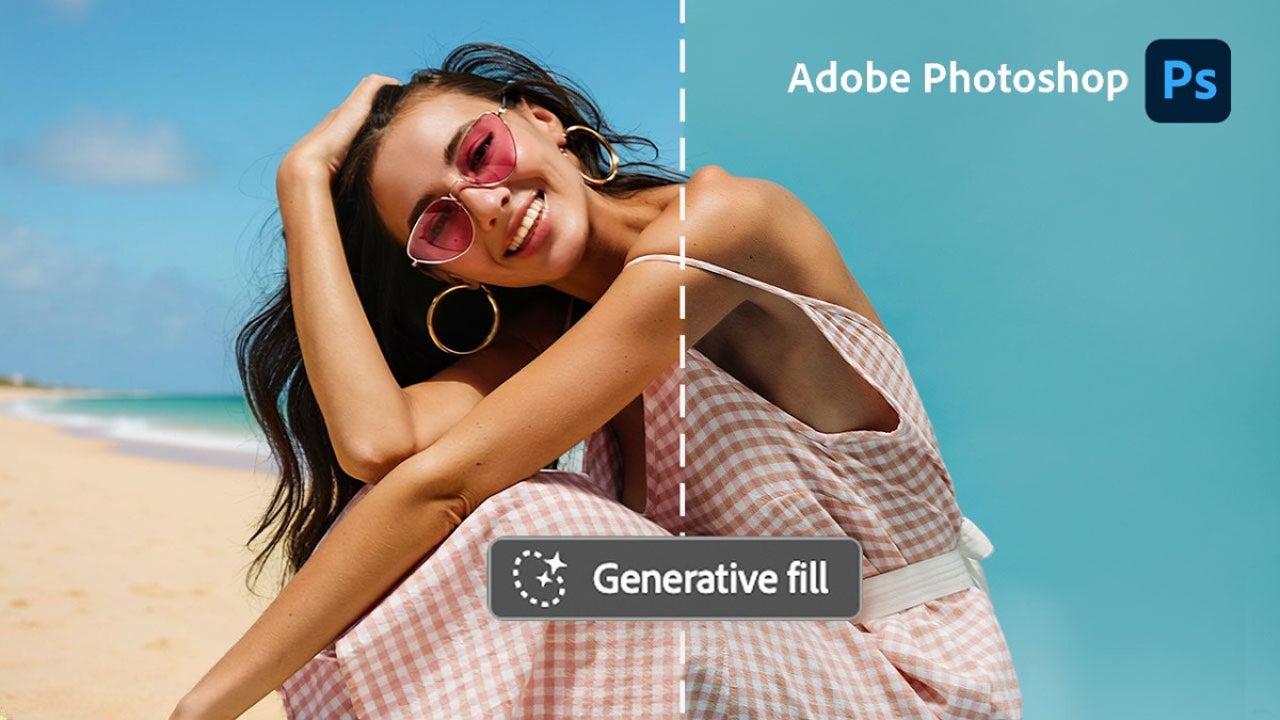
In the beauty industry, models have to look incredible and show off the product they’re trying to sell well. That’s why the most important thing is to make the model shine without it looking too artificial. And that’s where Photoshop comes in handy.
With each update, Photoshop has become an increasingly accessible and easy-to-use program, without sacrificing features along the way. The key to this lies in the integration of AI-powered tools. If you want to know how to use Photoshop for retouching, here’s a simple guide.

How to use Photoshop’s AI to edit a photo
It’s worth clarifying that in Photoshop there isn’t really a single AI tool that does everything for you. What you’ll find is a series of tools that will help you fix imperfect skin, fill in backgrounds, change the color of any item of clothing, and much more. Depending on the situation, you can use one tool or another (or combine them).
Removing hairs, pimples, or small distractions
In this case, the best thing you can do is use the Remove Tool.
- To start using it, simply select the tool and adjust the brush size for the area you’re going to erase.
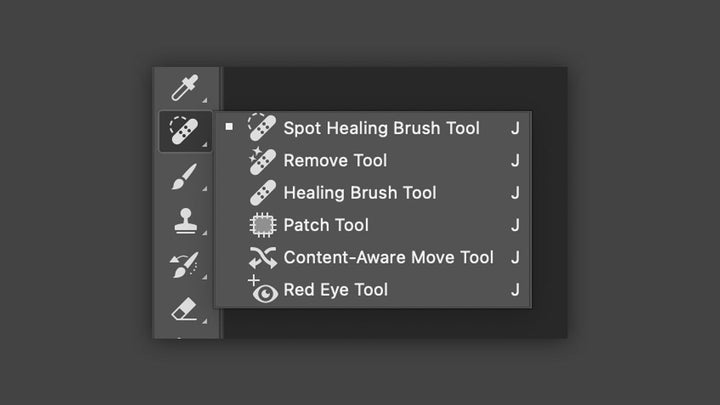
- Make sure you’re on the correct layer. You can check this in the Layers panel.
- Lastly, use short strokes, one by one. If you paint over too large an area, you’ll make the surface look too artificial.
Adding elements to the background or rebuilding specific areas
Placing new objects in an image is now much easier than ever thanks to Generative Fill. As well as adding or modifying elements, it can also help you remove larger ones if the Remove Tool doesn’t quite work.
- To use it, use any selection tool (such as the Lasso Tool or a similar one) to select the area you want to remove or modify, always leaving a small margin.
- Next you’ll see a small context menu with the Generative Fill option.
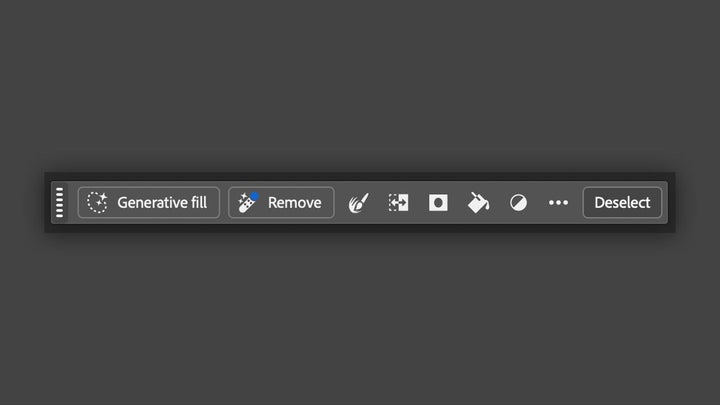
- Click on Generative Fill and leave the text box empty if you only want an element to disappear. If you want to add an object, you’ll have to briefly describe what you want to generate.
- You can choose between different generative models for the image if you want. Alongside Firefly, you can also use other third-party models from the Partner tab.
Selecting only the hair, the face, or pieces of clothing
If you want to make an accurate selection without wasting too much time, there are two excellent tools: Select Subject and the Object Selection Tool.
- To use Select Subject, first choose a selection tool like the Magic Wand, Object Selection Tool, or Quick Selection Tool.
- Then click on Select Subject. Using the arrow on the right, you can choose whether you want the image processing to run locally (Device) or in the cloud (Cloud).
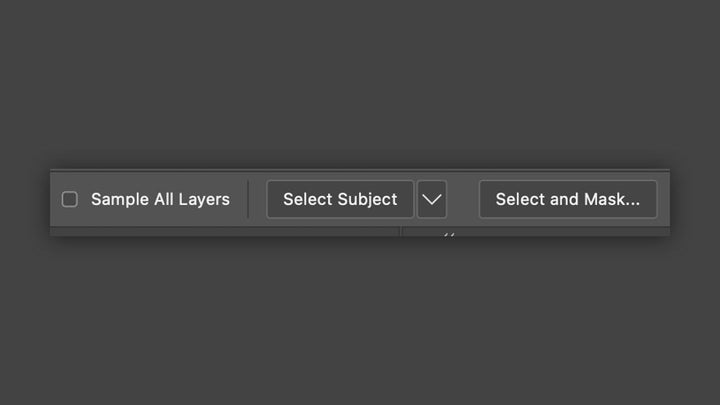
- The Object Selection Tool goes even further, since all you have to do is hover over the clothing, the hair, or the face for Photoshop to recognize it. If you’re making a hair selection, click on Select and Mask and use the Refine Hair option.
Retouching with masks
Thanks to layer masks, you’ll be able to apply any change you’ve made with AI without affecting the original image and go back to it when needed.
- To apply a layer mask, click on the rectangle icon with a circle in the middle. You’ll see it at the bottom of the Layers panel.
- When you do that, you’ll see a new white layer appear just to the right of your image. Select that white layer.
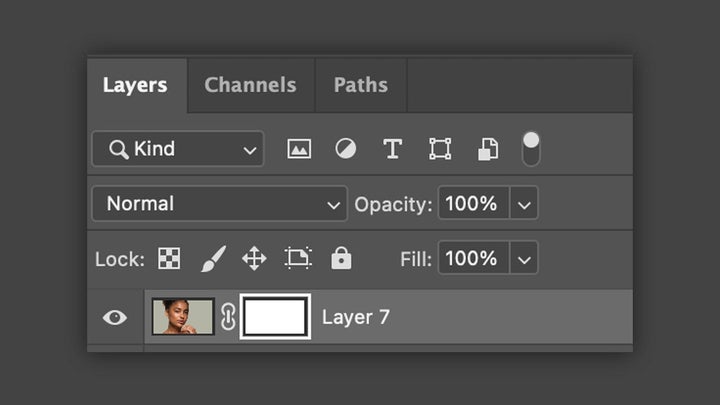
- Choose a brush and make sure black and white appear in the color swatches. Anything painted black will be hidden, anything white will remain visible. AI tools are a big help, but it’s worth being aware of their limits. In many cases, they may invent details that weren’t there before or create unrealistic edits. In those cases, you can always make additional manual adjustments and use tools like Clone Stamp Tool or Healing Brush Tool.
Choose Softonic on Google and you'll see more of our articles in Top Stories, AI Overviews and AI Mode.
Artist by vocation and technology lover. I have liked to tinker with all kinds of gadgets for as long as I can remember.
Latest from María López
- How to get the most out of Adobe Firefly’s free daily generations
- Adobe Firefly vs generic AI image tools: which fits real brand workflows better?
- How to turn raw clips and long videos into social-ready content with Adobe Firefly video editor
- How to use reference images, video, and voice in Adobe Firefly to generate more consistent concept scenes
You may also like
 News
Nintendo Switch 2 hits $499: PS5, Xbox and Steam Deck prices are up too
Read more
 News
The Rings of Power season 3 forges the One Ring at last: Prime Video planned it for years
Read more
 News
Clockwork Revolution now targets 2027: the BioShock comparison is real
Read more
 News
GTA 6 on PS5 could unlock early in New Zealand: play up to 13 hours ahead
Read more
 News
Stellar Blade Complete Edition is out on Switch 2: Digital Foundry says it’s better than expected
Read more
 News
Fortnite reveals Pirate Shop Access odds after backlash: 1 in 137,500
Read more