

Premiere Pro + Firefly: how to test three opening hooks for the same campaign video before final edit

- September 29, 2026
- Updated: September 29, 2026 at 4:49 PM
The first seconds of a video are key to viewer retention. The thing is, if the beginning doesn’t grab viewers right away, people will scroll past it instantly. Luckily, with Adobe Premiere and Firefly you can quickly try out different versions and see which hook works best.
Below, we explain step by step how to create different openings with Adobe’s tools.
Use a good hook for your video
What we call a “hook” is nothing more than the start of any video, the first few seconds or minutes. If you want your videos to make an impact, a good hook is what will keep people watching.
There isn’t just one kind of hook: it can be a question, striking images, fast camera movements, etc. This also poses a problem, because no one can guarantee which hook works best. That’s why trying several options will help you decide (or help others decide).
One quick way is to split the video into two parts: one part is the beginning and the other is the rest of the video. In Premiere, you can do this with nested sequences.
A nested sequence is a group of clips that behave as if they were a single clip. To create one, do the following:
- First, select all the clips in the timeline you want to group together (hold Shift while clicking them one by one).
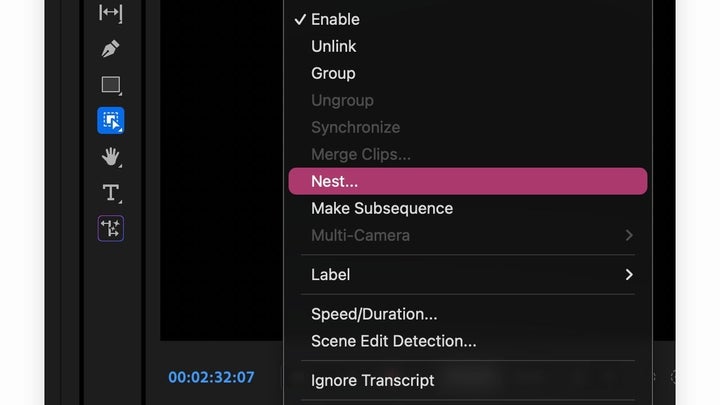
- Right-click on any of the selected clips and choose Nest. A small window will open where you’ll have to give it a name.
- In the timeline you’ll see a single clip in a different color replacing the ones you selected.
Use Firefly to create variations
Firefly is especially useful when it comes to creating visual assets, which will help you edit different versions without having to spend too much time.
Besides images, Firefly can also generate short clips from a written description. This can come in very handy for trying out different ideas or shots without having to shoot them yourself again.
Generating video clips in Firefly is very simple:
- Go to the Adobe Firefly website from your browser. You can also use the official app available on iOS and Android.
- If you’re using the browser, go to the text box at the top. In that box, click on Image and switch to Video.
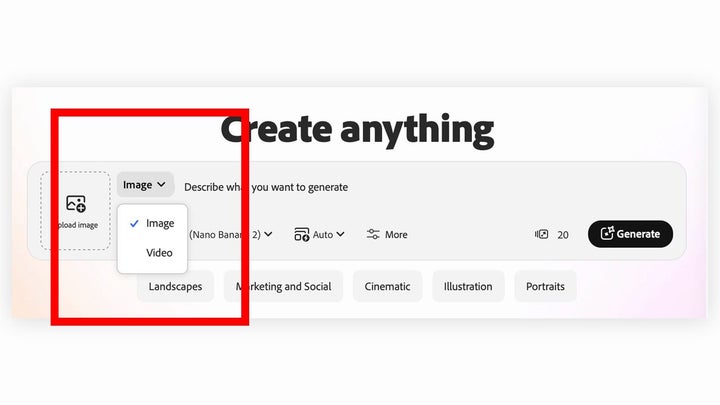
- Right below you’ll also see a button to switch between different video generation models. Adobe’s is Firefly Video, but you can also choose from third-party models like Veo 3.1, Seedance 2.0, and many more. Besides clips, for different variations you can try adding subtitles, voice-overs, or animated graphics that help hold the viewer’s attention. If you can, get other people to watch your videos and give you their opinion on the different hooks.
Premiere’s most useful features
Premiere has many useful features to make your editing much easier. Some features that may be useful to you are:
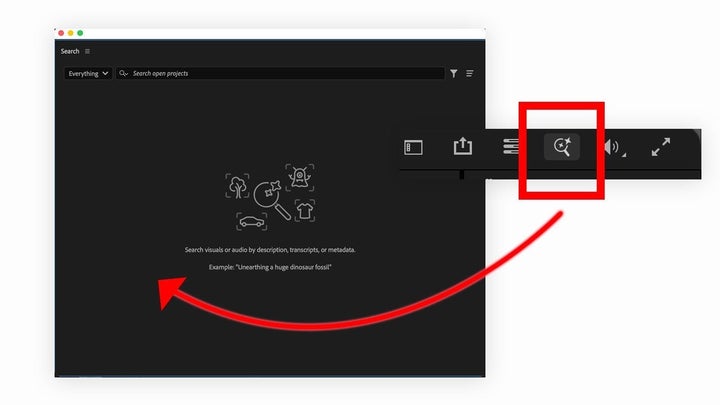
- Smart search: Searching for assets becomes faster thanks to Media Intelligence. Import your clips and let Premiere analyze the content in the background. Then, open the Search panel by selecting the magnifying glass icon in the upper right corner. Premiere will show results for visual elements, audio, text, and metadata.
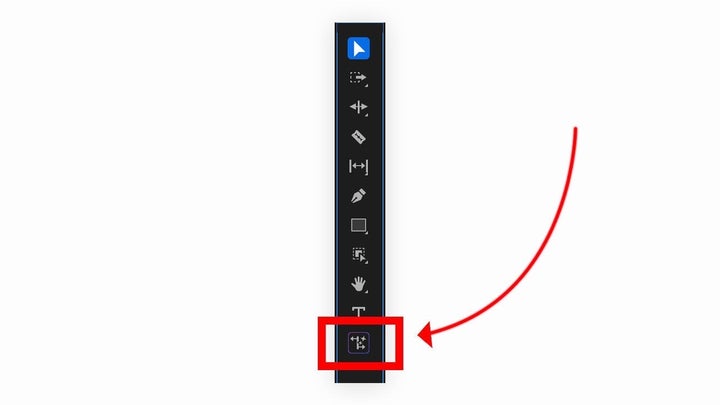
- Generative Extend: Sometimes a shot can end up shorter than we’d like. Luckily, Premiere has added a new feature called Generative Extend that lets you extend clips a bit. In the timeline, click on the clip you want to lengthen and then select the Generative Extend tool. Finally, drag the edge of the clip to the desired length.
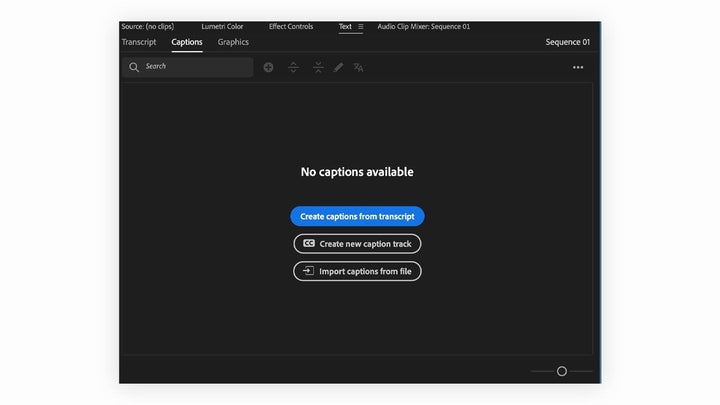
- Add subtitles: Subtitles are a great addition for videos intended for social media. To generate subtitles automatically, open the Text panel (Window > Text) and click on Captions. Afterward, select Create captions from transcript. In the Create captions dialog box you’ll be able to choose the format and style of the subtitles, among other things.
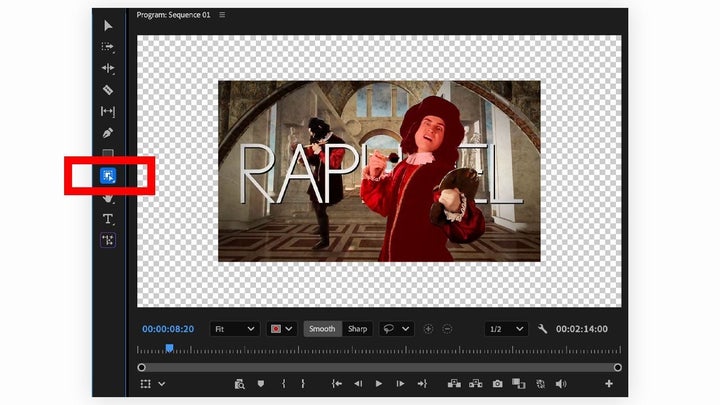
- AI object masks: If you want to darken a background or replace it with another one, the mask tool will be very useful. Thanks to AI, Premiere can automatically identify objects and people in your clips. To use it, select Object Mask in the toolbar and move the mouse over the clip preview. Next, you’ll see objects and people automatically highlighted as you move the cursor.
Firefly and Premiere, a great creative combo
Using Firefly and Premiere is a great idea for creating more and better content without spending too much time on it. And if you want to improve your workflow even more, follow these steps:
- First, put together the main body of the video: Before thinking about the opening, finish the rest of the video first, including the message, music, and everything else. Once you have the video finished, group it into a nested sequence.
- Think of several different hooks: Use Firefly Boards to keep your references close at hand. Make an effort to come up with several distinct ideas that aren’t slight variations of the same one.
- Gather the assets you need for those hooks: Use Firefly if necessary to create the visual material needed.
- Ask others for feedback on your videos: If you can, have others watch and share their thoughts on your video and its different hooks. This can help you get an honest perspective on your work.

Choose Softonic on Google and you'll see more of our articles in Top Stories, AI Overviews and AI Mode.
Artist by vocation and technology lover. I have liked to tinker with all kinds of gadgets for as long as I can remember.
Latest from María López
- How to get the most out of Adobe Firefly’s free daily generations
- Adobe Firefly vs generic AI image tools: which fits real brand workflows better?
- How to turn raw clips and long videos into social-ready content with Adobe Firefly video editor
- How to use reference images, video, and voice in Adobe Firefly to generate more consistent concept scenes
You may also like
 News
Nintendo Switch 2 hits $499: PS5, Xbox and Steam Deck prices are up too
Read more
 News
The Rings of Power season 3 forges the One Ring at last: Prime Video planned it for years
Read more
 News
Clockwork Revolution now targets 2027: the BioShock comparison is real
Read more
 News
GTA 6 on PS5 could unlock early in New Zealand: play up to 13 hours ahead
Read more
 News
Stellar Blade Complete Edition is out on Switch 2: Digital Foundry says it’s better than expected
Read more
 News
Fortnite reveals Pirate Shop Access odds after backlash: 1 in 137,500
Read more