
Xbox Cloud Gaming now lets you use your phone as a controller on TVs
QR code launches browser controls with no extra app needed

- November 5, 2026
- Updated: November 5, 2026 at 8:28 AM
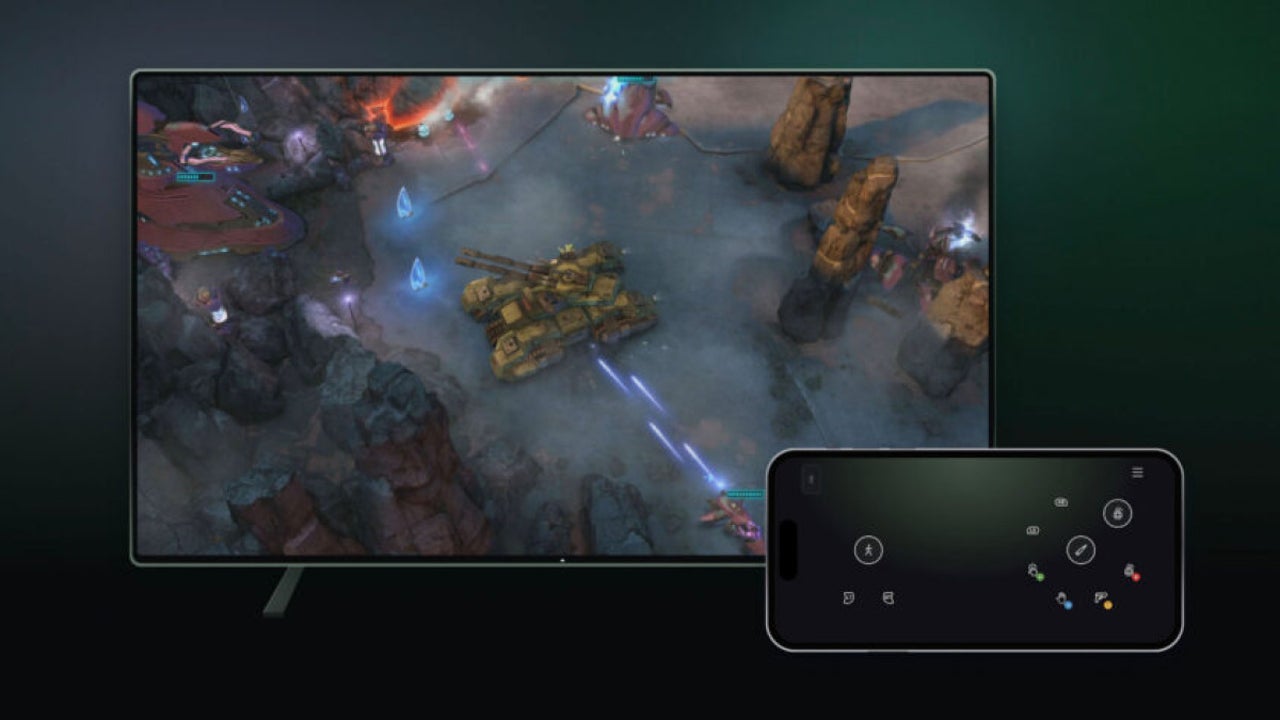
No controller nearby? Microsoft is testing a new Xbox Cloud Gaming preview that turns your Android phone or iPhone into a controller on supported smart TVs running the Xbox app. In the US, it’s also previewing Cloud Connect for the $49.99 Xbox Nano Controller.

If you launch an Xbox Cloud Gaming game on your TV without a controller connected, you’ll see a QR code. Scan it, and your phone opens the controls right in the browser, with no extra app to install. Some games also get touch layouts built specifically for that title. To switch it on, open the Xbox app on the TV and go to Settings > Account > Preview Features.
Cloud Connect works a little differently. It links the Xbox Nano Controller over Wi Fi directly to Xbox cloud servers, not over Bluetooth to the TV, and Microsoft says that can reduce lag. Setup requires the Xbox beta app on Android or the Xbox Accessories app on PC. If you’re doing it on PC, you’ll also need Xbox Insider.
If you play Xbox Cloud Gaming on a TV, this is probably worth trying, especially as Microsoft keeps pushing Xbox beyond the console itself. That comes after Microsoft said Xbox hardware revenue fell 33% year over year in Q3 FY2026. Still, how good it feels will depend on two very basic things: whether you’re comfortable using touch controls, and how much latency you notice.
The rollout covers all regions where TVs support the Xbox app, including Samsung models from 2021 and newer, LG models from 2022 and newer, Fire TV, and VIDAA OS. Cloud Connect, for now, is limited to TVs and the web.

Keep up with Softonic
Get our latest tech news first, wherever you read.
Manuel Bosque covers software at Softonic: desktop programs, productivity tools and the small utilities that solve one problem well. His approach is practical — what a program actually does, what it asks in return and who it is for — which is why he distrusts feature lists and prefers to test. He is part of the team that decides how software gets covered on the site, and works daily with AI tools applied to editorial production.
Latest from Manuel Bosque
You may also like
- News
Tech layoffs in 2026 update: 206,000 jobs cut worldwide
Read more
 News
Apple Intelligence clears China hurdle: iPad and Mac approved ahead of December rollout
Read more
 News
Grok now says Elon Musk replied to a Nazi account on X
Read more
 News
Samsung Galaxy S27 leaks: Pro and Ultra may dominate the lineup
Read more
 News
Elden Ring: Path of the Cardinal Sin ends with Melina art, not DLC
Read more
 News
Xbox Series X is still worth buying in 2026: 4K power, Game Pass value
Read more