
How To
5 privacy tips for Google Chrome on Android

- July 31, 2018
- Updated: July 2, 2025 at 6:13 AM
Google Chrome is the default browser for Android. This means that all program settings come enabled by default… for better or for worse. In the case of privacy, there are several tips that can help make your browser more secure, so here are five privacy tips for Google Chrome on Android.

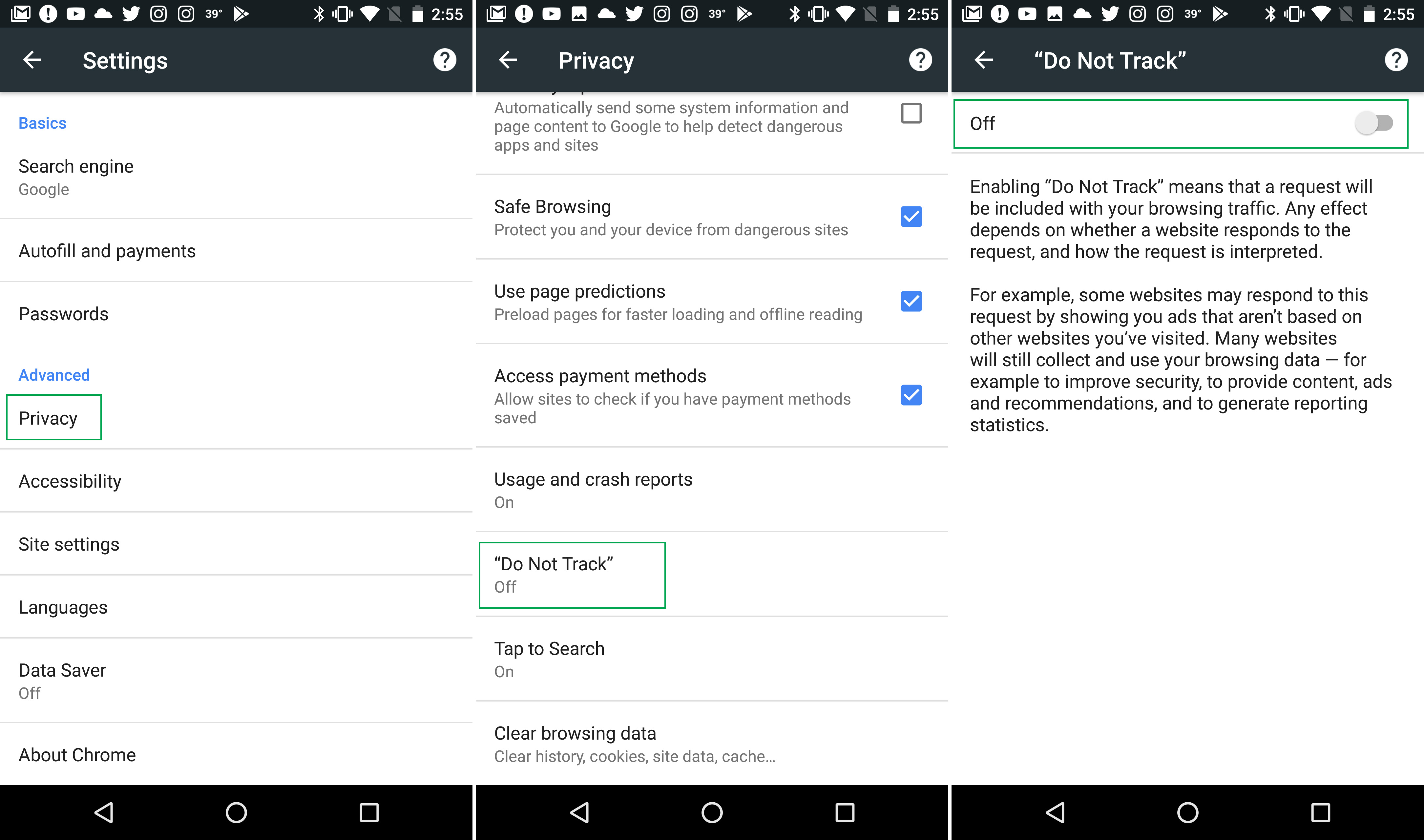
Enable “do not track”
When you go to a web page, you generally accept cookies: little bits of information that are sent to a server to know more about your preferences. Luckily, it can be disabled.
Once you’re on Google Chrome, click on the three dots on the top right and select “Settings.” From here, go to the section “Privacy,” click on it and look for a box called “Do Not Track.” Click here and enable the option that appears disabled by default. It’s that easy to cut off tracking.
Secure browsing
Under the same section (Settings > Privacy), look for the section called “Secure browsing.” Enable “Protect you and your devices from dangerous sites.”
Turn off autofill
At some point, you’ve been on a web form and all the fields have automatically filled in once you type the first letter. This is more common than you think, since we save our passwords and data on our PC and/or cell phone.
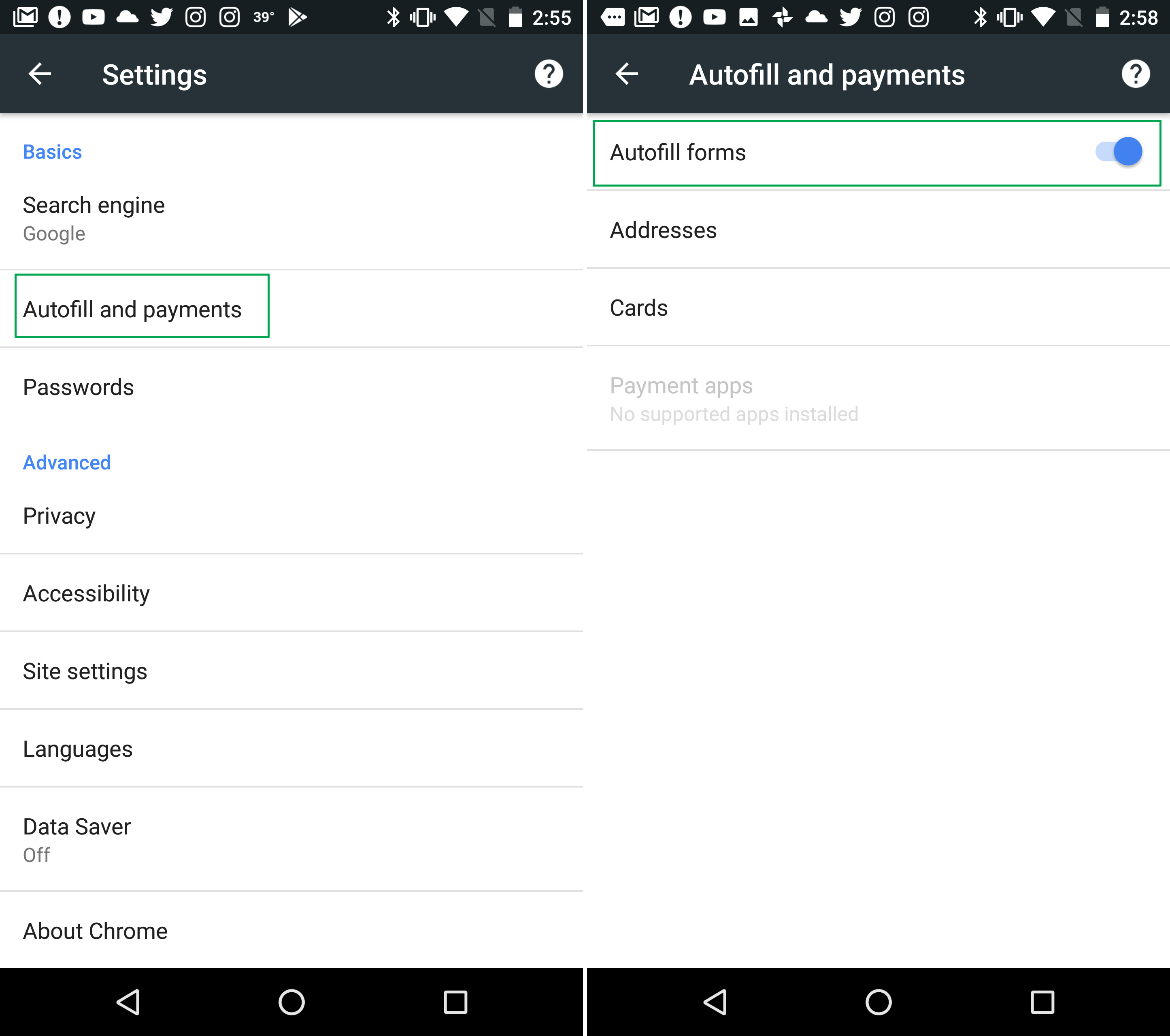
On your computer, it’s bad enough, but it’s worse for your cell phone. After all, if it gets stolen, all your information is exposed. Go to “Settings” > “Autofill settings” and disable “Autofill forms.” It’s typically enabled by default, so you just have to click on the button to disable it.
Usage statistics and crash reports
Usage statistics and crash reports often include personal information. So, it’s sometimes advisable to disable them. Under “Privacy,” look for the section “Usage statistics and crash reports.” Click there and disable them. It will stop sending info to Google, and it may also speed up your smartphone a bit.
Website content settings
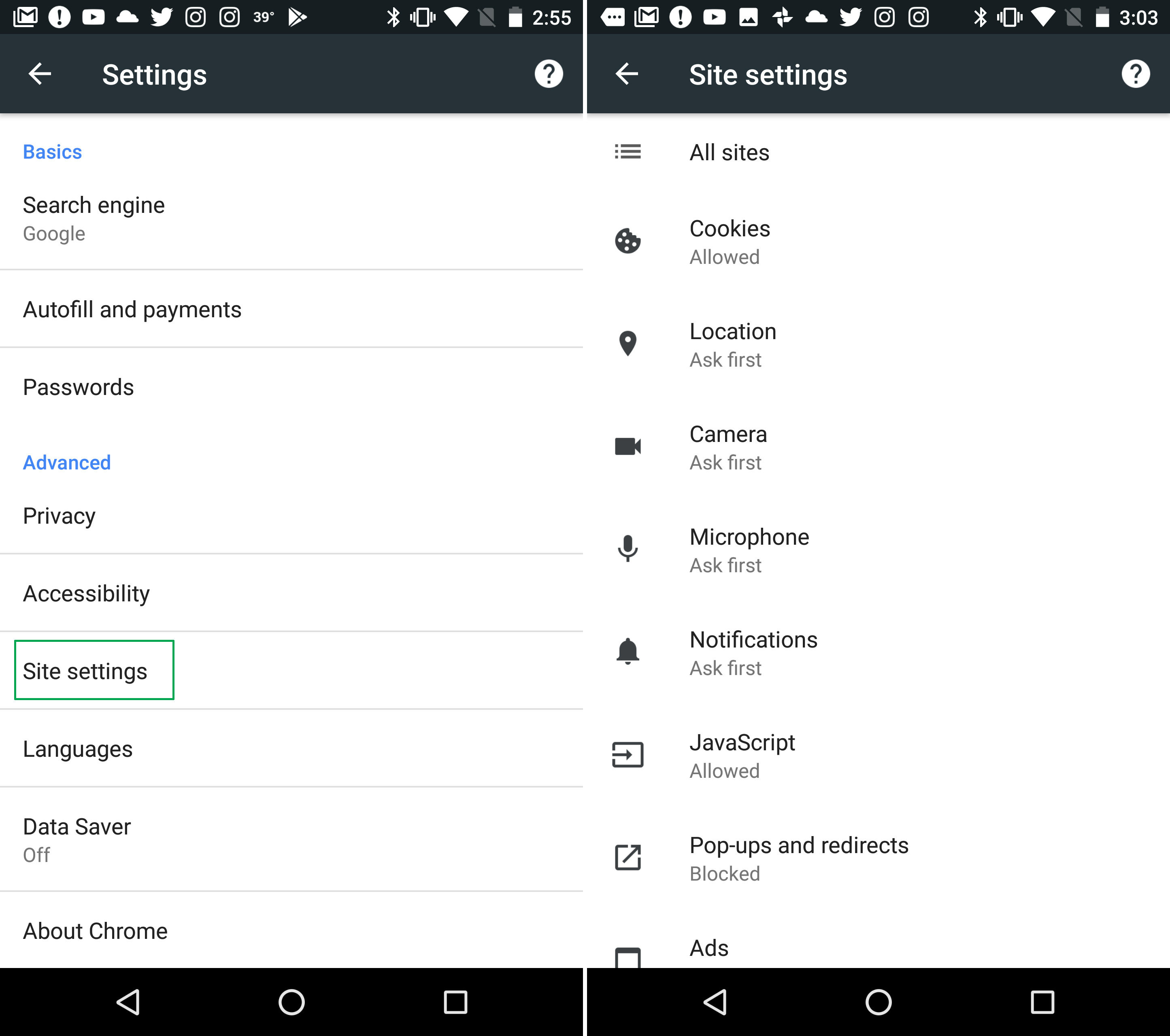
Did you know you can restrict what parts of your device a website can access? Imagine that you’ve got your microphone unintentionally enabled and these are the default settings.
Go to “Settings” and look for the option called “Content settings for websites.” Once you’ve accessed it, a list of options will appear on your screen, including permissions. Microphone, location, notifications… It’s all there, so be sure to set them the way you want.
Journalist specialized in videogames and technology. Almost two decades dedicated to it.
Latest from Nacho Requena Molina
You may also like
 News
NewsLuffy and company’s ship runs aground: 'One Piece' has lost viewership on Netflix
Read more
- News
Do you remember that ad for 'The Elder Scrolls VI'? Bethesda is asking you to forget it
Read more
- News
'Stranger Things' returns to theaters, if there is still anyone left after the last season
Read more
 News
NewsHe is an icon of 'Saturday Night Live', and now he announces his British version as if he were Mary Poppins
Read more
 News
NewsThe new Spider-man movie has already released its trailer… in small clips of different one second
Read more
 News
NewsThis year's Oscars have been a ratings failure, no matter who it bothers
Read more