

Why Adobe’s PDF Converter Preserves Formatting Better Than Free Alternatives
Avoid layout disasters when converting your PDF files

- March 5, 2026
- Updated: March 5, 2026 at 3:28 PM
Let’s set the scene. You’ve just wrapped up a proposal or report. Everything is aligned nicely, the headings behave themselves, and the tables look exactly how you intended. You export it to PDF, open the file for a quick check, and an unexpected theater performance begins as the document seems to have developed creative opinions of its own. Bullets are wandering out of place, a table has shifted like it is trying to escape the page, and a heading has decided it deserves a dramatic entrance on a brand new page.

This usually happens because most free converters aim for a quick result that looks close enough. Business documents often require something stricter. They need to look exactly the same on every device and every screen.
This article explains why formatting problems occur during conversion, and why tools built around the PDF format itself, such as Adobe Acrobat, preserve the layout more reliably.
Why Document Formatting Often Breaks During PDF Conversion
At the most fundamental level, many formatting issues result from the fact that word processors such as Microsoft Word and Adobe PDF were built with different goals in mind.
Word was designed to handle content that can reflow. The text will shift depending on your font page formatting and the device your document is opened on. The software will recalculate on-the-fly when these conditions are modified.
PDFs on the other hand are not for reflow, they are for fixed layouts. They will maintain text positions, graphics and images exactly where you intend them to be on a page, regardless of the device you’re using.
Some of the most common format problems you might find when converting a Word document into a PDF are:
- Font substitution when the original fonts are not embedded
- Tables that lose alignment or column width
- Line breaks that shift text onto new pages
- Images that move slightly from their intended position
- Margins and spacing that change across pages
The quality of the conversion engine is crucial in keeping the original layout intact. Tools that understand the underlying document structure it’s working with will usually provide more consistent results.
How Adobe’s Role in Creating PDF Influences Conversion Quality
Adobe introduced the Portable Document Format in 1993 as part of the Acrobat system because there was a clear need. A document should look the same on any computer or printer, regardless of the software or operating system used to open it.
To achieve this, the PDF format stores pages using a device independent rendering model. Each element on the page has a defined position and appearance. Text, graphics, images, links, and metadata are all stored together as structured objects within the PDF file.
Some of the technical characteristics that make PDF reliable for document sharing are:
- Device independent rendering so documents display consistently across systems
- A fixed page structure that locks its layout into place
- Embedded fonts and graphics to preserve appearance
- Consistent printing and viewing across different devices
In 2008, the PDF specification became the ISO 32000 international standard. Even after this change, Adobe’s Acrobat tools have remained closely tied to the original technology that was used to generate and process PDF files. On the contrary, many free converters try to interpret and recreate the PDF standard without the same level of integration.
Some rely on simplified rendering, which means turning a document into a visual layout for display, or “print-style” output, which treats conversion more like generating a snapshot of a page without preserving the layout, fonts, table or spacing. Others just interpret the standard poorly to begin with.
This difference between these tools and PDF’s origins with Adobe becomes especially apparent when documents move back and forth between formats.
Do Word to PDF to Word Workflows Need Structural Accuracy?
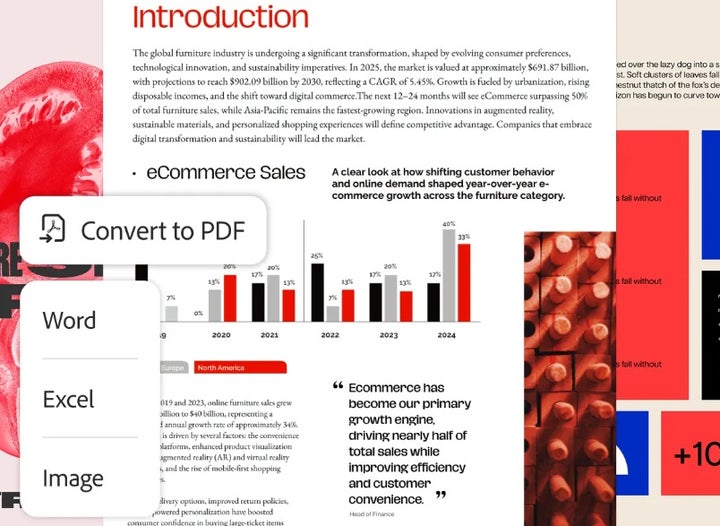
Yes. Especially in the workplace. If you’ve got a Word doc and you want to ensure it’s shareable, you need to be certain of the final layout. That’s when you convert it to a PDF and send it to someone. That person who received your PDF might then decide they need it in an editable format again, and they proceed to convert it again. The cycle continues…
It’s during these conversions that structure and format can get lost or go awry. Bullets, headings, tables end up where you don’t want them and you get random shifts or page breaks. A single small change can trigger a significant clean up session and lose time.
Having Adobe Acrobat integrate with Microsoft Office via the Acrobat PDF creation add-in can carry information like headings, links, and bookmarks into the PDF structure, so you don’t end up in a situation like that.
It increases the odds that a PDF can be exported back into Word and keep much of the original layout intact.
So that’s fine for text-based elements, but document images create another challenge during conversions.

Why Image Based PDFs Can Lose Quality During Conversion
A lot of modern files start as images rather than text. These could be scanned contracts, photographed receipts, mobile scans of paperwork, and screenshots used in reports.
When converters process these images, quality can drop if the software reduces the image data that could be important. Common culprits include:
- Downsampling reduces image resolution by merging pixels, lowering the number of pixels stored in the file and ultimately reducing file size.
- Lossy compression removes visual information from an image, shrinking the file. Once gone, this information cannot be put back in.
When these two processes are applied heavily, the result might include blurry text, pixelated charts, distorted diagrams, or signatures that become difficult to read.
Professional PDF tools like Acrobat let users take charge of these settings, offering controls for image resolution and compression levels. These help preserve the clarity of documents that depend on visual accuracy. Diagrams, scanned paperwork, and screenshots remain readable, even after conversion.
Scanned documents also require another important technology before it becomes truly usable.

How OCR Determines Whether Scanned PDFs Are Searchable and Editable
OCR or Optical Character Recognition converts images of text into actual readable characters. Without OCR, a scanned document is simply a picture of text.
Once OCR is used, the text becomes searchable, users can copy and paste content, and the document can be exported into editable formats such as Word.
Achieving accurate OCR is challenging though, because the software must interpret many variables to be able to turn these “text images” into a completely editable and searchable document. Papers may have different fonts, skewed pages, shadows from camera scans, handwritten marks, or even low resolution images.
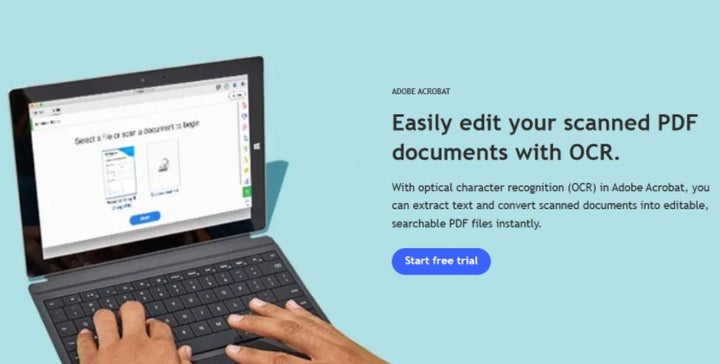
Acrobat includes OCR technology that analyzes scanned PDFs and converts them into searchable documents. When a scan contains recognizable text, the software can layer text data behind the image. As a result, the page will still look the same, but the text can now be selected.
Adobe Scan extends this capability to mobile devices. The app captures docs using automatic edge detection and perspective correction. The app can remove shadows or glare and convert those images into PDFs.
After the scan is captured, OCR can process the document so it becomes searchable and editable. This step turns a photographed document into a usable digital file rather than a static image.
Accurate text recognition supports keeping overall document structure.
Why Layout Accuracy Matters for Contracts, Proposals, and Reports
Formatting problems are more than simply a visual inconvenience in professional documents. Little layout shifts may change how an entire document is interpreted, for example:
- Contracts may include signature blocks, numbered clauses, and referenced sections. If text moves across pages, the structure of those references can cause confusion.
- Proposals rely on visual consistency to present information clearly. Fonts, headings, and spacing reflect the company’s branding and communication style.
- Reports depend on stable layouts for charts, tables, and figure captions. A table that shifts across pages can make data hard to read or interpret.
PDF was adopted because it preserves layout exactly as it was created. When the file is generated correctly, every page element remains in the same position regardless of the device or software it’s being viewed on.
Acrobat supports this by embedding fonts directly into the document. Page elements are stored in structured objects, and conversion tools try to preserve document hierarchy like headings and links.
The ability to prevent frequent formatting errors leads to another practical benefit for the workplace.
Start Converting Documents with Acrobat
One of the reasons PDF files were invented was to preserve and keep your documents exactly as you want them to be seen. So when you’re converting to and from the format, consistency will depend on how your tool handles layout data, images, fonts, and even OCR recognition.
Acrobat’s engine was built to protect your document structure even during conversions. It features roundtrip edits, maintains high image quality and can run OCR scans on documents to ensure they stay searchable and editable.
It’s features like these that help to reduce formatting problems compared to when using basic converters.
So if it’s opening night on your deadline and you’d like to keep your headings as their assigned role, the tables on their correct mark, and your bullets from jumping out of sync, start a free trial of Adobe Acrobat to keep your formatting exactly as you envisioned. No manual fixes.
Mireia Fernández is passionate about the world of video games and new technologies, a hobby that dates back to her childhood with the MSX HB 501p. Born and residing in Barcelona, Mireia has been working as an editor for over 10 years and specializes in writing reviews, tutorials, and software guides, as well as doing everything possible to publish news before anyone else. Her hobbies include spending hours playing on her console, walking her golden retriever, and keeping up with the latest SEO developments.
Latest from Mireia Fernández
You may also like
 News
NewsDavid Zaslav wants to sell 114 million dollars in shares of Warner Bros. Discovery
Read more
 News
NewsBungie's new game has everything to be a Helldivers 2, but it could end up being a new Concord
Read more
 News
NewsThe CEO of Arrowhead wanted to prove that Helldivers 2 is balanced by putting a thousand dollars on the table
Read more
 News
NewsThe director of Scream is going to bring classic horror characters to a new Netflix series
Read more
 News
NewsIf you have hope that AI will have copyright rights soon, the Supreme Court of the United States says to keep waiting
Read more
 News
NewsIf you were expecting a remaster of Fallout: New Vegas, those who are supposed to be making it say they haven't heard anything about it
Read more