
How To
Organize your browser with Tab Manager Plus for Chrome

- June 16, 2022
- Updated: July 2, 2025 at 3:38 AM
If you’re someone who works with multiple tabs daily, you probably know the struggle of finding the exact tab you need at the moment. The more tabs you open, the more difficult it becomes to see what the tabs are, and you often waste time opening each tab to find the right one. That’s where the Tab Manager Plus extension for Chrome comes in.
In this article, we’ll look at how to use the Tab Manager Plus extension for Chrome and Chromium-based browsers to make managing your tabs easier.
Why should you manage your tabs?
If you’re working on multiple projects simultaneously, you might have multiple tabs open simultaneously so that you can use them in your different projects. However, without a tab management tool, you can quickly lose track of your tabs, leading to delays, productivity decreases, and frustration.
Using a tab manager tool, like the Tab Manager Plus extension for Chrome browsers, allows you to manage all your tabs easily, find lost tabs and delete duplicates that eat up your memory.
5 Steps to use the Tab Manager Plus extension
Download and install the extension
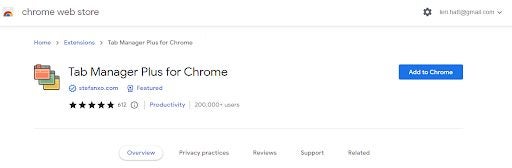
Start by downloading and installing the Tab Manager Plus extension by checking our list of the best Chrome extensions for tab management. Once it’s installed, pin it to your extension toolbar for easy access.
View all tabs
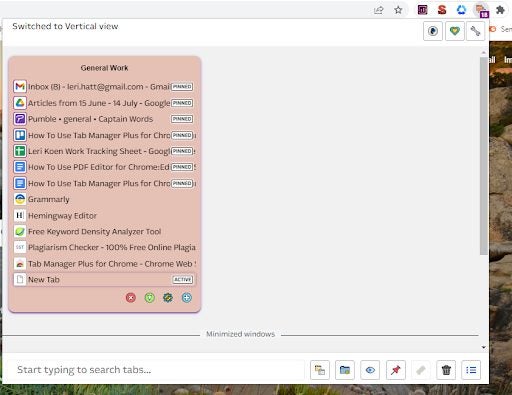
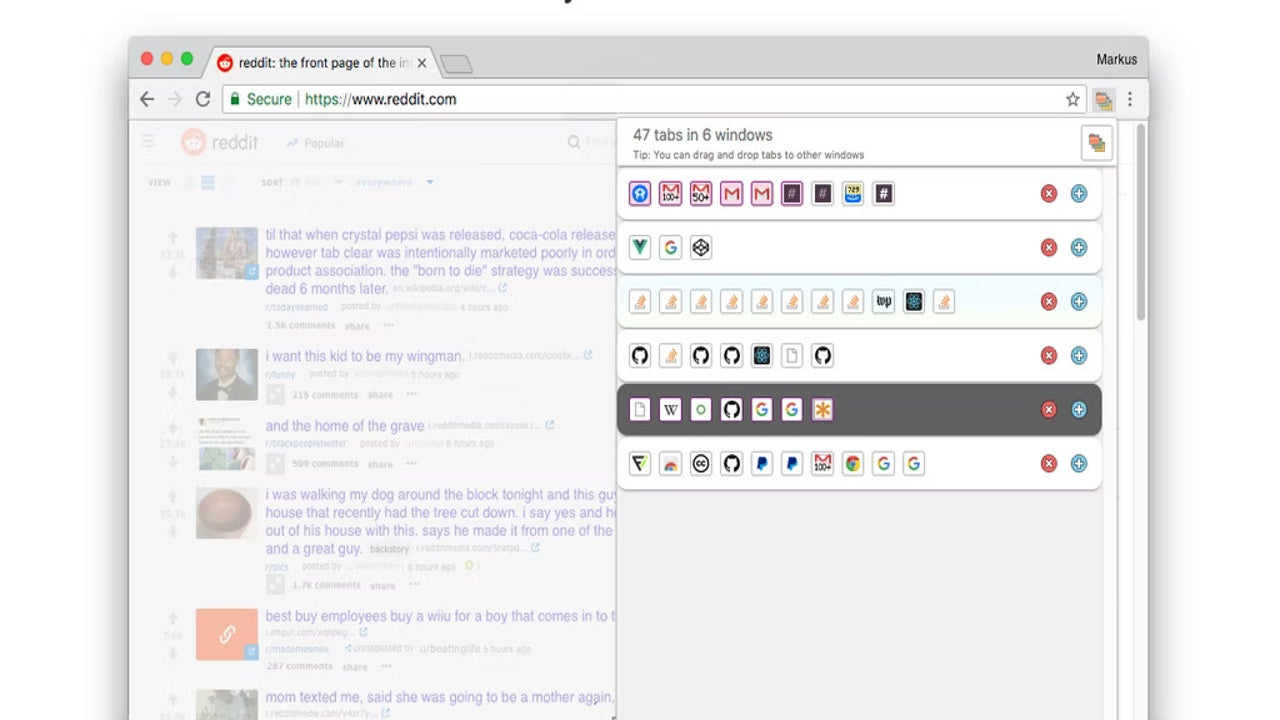
The extension icon shows the number of current tabs in a purple box. A window will open by clicking on the extension, giving you an overview of all your open tabs.
Search for lost tabs
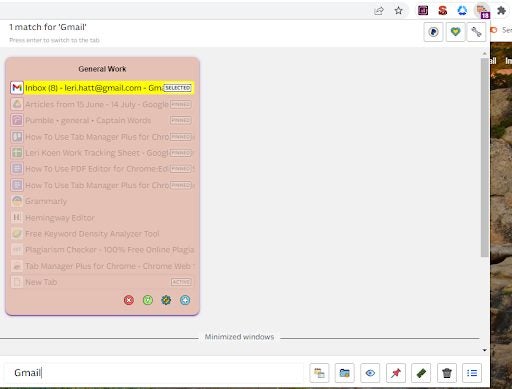
One of the most useful features is using the extension to find a specific tab that may be hidden or lost. To find these tabs, type the name into the search bar at the bottom of the extension window.
Find duplicate tabs
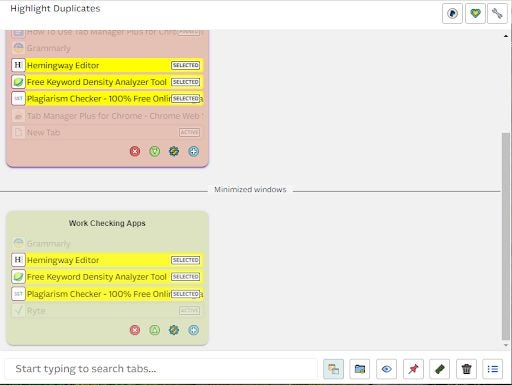
Sometimes we accidentally open duplicate tabs. However, having duplicate tabs open drains system resources such as memory and can cause your system to slow down. This extension can highlight duplicate tabs by clicking on the ‘Highlight Duplicate Tabs’ button. Once highlighted, you can close the extras.
Manage tabs
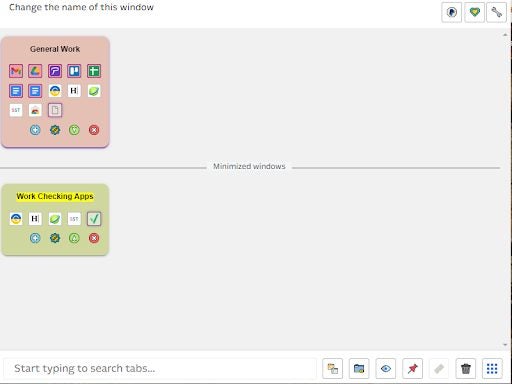
You can also manage tabs according to different projects by saving the tabs for each project under a new window. This way, you can navigate between the Windows and have all the tabs needed for that project readily available. You can also drag tabs from one window to the other if needed for a different project.
Latest from Leri Koen
You may also like
 News
NewsThe Web You Remember Is Waiting Here: Share Your Memory and Win a Trip to Switzerland
Read more
 News
NewsThe CEO of Take-Two fully trusts the skills of the new CEO of Xbox
Read more
 News
NewsAfter finishing his series, Jack Ryan receives the first trailer for the movie with which he says goodbye
Read more
 News
NewsDo you want to go back to physical format? Some suggest replacing DVDs with… flash drives
Read more
 News
NewsThere is a reason why 'Dune 3' seems completely different from the first two parts: it is
Read more
 News
NewsRobert Pattinson hints that 'The Batman II' will have twists you won't see coming
Read more