
News
How to use voice note transcription in iOS 18 and macOS Sequoia
Any recording converted into text in a matter of seconds.

- June 21, 2024
- Updated: July 1, 2025 at 11:18 PM
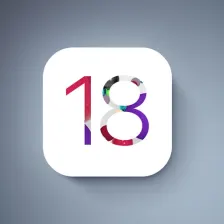
With the arrival of iOS 18 and macOS Sequoia, Apple has added a highly anticipated feature to the Notes and Voice Memos apps: audio to text transcription. This feature allows us to automatically convert recorded audio into text in real time, making it easier than ever to capture, search, and organize information. Whether we need transcriptions for school, work, or personal use, the quality and speed of the transcription are truly impressive. Let’s see how to use real-time transcription in iOS 18 and macOS Sequoia.
Transcription of audio in the Notes app
Before we begin, let’s make sure we are running the beta version of iOS 18 or macOS Sequoia on our iPhone, iPad, or Mac. Once we have the appropriate operating system, the steps to follow are as simple as these:
- We open the Notes app on our iPhone, iPad or Mac.
- We tap the button shaped like a pencil on a piece of paper to create a new note.
- We tap the button shaped like a paperclip and select Record audio.
- We press the red recording button to start capturing the audio. When we’re done, we tap the pause button and then tap Done.
- We should see the recording and a preview of the transcription right below. To view the full transcription, we tap the audio recording and then the quotation mark icon in the bottom left corner.
Here we can also click on the three-dot icon in the top right corner to copy the full transcript, search within the text, and access more options.
Transcription of audio in the Voice Notes application
The Voice Memos app in iOS 18 has also benefited from this new functionality. Transcriptions are automatically generated after recording a new voice note. The steps to do it, both on iPhone, iPad, and Mac, are as follows:
- We open the Voice Memos app on our iPhone, iPad or Mac.
- We tap the red button to start a new recording.
- When finished, we tap the pause button to end the recording.
- We open the specific recording and tap the button shaped like quotation marks to view the complete transcription.
Just like in Notes, we can copy the transcription, search within the text, and more options.
Real-time transcription in iOS 18 and macOS Sequoia is an extremely useful tool that can greatly simplify note-taking and content recording. We no longer need to rely on third-party apps to transcribe our voice notes, in the Notes app or Voice Memos we have everything we need to record and have the text instantly.
Architect | Founder of hanaringo.com | Apple Technologies Trainer | Writer at Softonic and iDoo_tech, formerly at Applesfera
Latest from David Bernal Raspall
You may also like
 News
NewsOne of the most successful movies of the year premieres on HBO Max
Read more
 News
NewsNaughty Dog is back at it: they are already crunching for their next game
Read more
 News
NewsThe new Tekken champion is Japanese and is 92 years old
Read more
 News
NewsPedro Almodovar returns with a new movie that is very Christmas-like
Read more
 News
NewsLarian Studios will hold an AMA to clarify their stance on AI early in the year
Read more
 News
NewsSteam is giving away the most unimaginable Christmas game until December 21
Read more