
Article
Improve your monitor’s performance

- October 22, 2007
- Updated: July 2, 2025 at 9:42 AM
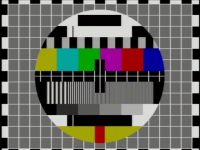 Riddle me this – what do you look at for hours every day but can never touch? Your computer monitor, of course. And while it’s not advisable to physically put your greasy mits all over it, there is plenty you can do behind the scenes to get your screen looking all clean and sparkly. With the help of a few pieces of software it’s possible to repair imperfections and get a clearer window to your dekstop.
Start by installing what I call a ‘monitor monitor’, such as Passmark MonitorTest. This app investigates the quality and performance of your device, using a series of specially designed images to analyse your visuals. If your screen needs adjusting you don’t necessarily need to cough up for an expensive solution. QuickGamma is a free tool that lets you optimise your gamma settings on the fly, to match the recommended Windows gamma of 2.2.
Dodgy pixels are a common afflication of many computer screens, but it doesn’t haven’t to be this way. UDPixel helps you detect and fix dead pixels on your LCD display. You’ll need to let the program run for a couple of hours first, but once it’s detected imperfections it’s usually able to completely correct them. One final monitor tool that’s handy if you use multiple monitors is UltraMon. The software provides you with a series of tools for maximising windows across more than one desktop and contains multi-monitor support for wallpapers and screensavers.
You may also like
 Article
A Greener Web and Cleaner Oceans: Why So Many Are Switching to Wave Browser
Read more
 News
NewsWhatsApp wants to test nicknames in its new update
Read more
 News
NewsMicrosoft wants making links in Word easy after 30 years
Read more
 News
NewsNvidia does not trust China and is asking for payment in advance for its AI chips
Read more
 News
NewsYouTube knows that you're tired of the shorts
Read more
 News
NewsThe Worst of CES: AI takes the worst of these devices, according to experts
Read more