
News
Gmail Help Me Write with Gemini: 7 Ready-to-Use Prompts for Complaints, Sales & Internal Memos
Streamline your Gmail with these ready-to-use AI prompts

- December 15, 2025
- Updated: December 22, 2025 at 1:57 PM
If your inbox were a physical place that you spent a day, you’d leave feeling drained and disoriented. You’d start at a desk hearing a complaint about a delayed order, while trying to welcome in a potential sales lead who’s just decided to make a surprise visit at the same time, and then you’ve got a meeting in ten minutes to deliver a sensitive presentation to your team. All in quick succession.
Thankfully it’s virtual, but even so, each message demands a change in subject, task, and tone. This constant shifting is emotionally taxing and energy draining. In fact, psychologists call this “Context Switching”, that’s the mental effort required to shift your focus between unrelated tasks. Its results? Less productivity, increased stress and the sensation that you’re never on schedule.
We are aware not all jobs are the same, but some of us can receive over 100 emails a day and spend at least 10 to 12 hours weekly managing emails. And even if you try to take it slow, there’s a rush to respond that can lead to defensive, unclear, or vague messages, prompting (yet) more communication.
Take a breath. Google’s Gemini in Gmail with the “Help me write” feature can help a bit as a drafting assistant by handling those initial drafts so you can prioritize the things that feel more rewarding. Do you want to know how?
In today’s article we’ll provide 7 specific prompts to help you manage customer complaints, speed up sales cycles, and organize internal memos… All so you can get through the day without spending it entirely in your (thankfully not physical) inbox!

So… What’s Gmail’s Help me write and How can Gemini Boosts Your Drafts?
Gemini is Google’s advanced AI for generating text, and “Help me write” is a drafting feature in Gmail that utilizes Gemini’s capabilities (sorry, Outlook users).
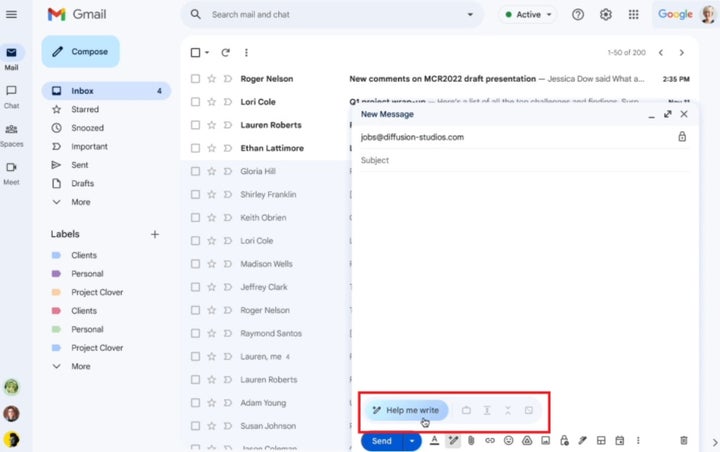
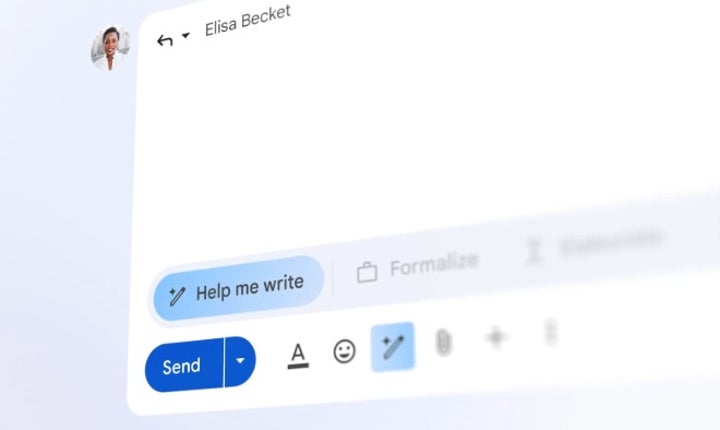
On the desktop, the “Help me write” icon is a pencil with a sparkle, and is found at the bottom of the compose or reply window. On mobile, it appears as a shortcut in an empty message. Its main function is to assist you in drafting or refining emails.
Help me Write will:
- Generate new emails based on prompts.
- Refine drafts to match tone and style preferences.
- Ensure that drafts align with your instructions.
However it’s important to keep this in mind, and it applies to most AI tools. Help me Write:
- Cannot read your mind, it needs explicit instructions.
- Does not make decisions for you.
- Should not be used for legal, medical, or financial advice.
Gmail’s Gemini features are included in specific Google Workspace and Google AI plans, with variations in availability based on your region. Also, note that Google does not use your Workspace content to train Gemini models, keeping your data entirely managed by you.
How to Get the Best Results: Setting Clear Prompts
A prompt is a direction given to Gemini, outlining what you need along with specific instructions. For the AI to understand us and give us the best results, we have to add this information:
- Persona: Who should Gemini emulate?
- Example: A helpful customer support agent.
- Task: What do you want it to do?
- Example: Draft an apology email.
- Context: What specific details does it require?
- Example: Recipient details, situation specifics.
- Format: What structure should the output have?
- Example: A brief email using three bullet points.
That’s enough to get a good draft and you can follow up with a simple tweak to adjust according to your needs. That’s typically as simple as “Make it shorter” or “Be more empathetic”.
This approach helps you achieve the right tone, letting you switch between addressing heated complaints and craft straightforward internal communications without feeling the burden of context switching.
Prompts to Help Manage Customer Complaints and Support Responses
Dealing with customer complaints takes a significant emotional toll. Let’s see how Gemini can assist you in creating empathetic and professional replies even when situations become tense.
Prompt 1: Deescalate a Delayed Shipment Complaint
Our first prompt will aim to calm down a client after a late delivery. Picture the kind of email that pulls your attention away from everything else. A long-time, high-value customer writes in, angry that their order is 6 days late and hinting they might post a negative public review.
A “VIP customer” here means someone whose history and spend make their feedback especially important for your business. This reply needs to be fast, clear, and generous without stepping into legal language.
When you use Gmail’s Help me write with Gemini for this situation, make sure your draft covers:
- What went wrong and when. Briefly state that the order is 6 days late and acknowledge the impact on them.
- Who the customer is and why they matter. Show that you recognize their loyalty and status as a VIP, not just an order number.
- What you are offering to fix it
Spell out the specific options you are willing to provide within your policies. Here are some examples:- A no cost replacement sent with express shipping this week.
- A refund.
- Plus a 20 percent credit on their account to recognize the inconvenience.
- How you handle legal language. You want to apologise and take responsibility for the experience, while avoiding phrases that sound like a formal admission of legal liability. Keep it human and practical instead of legalistic.
Prompt to paste into “Help me write”
“Act as a customer support agent. Write a concise, warm reply to a VIP customer whose order is delayed by 6 days. Acknowledge their frustration and apologise for the experience. Briefly explain the delay without blaming the carrier. Offer either a no cost replacement with express shipping this week or a full refund, and add a 20 percent credit for the inconvenience. Do not admit legal liability. End with clear next steps and your direct contact details. Keep the email under 140 words and use plain language.”
Post-generative tuning
- If the draft sounds stiff, ask Gemini to “make it more personal and conversational” while keeping the same offer.
- If it runs long, ask it to “shorten while keeping all offers and the 20 percent credit.”
- Double-check that the replacement, refund, and credit match your current refund, shipping, and discount policies before sending.
Prompt 2: Upholding Your Refund Policy Gracefully
Some emails feel heavier than others. A customer writes in, upset, asking for a refund long after your policy allows it. You still have to answer kindly, protect the policy, and not spend your whole afternoon rewriting the same explanation. This is where Help me write with Gemini can carry the first draft for you.
In this scenario, a customer requests a refund after your refund window has closed. Your reply needs to:
- Restate the policy in simple language. Say what the refund policy is and repeat the exact time limit, for example 30 days from the purchase date.
- Anchor the reply to their case. Briefly mention what they bought and when they purchased it so they know you actually checked their order.
- Offer clear alternatives. Explain that a full refund is not possible now, then offer specific options depending on your actual policies such as:
- A 5 store credit, which is a balance they can use on a future order.
- A coupon code (such as 5% off) for their next purchase
- Stay firm, but still helpful. The tone should be respectful and calm, not apologetic to the point of weakening the policy.
Prompt to paste into “Help me write”
“You are a customer support agent. Write a respectful reply to a refund request that is past our 30 day refund window. Restate the refund policy and its time limit in clear, simple terms. Thank the customer for their business. Explain that a full refund is not possible, then offer either a 5 dollar store credit or a 5 percent discount coupon code on a future purchase. Invite them to reply if they have questions. Keep the tone firm but helpful. Keep it under 120 words and use plain language.”
Post-generative tuning
- If the reply sounds soft, ask Gemini to “make the tone more firm but still polite.”
- For large or long term customers, ask it to “make the tone slightly more formal while keeping the same policy and offers.”
- Before sending, confirm that the policy text, the 30 day limit, the 40 dollar credit, and the 15 percent discount match what your legal and operations teams have set.
Better Sales Emails and Follow-Ups
Crafting Sales emails requires the right tone and timing. Gemini can assist in composing messages that are both personal and relevant, enabling salespeople to dedicate more time to engagement.
Prompt 3: Cold Outreach Emails That Are Likely to Get Opened
Reaching out to a new prospect usually starts with a short message that has to earn a reply. You want it to feel specific, tied to something real happening in their world, and not stuffed with buzzwords.
When you use Help me write for a first draft, include:
- The prospect’s role, company, and industry.
- A recent business signal, such as funding, a new office, a product launch, or a hiring wave.
- The problem your product solves, explained in plain language.
- One simple action you want from them, like a quick call or a short reply.
Prompt to paste into “Help me write”
“You are a B2B sales rep. Write a friendly, concise cold email to [ROLE] at [COMPANY] in [INDUSTRY]. Reference [SPECIFIC NEWS OR SIGNAL] in the first sentence. Connect that to the problem we solve, which is [PROBLEM IN PLAIN LANGUAGE]. End with one clear, low effort call to action, such as a 15 minute call next week or a quick reply to confirm interest. Avoid buzzwords. Keep it under 100 words and use simple language.”
Post-generative tuning
- Ask Gemini to shorten if it still feels long.
- Try a few versions that vary the opener or call to action.
- Swap any technical terms for everyday wording before sending.
Prompt 4: Casual Follow Up After a Silent Prospect
You sent a proposal five days ago but you haven’t received any reply yet (what is normally called a Silent Prospect). You want to check in without sounding impatient, and you want to add a bit of value so the email feels helpful, not just like a reminder.
When you use Help me write, provide:
- The date you sent the proposal and a short description of what it covered.
- A useful resource, such as a case study, short video, or one pager.
- Any timing context, like an upcoming renewal, event, or deadline they mentioned.
Prompt to paste into “Help me write”
“You are a sales rep. Write a light, respectful follow up to my proposal sent on [DATE] with subject “[SUBJECT]”. In one short line, reference the earlier email. Share this helpful resource for their decision, [LINK OR TITLE], without sounding salesy. Ask a simple question to check if timing or priorities have changed. Offer an easy no if now is not a fit. Keep it easy to skim and under 120 words..”
Post-generative tuning
- Make sure you include a clear way for them to say “no” so there is no pressure.
- For senior contacts, ask Gemini to increase formality slightly.
- Add one line that reminds them of the key benefit or outcome, not every feature.
Prompt 5: Summarizing Demo Next Steps
After a demo or deep discovery call, everyone walks away with their own version of what was agreed. A short, structured summary keeps the deal on track and avoids confusion later.
When you use Help me write, gather:
- The main goals and problems they shared.
- The features or parts of your offer they cared about most.
- Decisions made, who owns what, and target timelines.
- Any planned pilots, trials, or next meetings.
Prompt to paste into “Help me write”
“You are an account executive. Turn the notes below into an email with a short thank you opener and three sections: What we heard, What we proposed, Agreed next steps. Under Agreed next steps, list owners and dates. Keep the tone friendly and confident. Add a brief TL;DR at the top for busy readers. [PASTE BULLET NOTES]”
Post-generative tuning
- If the reply comes back cluttered, ask Gemini to tighten each section while keeping all owners and dates.
- Check names, numbers, and timelines carefully against your notes before sending.
- Keep the TL;DR to a few short lines so someone skimming on their phone can follow the plan.
Prompts for Clearer Internal Memos and Team Updates
Internal emails often arrive when your brain is already tired from customer questions and sales threads. Status updates, project summaries, and process changes still need to be written clearly so people stay aligned, but they are easy to put off.
Thanks to Gemini’s ‘Help me write feature’ in Gmail you can take loose notes and turn them into structured updates that are easier to send and easier to read.
Prompt 6: Project Status and Updates Summaries
Project leads often have scattered notes and chat messages instead of a clean update. Stakeholders, meaning anyone who cares about the project or is affected by it, need a clear view of where things stand without digging through long threads.
When you use “Help me write”, share:
- What is completed, what is still in progress, and what comes next.
- Key dates and milestones, such as launches or review meetings.
- Who the audience is, for example executives, managers, or the core team.
A TL;DR is a very short summary at the top of the email for readers who only have time for a quick scan.
Prompt to paste into “Help me write”
“You are a project lead. Write a clear status email with a two sentence TL;DR at the top. Organize the rest into headings: Progress, Blockers, Next steps. Highlight any decisions needed, risks, and key dates. Keep each bullet short and easy to scan. Adjust the level of detail for [AUDIENCE TYPE].”
Post-generative tuning
- For executives, ask Gemini to compress the email so it fits on one screen.
- Reuse the same structure each week so people know where to look.
- Call out decisions in their own bullet so they are hard to miss.
Prompt 7: Sincere Process Change Announcement
Process changes are updates to how work gets done, such as new approval flows or tools. These messages can trigger worry or resistance if they arrive without context. Human resources (HR) and communications teams can use Gemini to shape a note that is honest, clear, and respectful.
When you use Help me write, include:
- What exactly is changing and what stays the same.
- The real reasons, such as budget limits, compliance rules, or efficiency.
- What support is available, like training, guides, or help channels.
- The preferred style, for example direct and straightforward.
Prompt to paste into “Help me write”
“You are an HR and communications partner. Draft a clear, respectful announcement about a process change. Structure it into: Why we are making this change, What is changing and when, What stays the same, How to get help or give feedback. Acknowledge that the change may feel hard. Thank the team for their flexibility. Keep the tone human and direct.”
Post-generative tuning
- Use a more formal tone for messages sent to the whole company.
- Read the draft out loud and refine any wording that could be misunderstood.
- Make sure the message still sounds like your leadership team, not a template.

Use Gmail’s Refinement Tools to Edit Gemini’s Initial Drafts
The first drafts produced by Gemini should be seen as a preliminary step that you can then fine-tune using Gmail’s editing tools:
- Formalize: Adjusts the tone to be more professional.
- Elaborate: Expands on the details and points.
- Shorten: Condenses the message.
- Polish: Refines language and improves readability.
- Recreate: Provides a fresh version based on your initial prompt.
For instance, use “Shorten” for sales emails that must be brief or “Elaborate” for more complex internal communication that requires further detail. Experiment until the tone aligns with your requirements.
Review and Refine Before Hitting Send
Powerful though it may be, the responsibility for how accurate the content is falls on your shoulders. Before you send a Gemini-assisted email, conduct these checks;
- Fact-check: Are names, timings, offers, and policy details accurate?
- Alignment: Make sure proposed actions are in line with company policies.
- Tone: Does it align with your communication style and brand identity?
- Expert Review: When it comes to sensitive or complex matters, let a relevant specialist review the communication.
A thorough review is essential for quality assurance from a business and a professional standpoint.
Now Put These Gemini Prompts to Work
“Help me write” in Gmail has been developed to handle the hard work of preparing initial drafts, letting you concentrate on core business functions. Through mastering select prompts, precious hours can be saved from your working week as well as reducing context-switching.
To start, concentrate on using just a single prompt. For example, choose Prompt 1 for difficult customer support communications, Prompt 3 for new sales approaches, or Prompt 6 for end-of-week project updates. Once you’ve tried them, just check the final email and tweak the prompt and personalize it as much as you want until the result feels right. Finally, save them for further use.
Gemini’s “Help me write” is an amazing AI tool that won’t just boost the clarity of your emails, but also save you precious time. Try it now!
Mireia Fernández is passionate about the world of video games and new technologies, a hobby that dates back to her childhood with the MSX HB 501p. Born and residing in Barcelona, Mireia has been working as an editor for over 10 years and specializes in writing reviews, tutorials, and software guides, as well as doing everything possible to publish news before anyone else. Her hobbies include spending hours playing on her console, walking her golden retriever, and keeping up with the latest SEO developments.
Latest from Mireia Fernández
You may also like
 News
NewsJ.K. Rowling is delighted with the Harry Potter series, the fans not so much
Read more
 News
NewsIt has been a week on Netflix and this movie is already number 1 with 25 million viewers
Read more
 News
NewsWe already have a date for the arrival of Hades 2 on PS5 and Xbox Series
Read more
 News
NewsShare Your Memory: Win a Trip to the Birthplace of the Web CERN, Switzerland
Read more
 News
NewsYou have one of the best adventure movies of all time available on Netflix
Read more
 News
NewsA streamer shares a spectacular video of the remaster of the first Jak & Daxter
Read more