
How To
How to Enable Cookies on Mozilla Firefox in 4 Steps


- June 8, 2021
- Updated: July 2, 2025 at 4:04 AM
Cookies are tiny bits of information that are stored on your computer by websites that you visit. They are used by websites to remember you, perhaps your login information or your preferences.
If you do not allow cookies to be stored, you will get reminders from most websites that you visit. To stop these annoying reminders, you can turn on or enable the cookies on your computer. To enable cookies on Mozilla Firefox, follow these easy steps.
Open the Options Menu
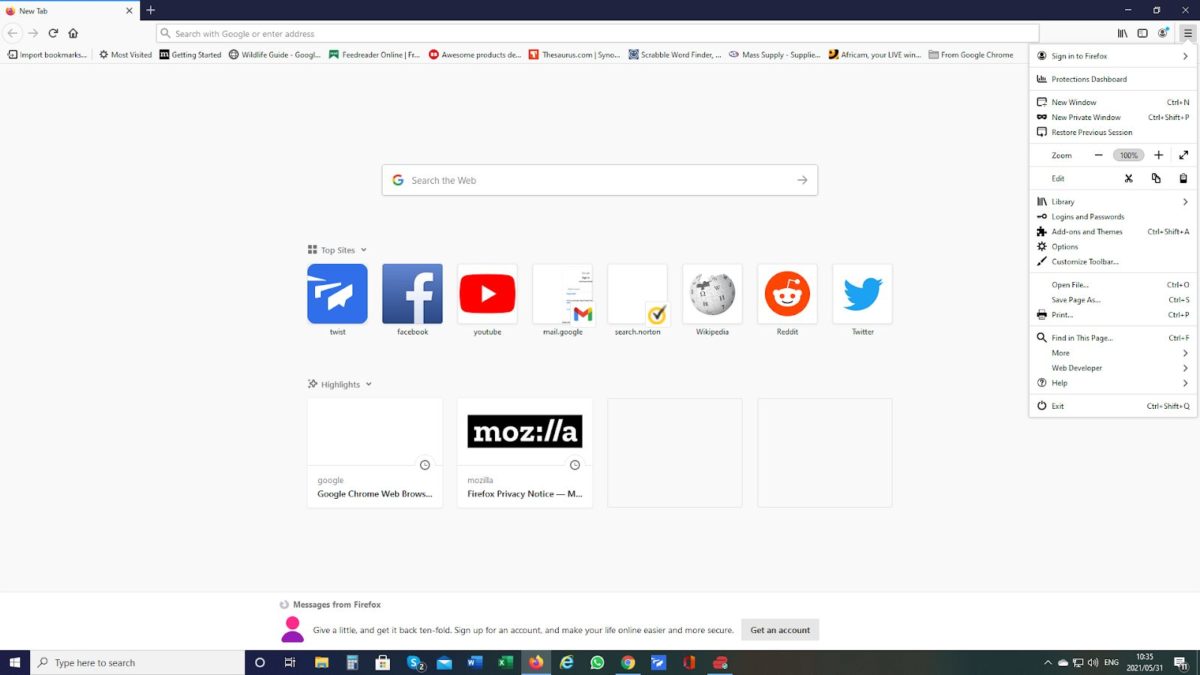
Click on the three horizontal lines on the top right-hand corner of your screen and choose the Options menu item.
Select Privacy & Security

Click on the Privacy & Security option in the menu on the left-hand side of the screen.
Adjust your Browser Privacy Settings

Click on the option to set up Custom Settings.
Select the Cookie Setting you want to use

If you click on the box next to Cookies, all cookies will be accepted by your computer.
If you click on the drop-down box, you will find other options:
– “Cross-site tracking cookies – includes social media cookies” – this means that if the web page you are on has a button to another page, Firefox will not allow a cookie from that other page to be stored on your computer. This includes pages for social media such as Facebook, Instagram, etc.
– “Cookies from unvisited websites” – this is self-explanatory and stops the page you are on from storing cookies from pages you have not visited on your computer.
– “All third party cookies – may cause websites to break” – an example of this would be that the page you are on has a ‘Like’ button. If you click that ‘Like’ button, the website will store a cookie from that site on your computer.
- “All cookies” – again, this is self-explanatory. No cookies from any website will be permitted to be stored on your computer. Be careful before using this, as it can affect your browsing experience. An example would be a shopping cart may not work correctly as the page cannot track all the items you have stored in your cart while browsing around the products for sale.
Would you like cookies with that?
These are not the cookies you enjoy with your coffee, but they are handy and are not the evil gnomes of the Internet! They can easily be cleaned out when clearing your browsing history.
These small data items can improve your browsing experience, and in many cases, websites rely on them to function well, so let them be.
Choose Softonic on Google and you'll see more of our articles in Top Stories, AI Overviews and AI Mode.
Latest from Shaun M Jooste
You may also like
 News
1408 sequel reportedly in the works: Cusack and Jackson may return
Read more
 News
Cybersecurity arms race intensifies: generative attacks break the web and sell the fix
Read more
 News
Forrester’s new GenAI warning: the bubble may hold, but buyers need an exit plan
Read more
 News
Bit Reactor hit by new layoffs: Star Wars Zero Company studio cuts staff again
Read more
 News
Ocarina of Time remake datamine sparks fresh Master Quest DLC rumors
Read more
 News
GTA 6 leak points to 120Hz console support: 60 FPS still looks unlikely
Read more