

How to reduce creative modifications with better approval workflows


- January 26, 2026
- Updated: January 27, 2026 at 9:09 AM
Any professional creative will have experienced it firsthand: endless project revisions, unexpected changes, delayed deliveries, and the list goes on. In the vast majority of cases, the blame does not lie in a lack of talent, but in a lack of organization and how the approval processes are managed.
Reducing these problems is possible if we have the right tools, and Creative Cloud can provide them to us. The large suite of programs from Adobe and its collaborative features can simplify everything a lot, as we will see below.
For students and educators working on collaborative projects, having access to these tools is even more critical. For a limited time, Adobe is offering Creative Cloud Pro for Students and Teachers with 50% off for the first 6 months on annual plans (billed monthly or paid upfront). This makes it easier to adopt professional approval workflows without the usual budget barriers. Available for new subscriptions in the US and Canada only.

Why Creative Rework Is a Hidden Cost for Teams
Creative reviews rarely appear explicitly in budgets or schedules, but their impact is significant.
Every unnecessary round of changes consumes time that could be spent on creating rather than correcting. Often, revisions do not attempt to solve a real error, but rather the lack of prior communication. As expected, this generates delays, friction between people, and a constant feeling of “redoing” instead of moving forward.
Common Causes of Excessive Creative Revision
Before starting to optimize, it is necessary to analyze the situation and see what causes the delays. One of them is the lack of timely feedback, which forces us to take steps back. Another is unclear comments and the use of many communication channels. The mix of messages, emails, and documents, for example, can make the creatives in charge feel “lost,” without a clear direction. These are not individual failures; it is simply a lack of organization.
What an Effective Creative Approval Workflow Looks Like
A good creative approval workflow should not follow strict rules, but it should be obvious. The key elements are:
- Have defined stages.
- Visible roles.
- Rules for providing feedback.
- Centralized and updated material.
When creating in groups, it is important to have a series of stages with the content that must be established, and everyone should know what roles they have assigned. Knowing what each person does will allow any worker to know whom to turn to in case they need approval for something or simply to receive feedback.
What is Creative Cloud exactly?
That said, we will explain how we can use the organizational tools of Creative Cloud in these processes.
Before we start, let’s explain a bit about what Creative Cloud is. Specifically, it is a service from Adobe that manages access to its programs and operates on a subscription basis. It includes many of the most well-known creative applications, such as Photoshop and Premiere.
Depending on the plan you choose, you will have access to one type of program or another from the central platform, Adobe Creative Cloud Desktop. That is where you will download and install the programs.
In the case of companies, they have access to a special plan focused on creative teams, Creative Cloud Pro. Some of its exclusive tools include the integration of Slack and Microsoft Teams applications, as well as 1 TB of cloud storage and 4,000 monthly generative credits for the use of AI features.
From the Creative Cloud app, you can click on Manage Team to see what licenses your team has, for example. From here, you can see who is subscribed and what products and features they have assigned.

If you’re learning, teaching, or collaborating in an academic environment, Adobe currently offers 50% off Creative Cloud Pro for Students and Teachers for the first 6 months. The promotion applies to annual subscriptions (monthly billed or paid upfront) and is valid for new users in the US and Canada between January 15 and February 2, 2026.
A practical approval workflow for creative teams
Add members to your team
To add members to your team, open Creative Cloud and click on Manage Team (you will see it in the left column). Select Add people and enter the emails of the users you want to add. To the right of their emails, you will need to choose which program each user will have access to. You also have the option to add recommended users, which will appear on the right.

Assign roles in your team
Within Creative Cloud, go to Manage Team to change roles, see which licenses are active, or remove users from the team. The available roles here are Member or Admin, with the latter being the only one capable of managing the team.
To remove someone, simply click on the three dots (More options) symbol of the user you will see on the right and click on Remove from team.
Store your material in the cloud
Adobe has introduced many features within its programs so that users can easily work from anywhere with the cloud. Depending on the plan, you will have more or less storage available. To check it, go to Your files on the Creative Cloud website. You will see the amount at the bottom left. If you hover over it, you can see how much of the available storage you have used.
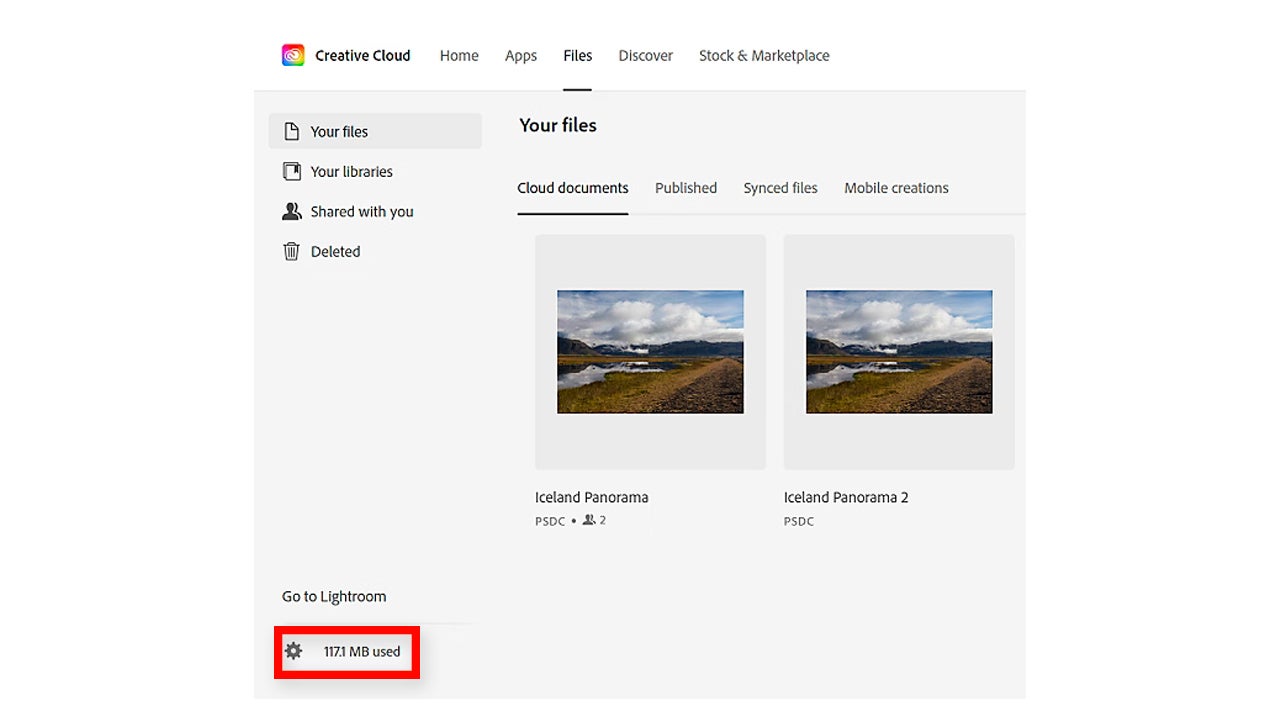
In the desktop application, you will find this information by clicking on a cloud icon, located just to the left of our profile picture.
Putting aside the more technical aspect, the biggest mistake is thinking of Creative Cloud as a kind of hub for standalone applications. However, it provides access to a shared environment. From there, we can all work with the same material and receive visible feedback.
Set up Creative Cloud libraries
When working with so many elements, it’s effortless to get lost. With Creative Cloud libraries, you can organize by colors, styles, or more to quickly access your materials.
To create a library in Creative Cloud, open the desktop application and select Files > Your Libraries. Select New Library and give it an appropriate name. Finally, decide where to save the library from the Save to menu and select Create.
Sharing libraries is even easier. From the app, click again on Files > Your libraries and then select the icon with the three dots to access Invite people. Type the collaborator’s email and use the menu to designate their permission (can edit or can view).
To do it from the Adobe website, go to Files > Libraries & Brands and then click on the icon with the three dots to select Share. Enter the email of the person who will have access and reassign their permission.
With all the more technical aspects resolved, it is also important to change the way teams work. An example could be like this:
Having a clear briefing
The team must sit down and clarify some well-defined objectives. Within the team, we need to know who is responsible for approving the work and have shared criteria.
Production with an established vision
The feedback received for the project should focus on the concept and the approach. The polishing and details come at the end.
Limited review rounds
Each review round must have a clear purpose. We emphasize it again: at all times, the project’s message must take precedence over the final details. Once everything is clear, we can refine whatever we want.
Final approval and file delivery
Once approved, only changes for well-justified reasons are accepted, not last-minute changes regarding preferences. This way, we will have the material ready for use.
If our workflows are functioning, we will see that reviews decrease, approvals come in sooner, and delivery deadlines become reliable.
A better process leads to better creativity
Reducing creative rework is a competitive advantage. Teams that invest in better organization improve collaboration among workers and enhance creativity.
Adobe Creative Cloud, understood as a shared work environment and not just as a center of individual tools, makes it easier for everyone to work in a more organized and efficient manner.
For students and educators looking to professionalize their creative workflows, this is also a good moment to get started. Adobe’s Creative Cloud Pro for Students and Teachers promotion offers 50% off for 6 months on eligible annual plans, making advanced collaboration and approval tools more accessible during the academic year. Offer valid from January 15 to February 2, 2026, for new subscriptions in the US and Canada.
Artist by vocation and technology lover. I have liked to tinker with all kinds of gadgets for as long as I can remember.
Latest from María López
You may also like
 News
NewsThe White House warned Apple, Nvidia, and AMD that Taiwan could be invaded by China in 2027
Read more
 News
NewsThere is only one sport that has true drama: Formula 1, and Netflix shows you that
Read more
 News
NewsThe alliance between Netflix and Warner is in danger: Paramount has a better offer
Read more
 News
NewsNew trailer of the fake reality show that has left half the world speechless
Read more
 News
NewsThe protagonist of 'Community' has a series you didn't know about… And it has just been renewed for a season 5
Read more
 News
NewsYou can now play for free on Steam the demo of this game visually like few you've seen
Read more