

Use cases for Acrobat AI beyond PDF editing

- February 27, 2026
- Updated: February 27, 2026 at 1:06 PM
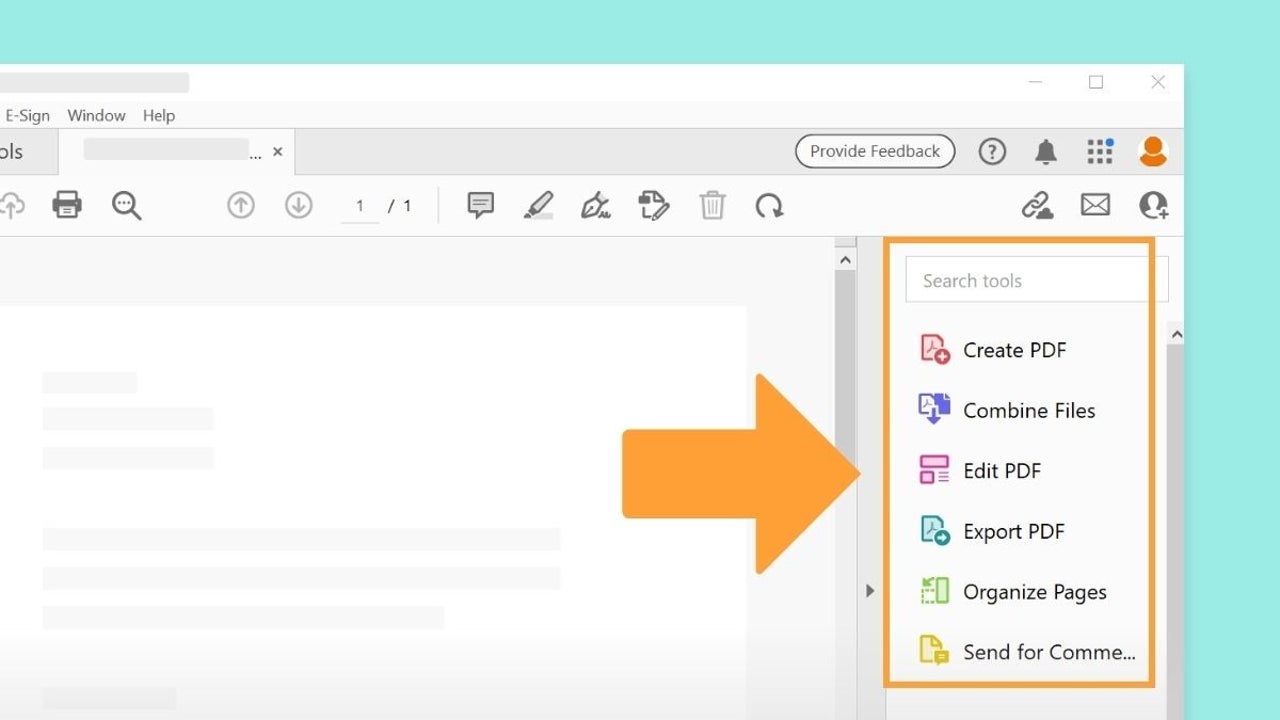
The general public has always associated the name Adobe with photo editing (the well-known Photoshop) or PDFs with Adobe Acrobat. However, few know that, currently, Adobe Acrobat is capable of much more than just editing and opening PDFs.
The revolution of generative AI has led Adobe Acrobat to integrate a new tool, AI Assistant. As you can imagine from its name, this assistant has completely transformed Adobe’s program into a powerful file management tool.
If you want to know what AI Assistant is exactly and how you can make the most of it, keep reading a little further down.

Why PDF editing is only part of the story
It doesn’t matter if you are a large company, a freelancer, or an individual: it is very likely that you have had to deal with many PDFs in your work. The problem, in most cases, usually lies in the information of the PDFs; it is almost never clear, and you have to spend a lot of time gathering the most important details.
Reviewing documentation involves a lot of reading time, a time we almost never have. AI Assistant can help you manage that time; instead of searching for data manually, AI helps you locate it in a contextualized way.
If you are working with the PC version of Adobe Acrobat, open your PDF with Acrobat, just as you normally would. Then, go to the top right and click on the AI Assistant.
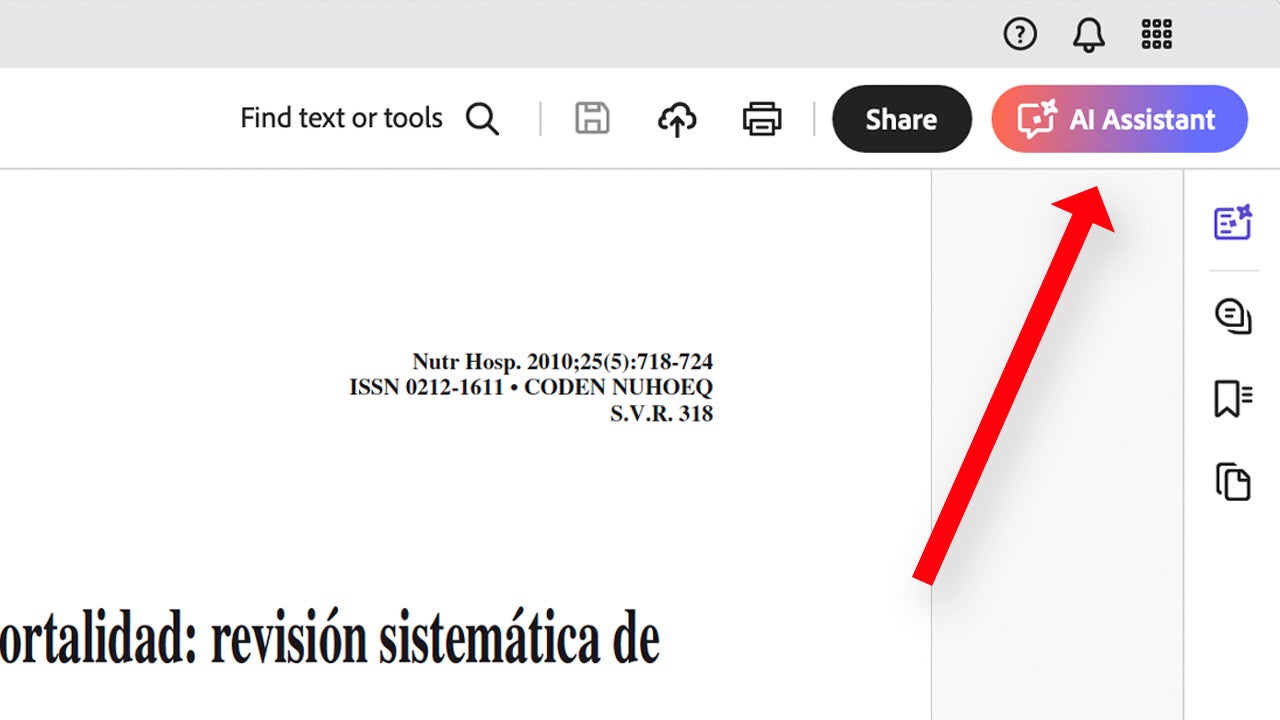
By clicking there, you will see several options, one of which is to “chat” with the assistant. From there, you can ask it specific questions. In addition to the application, you can also access Adobe Acrobat from any browser. Go online to Adobe Acrobat and upload your PDF there. From here, Acrobat offers you a series of free questions so you can try firsthand how AI Assistant works.
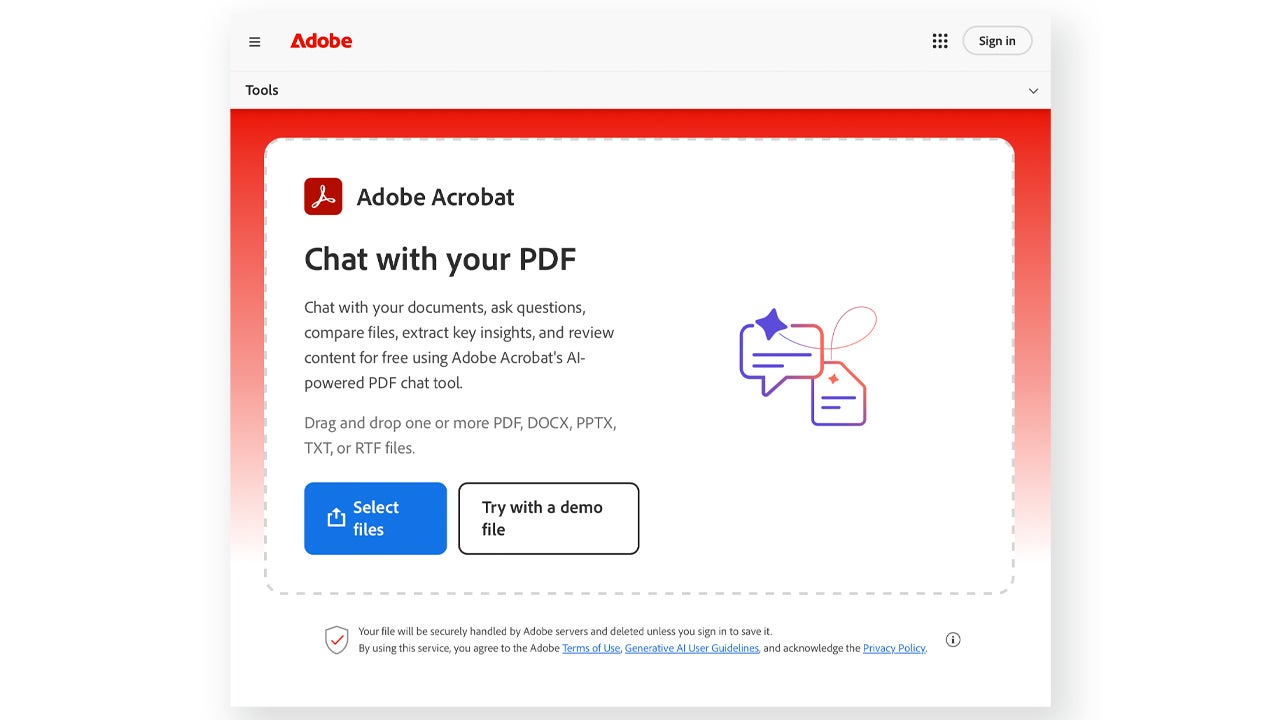
If you want to access more free questions, you would need to log in with an Adobe account or pay for a subscription, something we will discuss later.
What the Acrobat AI Assistant Allows
Don’t get it wrong, AI Assistant does not replace your brain to analyze information; it simply helps you get to that information faster. To do this, you can generate summaries (AI Summary) of longer or convoluted documents to save time.
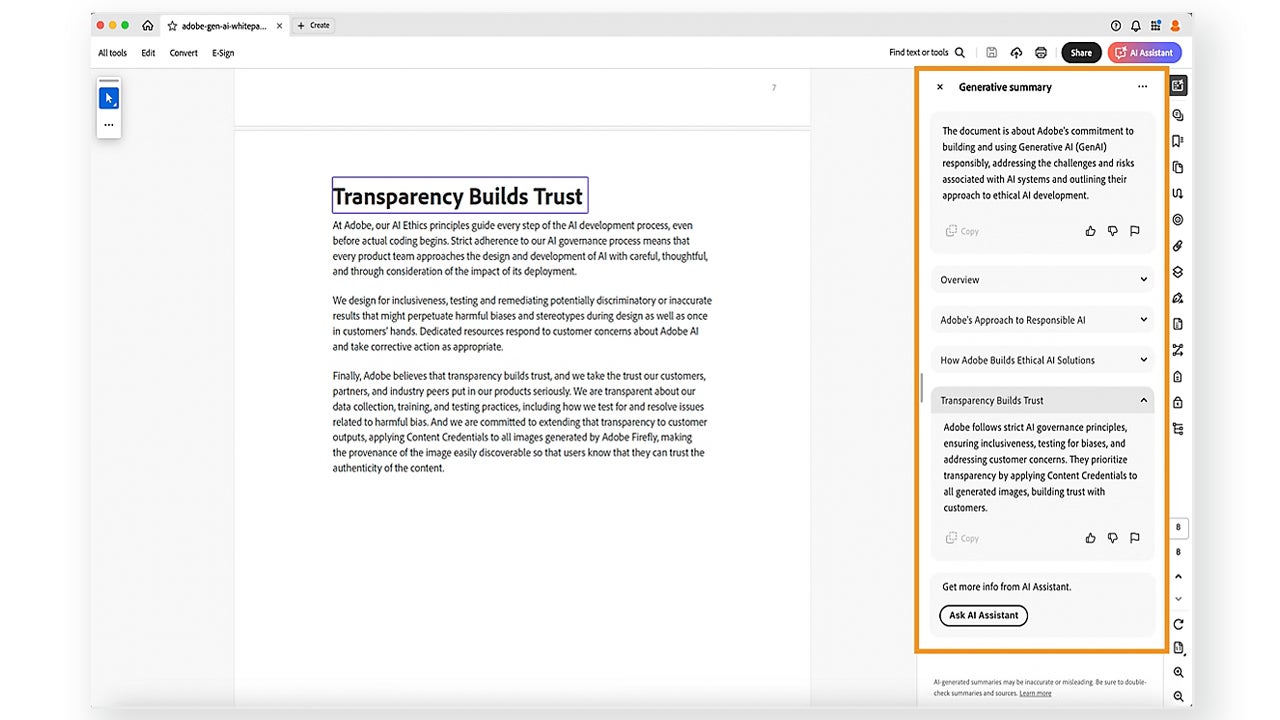
As before, you can access the AI Summary feature from the same AI Assistant button. Alternatively, you can also select All tools > Generative summary.
If prompted, select Get Started. Next, you will see how a summary with the key points of the document is generated in real time. From the summary itself, you can also access the parts of the document from which the information was extracted.
Use cases beyond editing
In any job, having a fast response time is essential. However, analyzing extensive requests or technical documentation can lead to significant delays. With AI Assistant, it is possible to identify the essentials and extract the relevant information more quickly.
Reduction of manual labor across all teams
PDF Spaces is a feature designed for teams that need to organize their documents. It is not just about storing files, but about creating a structured environment where documents are grouped by project or teams.
To get started, we will need to access Acrobat in its web version. Click on PDF Spaces, you will find it on the main page, in the Tools tab on the left.
Next, drag from your PC to Archives the files you want to be in your PDF Space. Now that you have created your PDF Space, you can share it with other users from the Share button.
From here, you can add the emails of the people you want to invite to edit or view your PDF Space. From Link access you can configure permissions for external users.
How Acrobat AI Fits into Comprehensive Workflows
Adobe Acrobat does not work in isolation; its usefulness increases when it is part of a broader ecosystem of creation and collaboration tools. The information from your PDFs can be turned into presentations or serve as material for other types of visual content, such as what you can create with Adobe Express.
Artist by vocation and technology lover. I have liked to tinker with all kinds of gadgets for as long as I can remember.
Latest from María López
You may also like
 News
NewsZack Snyder explains why there is no Batman better than Ben Affleck
Read more
 News
NewsThe original directors of Scream 7 could have made a very different movie than the one we have had
Read more
 News
NewsAt Blizzard, they are happy not to use AI for any of their games
Read more
 News
NewsWe know the first details of Matrix 5
Read more
 News
NewsThe most popular mods for GTA 5? Those from all open-world games: those inspired by Squid Game
Read more
 News
News'Wuthering Heights' is no longer the highest-grossing film of the year: the new record comes from China
Read more