
How To
How to see your favorite musician live with Spotify


- September 5, 2018
- Updated: July 2, 2025 at 6:05 AM
Spotify is one of the leading names in distributing and cataloging music, and you’d be hard-pressed to find a more versatile platform for making playlists of your favorite tunes. Spotify’s also got it when it comes to discovering new sounds and artists. With Premium you can take Spotify with you on the go, putting its massive library of music in your pocket or on the road.
With high quality mixes and remasters readily at your disposal, the only way to get a more lifelike sound would be to see the same artists performing live. Though most users may not know it, Spotify can help you do that, too.

Though Spotify is best known for its huge catalog of streamable, downloadable music and podcasts, it has a number of features at your fingertips that you might not even know about, such as these. One such feature shows when and where your favorite artists will be performing live, and Spotify can help you get tickets at the press of a button.
If you are an artist who’s not sure whether Spotify is the best medium for you, this feature alone might be enough to reconsider; you’ll be getting a lot of followers and concert-goers!

Apple Music vs Spotify vs Tidal
Which is best?See if and where your artist will be performing
The first method for seeing whether your favorite artists will be performing live is to check out their page on Spotify. This is done simply by typing their name in the search portal on the top left of Spotify (if you’re on computer) or by searching their name under Browse on either computer or on your mobile device. Click on your artist’s name and you’ll instantly be transported to their page.
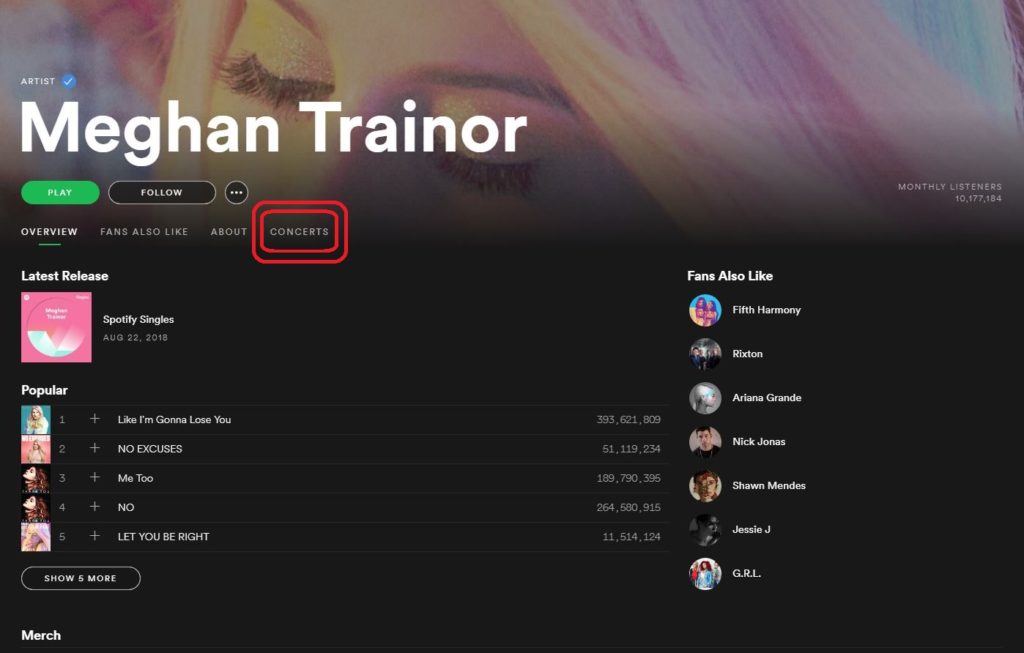
Up top you’ll see four tabs: Overview (where you currently are), Fans Also Like, About, and Concerts. Click on the Concerts tab.
At the top of the list, it’ll show you the date and location of the concert that will take place closest to you. It will list the venue on the right.
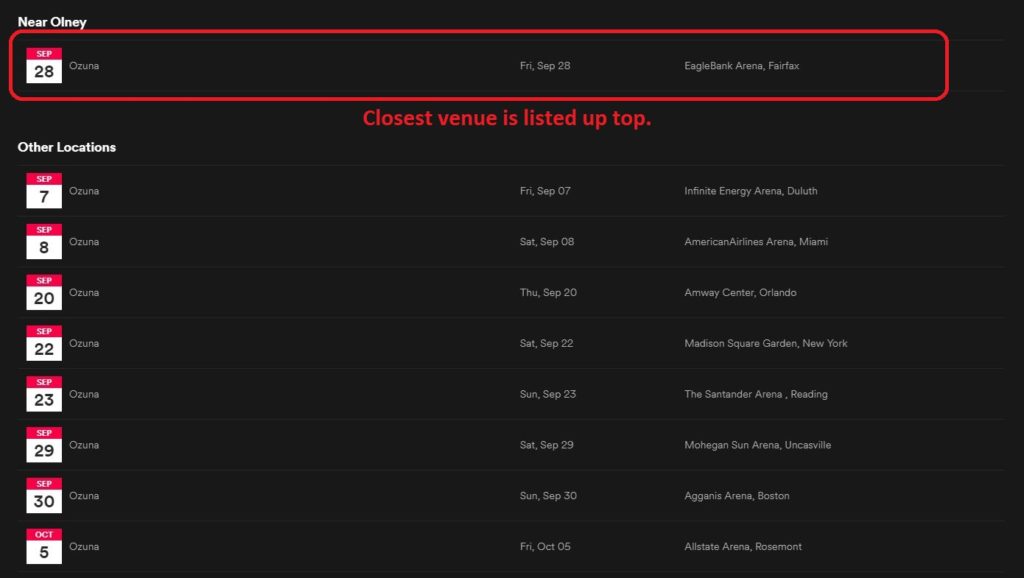
See all upcoming shows
This second method is our preference: If you navigate from the Browse menu you’ll be able to see a list of all artists who will be performing near you soon. If you’re not looking for a specific artist and just want to go see someone you like in a live show, this is the best way to do it.
Click on the Browse tab again. Right up top, you’ll see a tab for Concerts. Go ahead and click it.
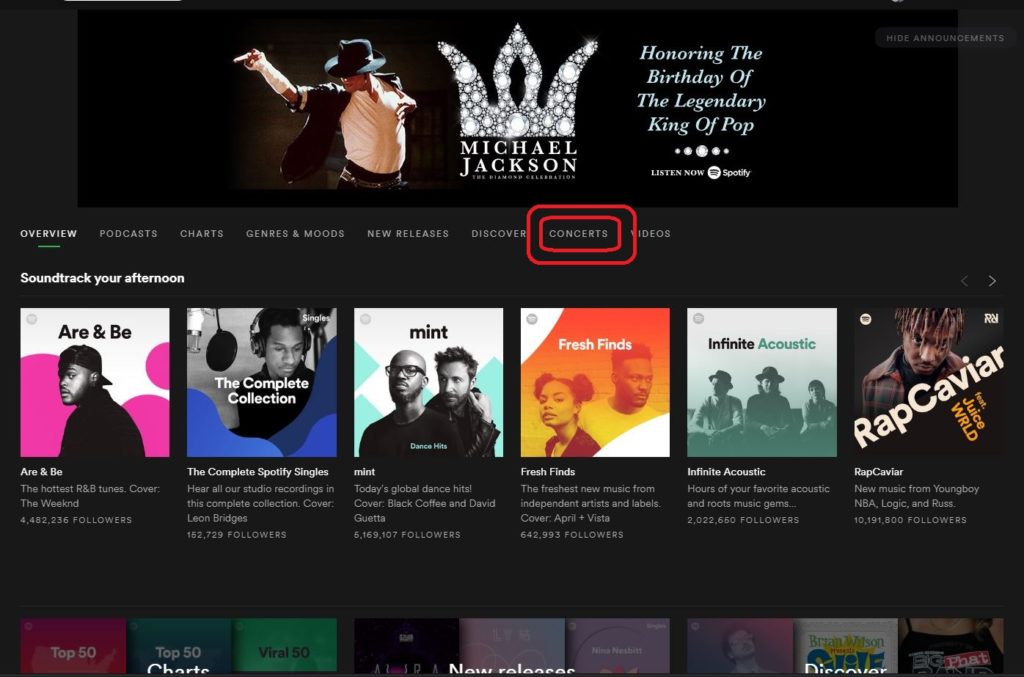
You’ll see a list of artists that are recommended to you based on the music you listen to on Spotify, so if you listen to R&B you’ll be seeing mostly R&B artists. Listen to country, you’ll see mostly country concerts coming up nearby. Like before, you’ll see the artist on the left, the date, then the city and venue where the concert will take place.
Get your ticket
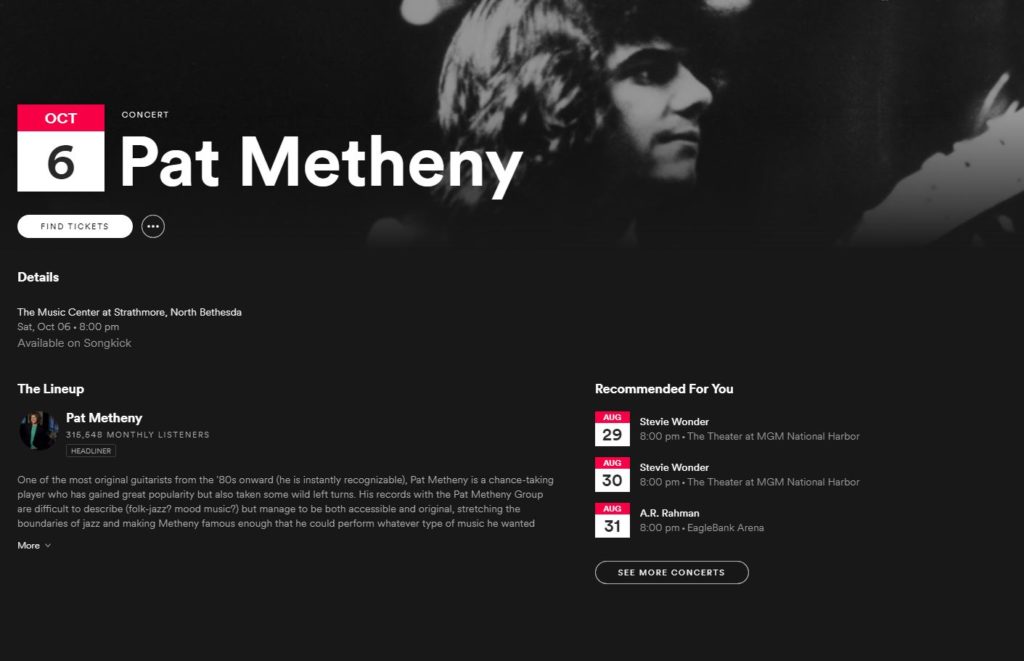
Click on the concert of your choice and Spotify will take you to a concert page for that date and venue. It’ll even list the day of the week, the time, and the ticket cost. To get a ticket, click the Find Tickets bubble right up top.
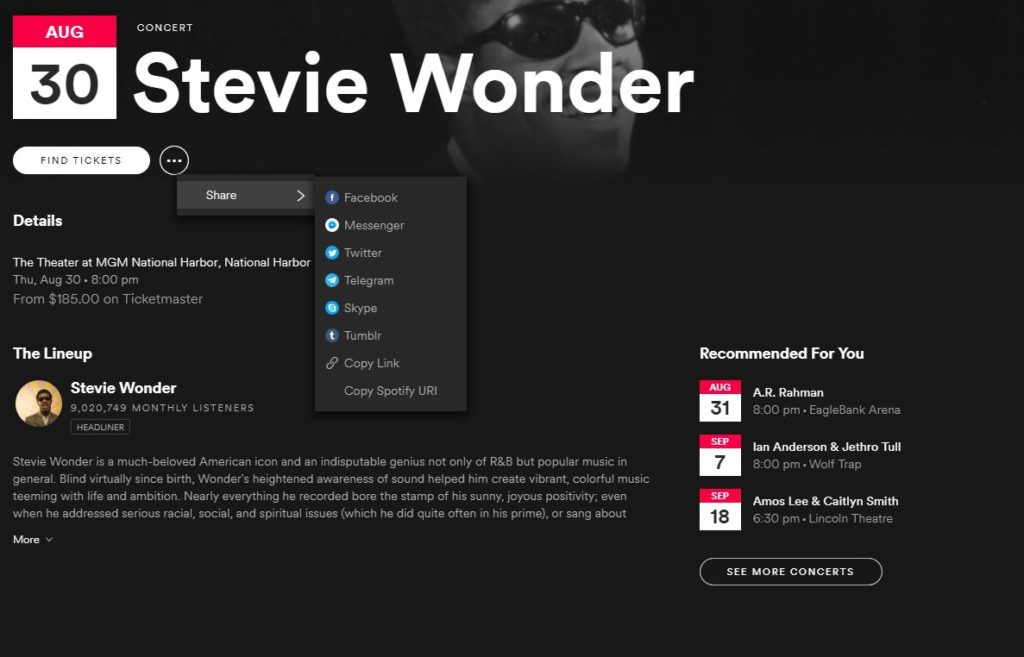
Fun fact: If you click the ellipsis next to that bubble, you get a share option where you can post this concert to social media. Concerts are always better when you bring a friend!
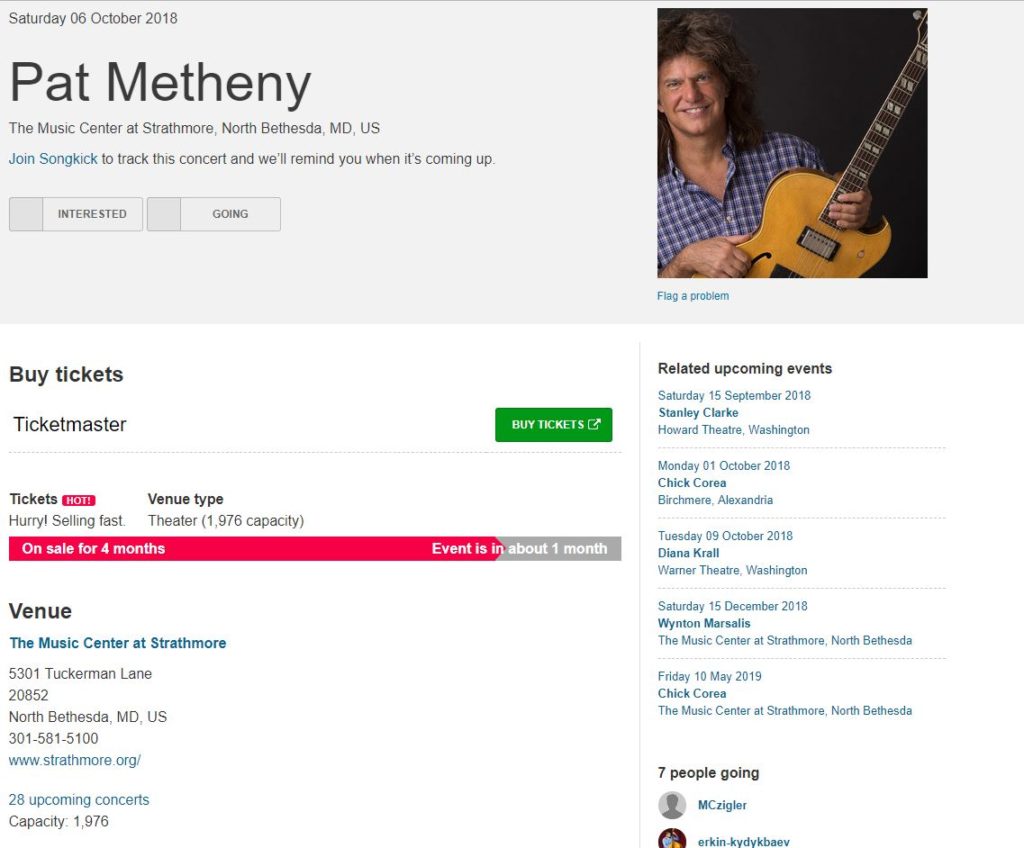
After you’ve clicked Find Tickets, Spotify will open your default browser to a proxy website like Ticketmaster or Songkick where you’ll be able to buy your tickets then and there.
Enjoy your show!
You may also like
 News
NewsWhat comes after 'Super Mario Galaxy'? Five possible projects about the future of Nintendo in film
Read more
- News
Everyone thinks that 'Euphoria' is an original series, but in reality, it is just a remake
Read more
 News
NewsThe new Fable has specialists making the cutscenes: Blizzard Entertainment
Read more
 News
NewsThe mayor of New York, Zohran Mamdani, has explained US policy in a way that everyone can understand: with Mario Kart
Read more
 News
NewsEven a dachshund can play LOL, as long as it's with a magical cat
Read more
 News
NewsThe creators of Stranger Things are leaving Netflix to head to its most direct competitor
Read more