
How To
What is Anydesk and how to use it

- March 22, 2021
- Updated: July 2, 2025 at 4:10 AM
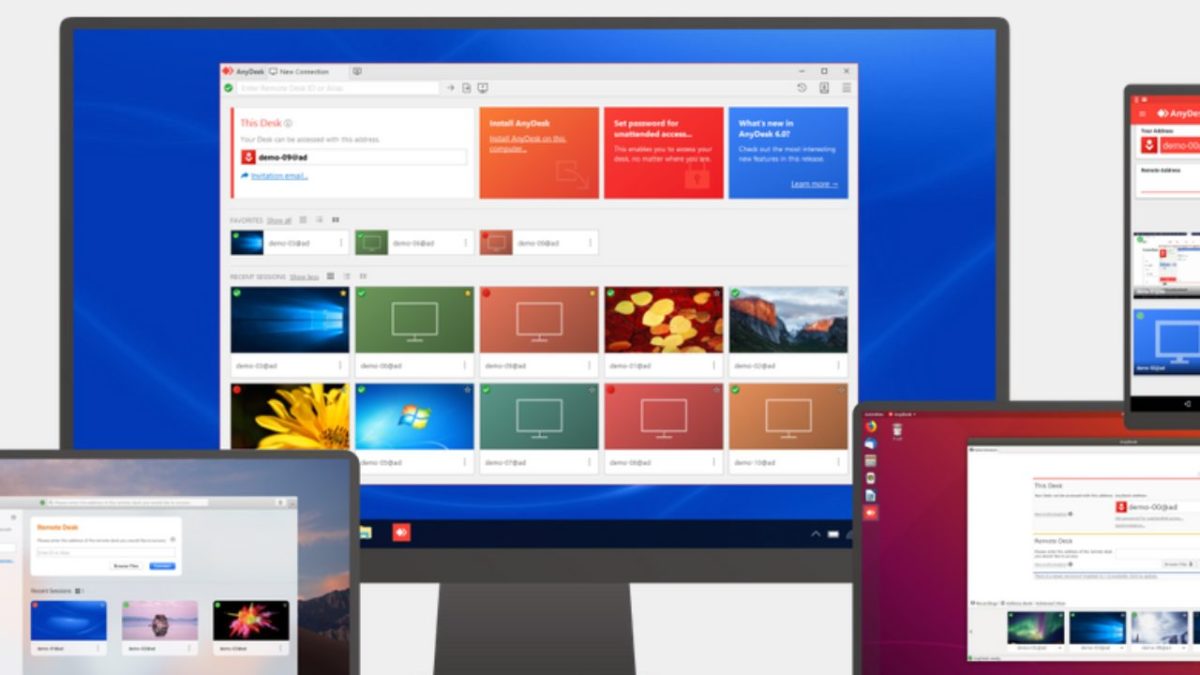
Anydesk is a popular software application that allows multiple users to have remote access to a computer system, its files, and documents. Or it can allow two devices to be connected for file-sharing or for IT staff to iron out bugs in a remote computer, for instance. It’s ideal for long-distance collaboration in the current scenario in which more and more companies have employees working remotely. The German software is used worldwide and has been downloaded more than 500 million times, according to the developers.
Anydesk is distributed by Anydesk Software GmbH. It’s free for personal use. Businesses are charged a monthly fee. Before you download it for yourself or your company, let’s take a detailed look at what Anydesk is and how to use it.
What is Anydesk and what is it used for?
Anydesk allows you to access your office computer when you’re out of the office. You can easily access data from your office computer, manage your files and transfer them or print them from a remote computer or mobile device. You can even turn your office screen black by enabling privacy mode in the security settings if you don’t want other people in your office to look at what you’re working on from a remote location.
How does Anydesk work?
The developers of Anydesk say its secure connection, which is encrypted and has a proprietary codec, ensuring trouble-free transmission. It allows connections between different kinds of devices, no matter which platform they’re operating on. The software also allows private users to access their home computers if they’re somewhere else. Business IT personnel can also use it to access staff members’ devices to solve problems if they’re out of the office.
How to use Anydesk?
Before you can use Anydesk, you need to download and install it. Here are the steps to follow.
Step 1: Download the Anydesk app
Choosing your preferred device format lets you start this journey by downloading the Anydesk app for free from a trusted provider. You can follow the easy links provided on top for quick installation.
Step 2: Fire up your new Anydesk app
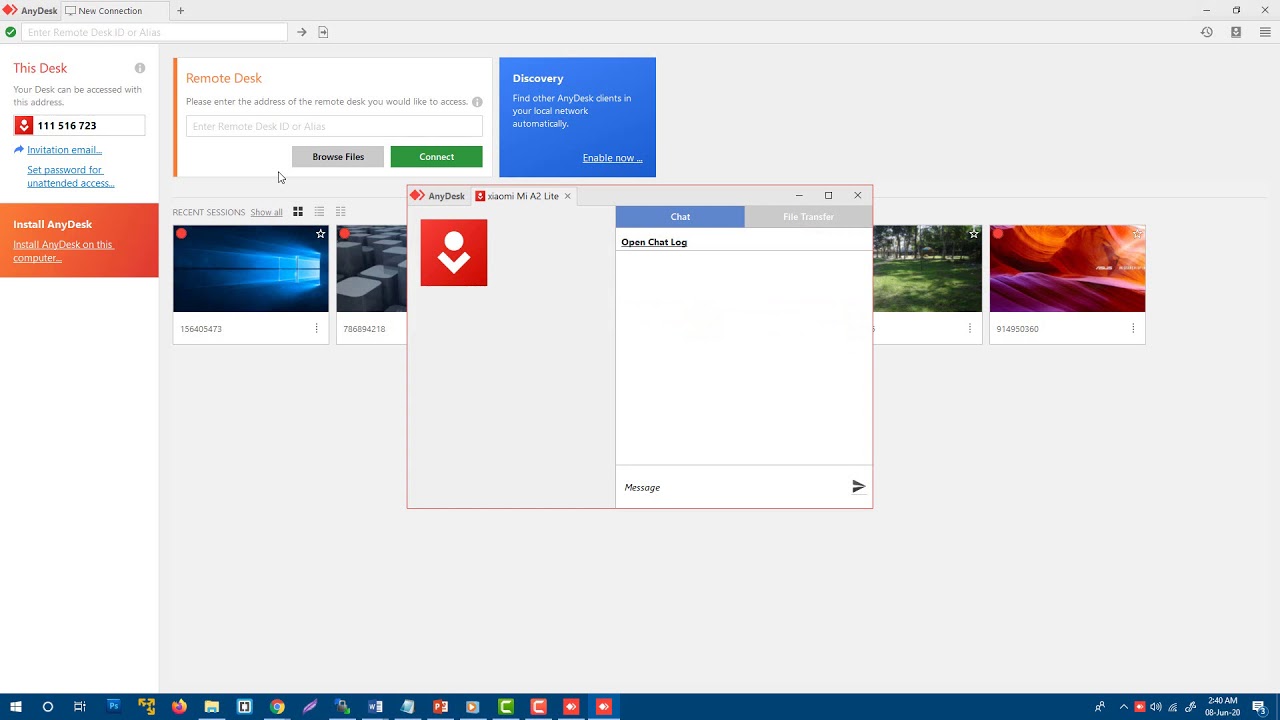
You can now launch the Anydesk app by clicking on the file. It’ll start running instantly. Under the heading ‘Remote Desk,’ you can type in the name of the remote device you want to access.
Step 3: Green is for GO
Once you’ve linked your devices, you press the green ‘Connect’ button, and you’re ready to go. This app is truly as simple as that.
How to give control to Anydesk
In your Anydesk setting, you can find the Access Control List under the security tab.
If you want to give more access to your remote device, you have to unlock the security tab. You can press the + button to add more entries.
How to share files on Anydesk
You can copy one or more files to your clipboard on either the remote or local device.
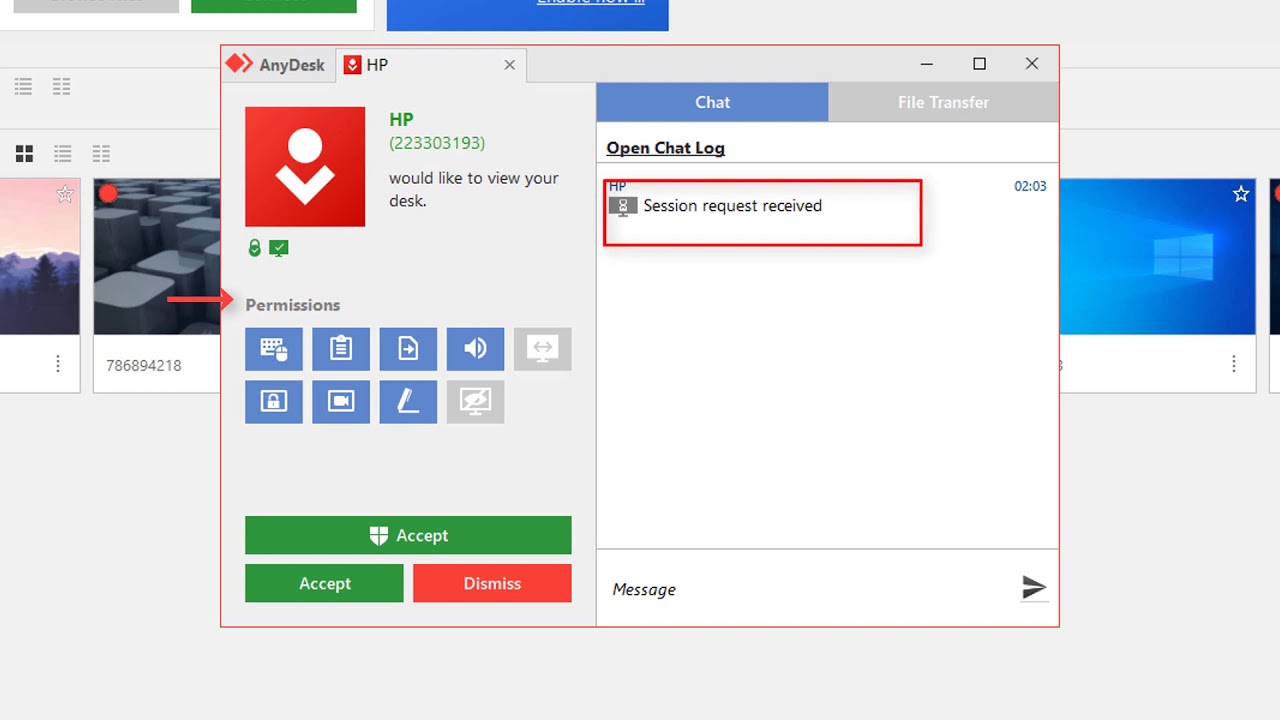
When the pending file transfer request appears on the other device, you click on the ‘File Transfer’ button in the ‘Accept’ window.
A suitable safety protocol to follow when you’ve completed your file transfers is to disable Anydesk when not in use, especially if you’re accessing your remote device via a public WiFi connection.
How to use Anydesk on mobile
Using Anydesk you can access your personal computer from your mobile phone or tablet if you’re away from home. You will have to download Anydesk on your PC. Also, download the Anydesk app on your phone. Open it and enter the address or ID of the device. Tap the red arrow to use it.
You press the red button again to end the session. To communicate between the PC and the mobile device, you’ll have to have them connected to the same network. You’ll be prompted to select a name for your connection. If your PC is on, you can now access and use it from your mobile device.
More Anydesk guides
For more information on Anydesk, visit the following links:
- How to convert a recorded Anydesk session in 3 easy steps
- How to run Anydesk in Ubuntu in 4 simple steps
- How to install Anydesk on Kali in 3 steps
- How to record in Anydesk in 3 easy steps
- How to control mobile from PC using Anydesk in 3 easy steps
- How to use Anydesk
Sharing connections
Anydesk provides an excellent opportunity to access your PC remotely and grab those important files you need. Don’t let all the functions intimidate you, as it’s easy to use.
You may also like
 News
NewsOne of the actors insulted by Quentin Tarantino acknowledges the damage it caused him. "I felt like I had died"
Read more
 News
NewsWe already know what the first PlayStation Plus game of March will be
Read more
 News
NewsWe already know who will challenge the God of War in the God of War series
Read more
 News
NewsOnly 39% of security managers using AI have seen how it improves their reporting speed
Read more
 News
NewsAI depends on advertising, no matter what. Will ChatGPT be the exception?
Read more
 News
NewsWill Daniel Radcliffe be the new Wolverine? No doors are being closed
Read more