
How To
How to use the GWT Super Dev Button extension in 6 steps

- June 10, 2022
- Updated: July 2, 2025 at 3:40 AM
The Google Web Toolkit (GWT) is an open-source project that offers a developer-friendly environment called Super Dev Mode. The GWT toolset is for Java developers who need to create rich AJAX applications. Front-end JavaScript developers who prefer object-oriented programming principles and want to leverage their Java IDE find the most value in GWT concepts and tools.

Start GWT programming with the Super Dev Button Chrome extension today by following these six easy steps.
What is the GWT Super Dev Button?
The GWT Super Dev Button is a developer tool from Google for GWT developers who work in Super Dev Mode. The Super Dev Mode Chrome extension provides GWT developers with a page action button that allows users to view all their program modules on a specified code server. By clicking the GWT Super Dev Button, developers can compile the independent and interchangeable models without adding bookmarklets to each one.
The GWT Super Dev Button is a convenient tool, but there are a few steps you should take to ensure you are set up for GWT programming first:
Java SDK
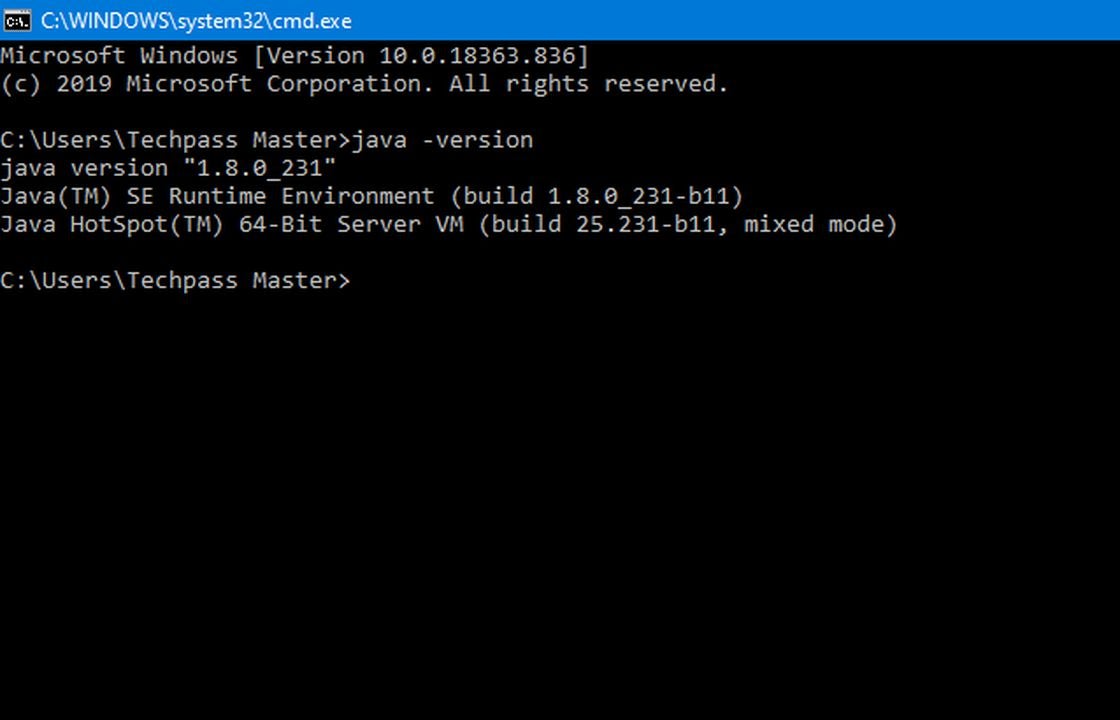
Install the Java SDK. If you have previously installed a version of Java Standard Edition SDK, confirm you have the latest edition.
Eclipse IDE
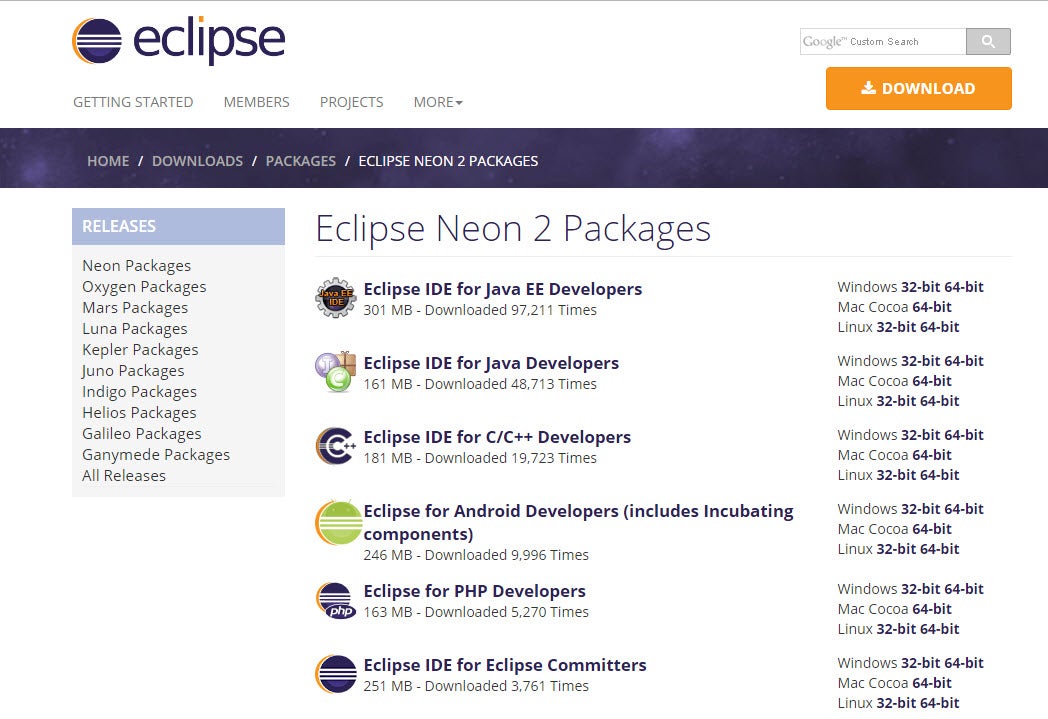
Install Eclipse on your preferred Java IDE. You can use Eclipse, IntelliJ, or NetBeans. GWT does not tie you to a specific IDE, so any integrated development environment for Java will work. If your Java IDE does not include Apache Ant support, you should download Ant. Apache Ant lets you run and compile GWT applications.
Google plugin for Eclipse
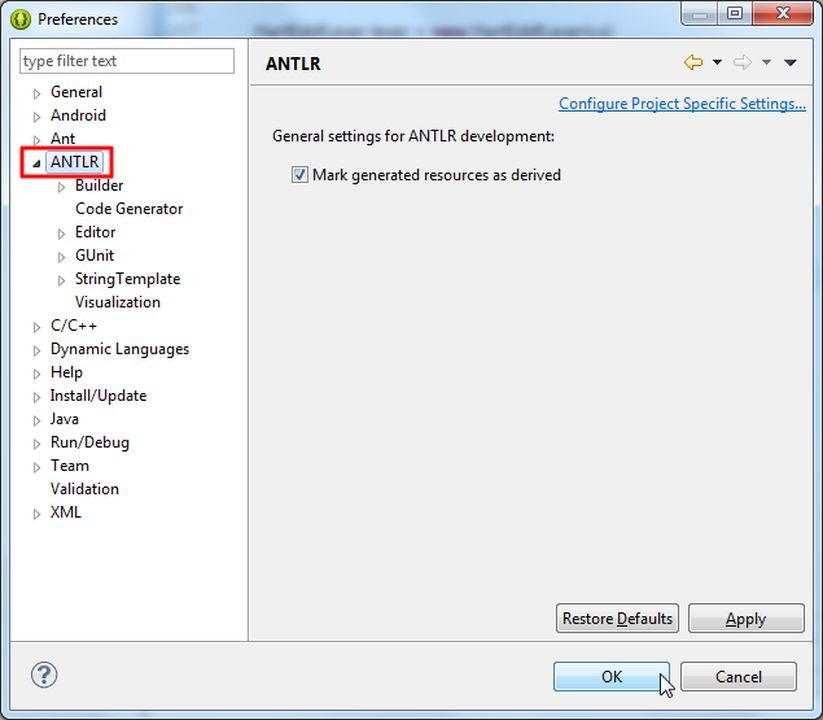
Install the Google plugin for Eclipse. This add-on brings more functionality for engineering GWT applications.
Download GWT
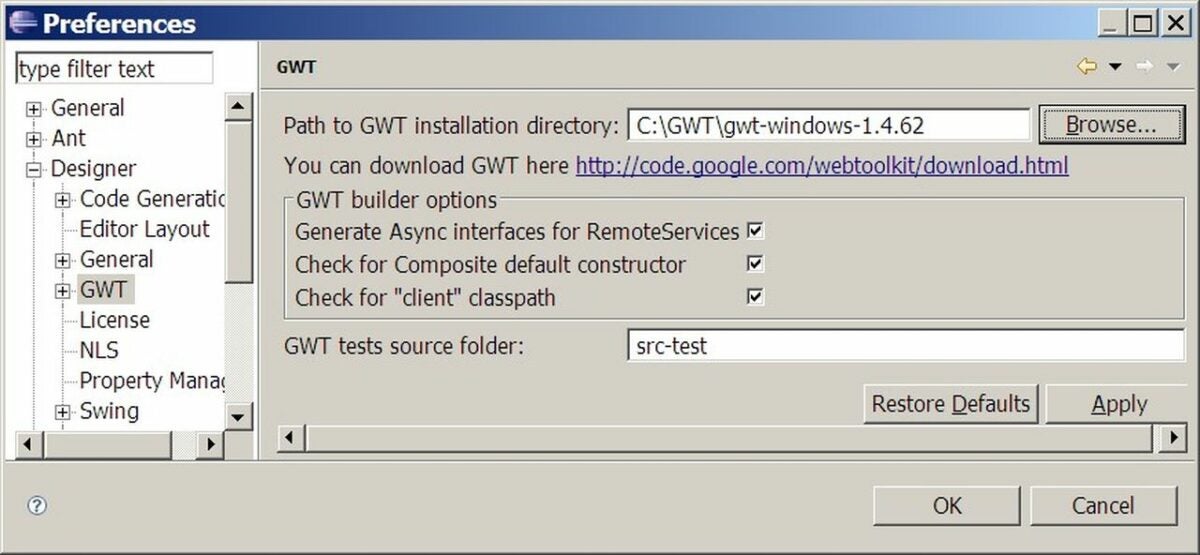
Download GWT. The Google Plugin for Eclipse lets you download GWT, but downloading the most recent distribution of GWT is recommended.
Unzip the Google Web Toolkit
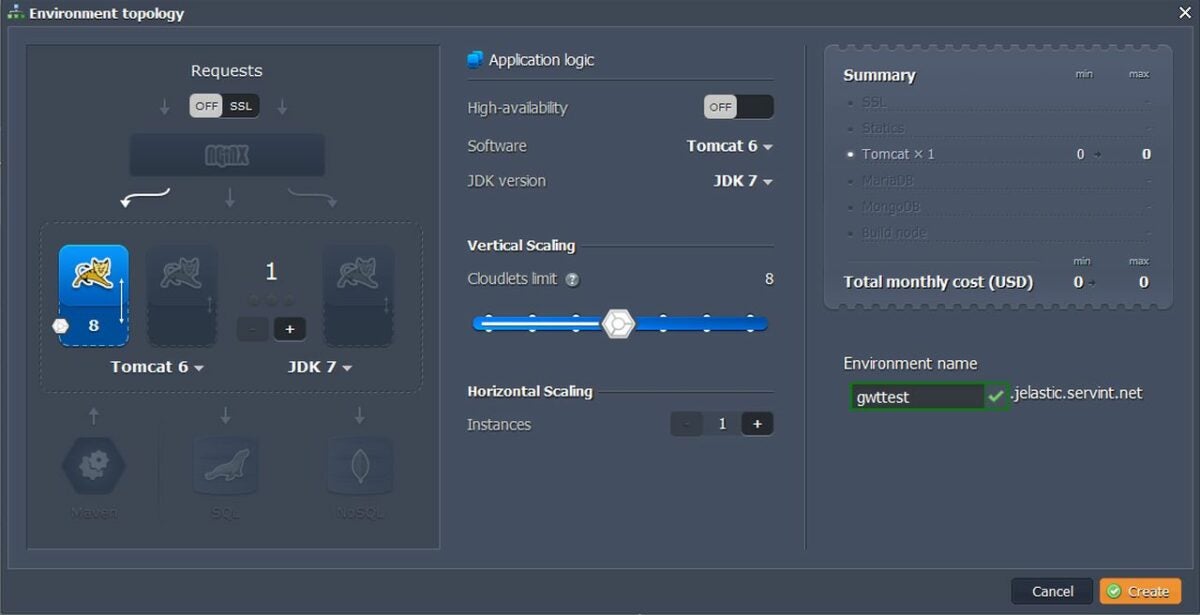
Now, unzip the GWT distribution in your desired directory. Note that GWT lacks a designated installation program. Find any GWT files you run in this extracted directory.
At this stage, you’re all set to start building apps with GWT and add the Super Dev Button extension. You might also consider installing Google App Engine SKD to run both Java and GWT applications on Google infrastructure. You can download this with the Google Plugin for Eclipse or the App Engine SDK.
Download GWT Super Dev Button
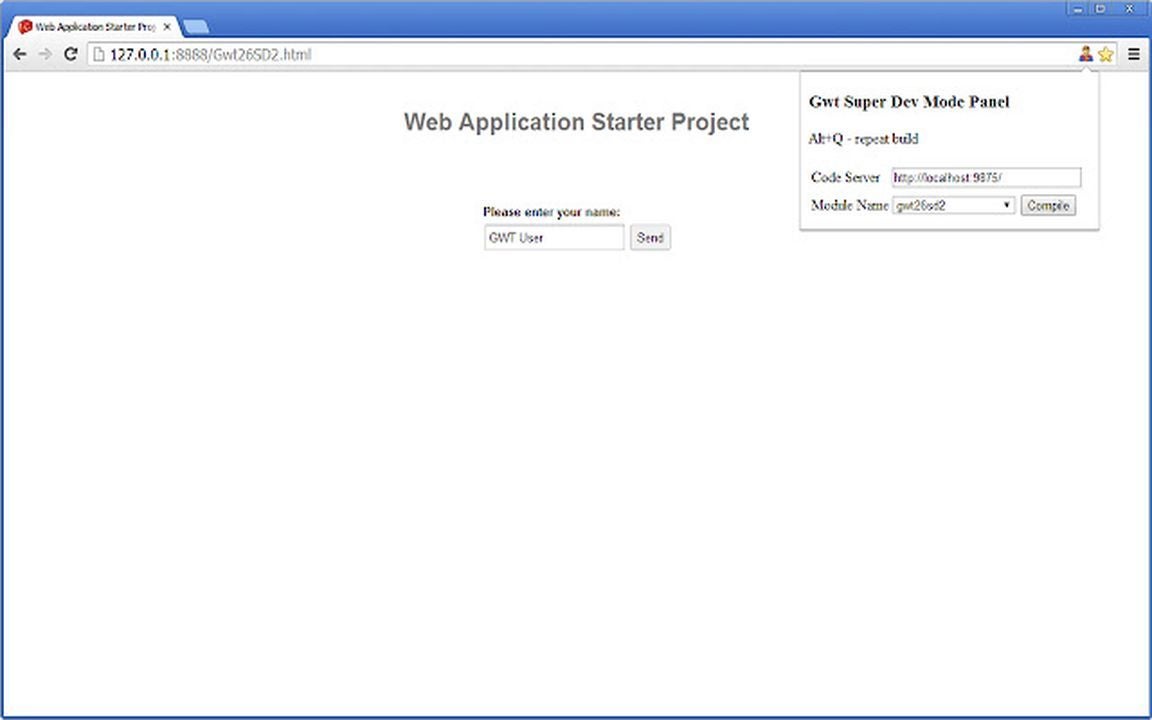
Download GWT Super Dev Button extension for Chrome. As you start creating a new GWT application, test the GWT Super Dev Button by checking the following:
- Access the Module drop down to ensure all modules display on the specified code server.
- Press the Compile button to record the Code server URL.
- Once you change and log the Code server URL, all the development modules should combine and reload.
If the Hot Key does not work or any of the above actions fail, reinstall the Super Dev Button Chrome extension and try again. If all else fails, submit a bug report to resolve the issue.
You may also like
 News
NewsDiscord will implement identity verification measures, but it will do so server by server
Read more
 News
News'The House of the Spirits' already has a release date on Amazon Prime Video
Read more
 News
NewsThe best animated series in history ended 10 years ago. No one has been able to surpass it
Read more
 News
NewsThe Marvel character that was supposed to appear as a supporting role in the Netflix series. They ended up giving him his own movie and grossing 1.1 billion
Read more
 News
NewsThe success of 'The Lincoln Lawyer' shows no signs of slowing down and is confirmed as a hit for Netflix
Read more
 News
NewsHow to reduce manual retouching time with Firefly in Photoshop
Read more