
News
Mastering the Art of Screenshots on Your iPhone: A Must-Know Trick for All Users
Capture the entire screen and much more than just the screen

- April 14, 2023
- Updated: July 2, 2025 at 2:31 AM
Our iPhone or iPad is capable of taking screenshots to record whatever we’re looking at. Whether we need to capture a snippet of a website or a conversation, check how fast our iPhone loads with a Shortcut or show that we have passed a level in the game we have been playing for weeks, the screenshot is vital.

And there’s more, because our iPhone can take even better, more complete captures. When we are on a web page, an email or a document we can choose to take a full page capture to capture all the content in a single image.
How to take a screenshot on our iPhone or iPad
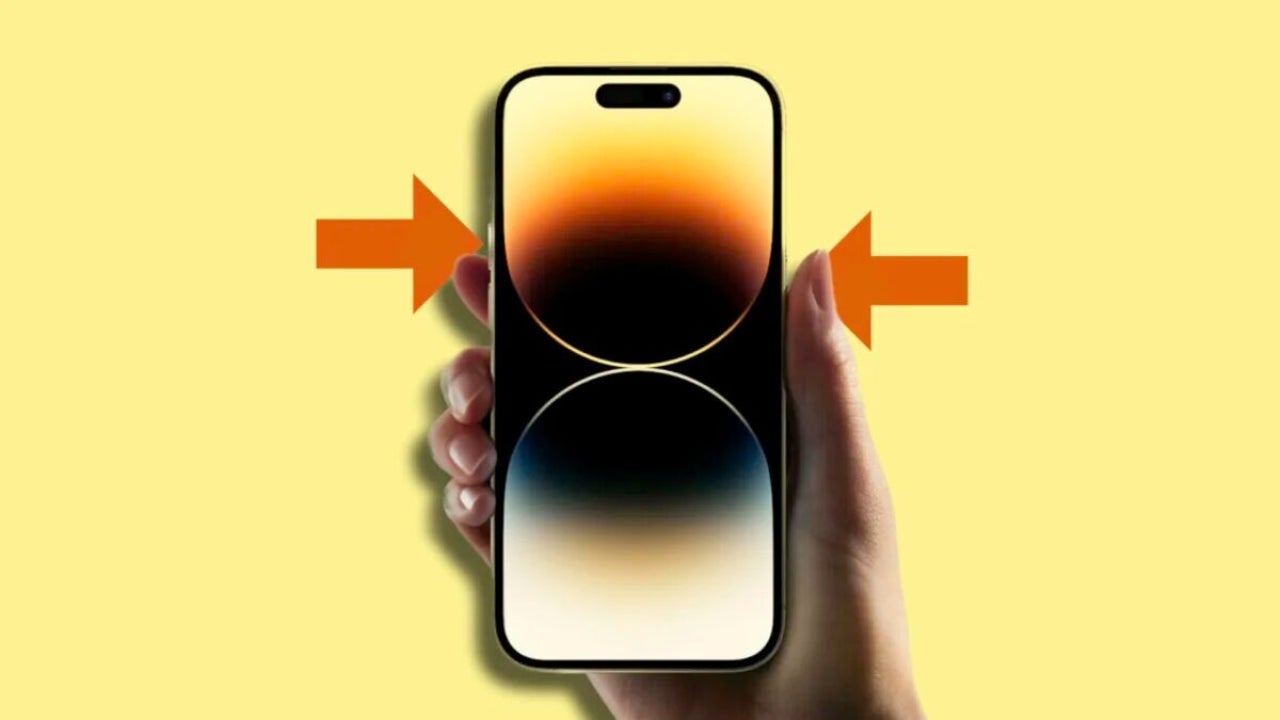
Taking a screenshot on our iPhone or iPad is really simple. All we have to do is press a couple of buttons at the same time. Then, we will see that the screen emits a white flash accompanied by a sound similar to having taken a photo.
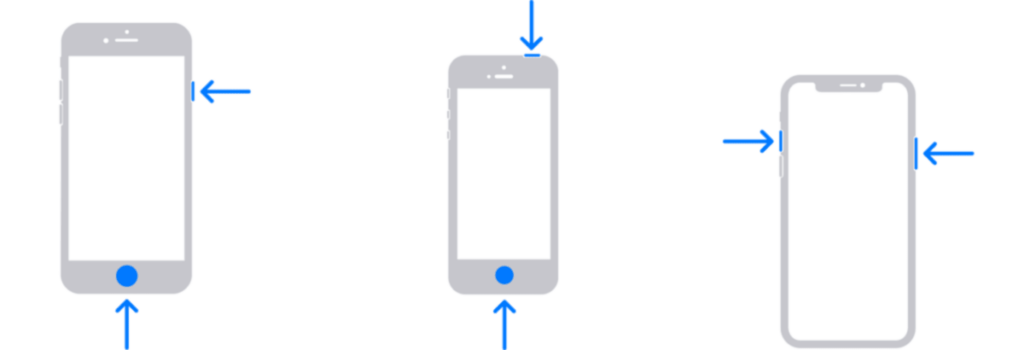
The key, here, is to know which buttons to press depending on which iPhone or iPad we have in front of us:
- iPhone and iPad with Face ID: press the volume up button and the right side button at the same time.
- iPhone and iPad with Home button: we press the Home button (the front one, under the screen) and the button on the right side or on the top at the same time.
In both cases, the pressure should last about a second, we do not have to hold down the buttons, but just press and release immediately.
The capture will appear in the Photos app of our iPhone or iPad from where we can crop it, edit it or share it when necessary. The photo will also be synchronized with iCloud. Alternatively, for quicker access we can tap the capture that appears at the bottom left of the screen. From here we can edit, mark or crop, and directly share or save the result in a single step, without having to go through the Photos app.
Full-page capture, beyond the screen
Many times we have to scroll through the content to see it in its entirety. When we are interacting with the content, scrolling is the most natural thing to do, but when we need to annotate or share the content it is much better to do it in a single document. This is where the full page screenshot comes into play.
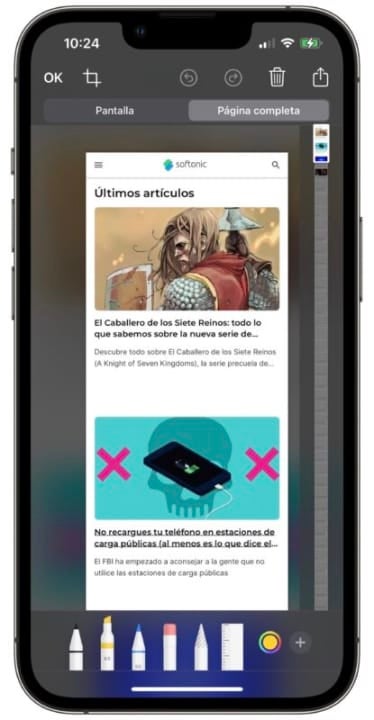
We can use this feature on any web page in Safari, in emails in the Mail app and in documents in the Files app. The steps are as follows:
- We open a website, mail or document on our iPhone or iPad.
- Take a screenshot.
- Tap the thumbnail that appears at the top left.
- Choose Full Page.
- If we want we can mark the screenshot, we can scroll through it using the slider on the right side of the screen.
- Tap OK and Save PDF to Files to save it or the share button (square with up arrow) to send it.
Recall that to take a screenshot on our iPhone or iPad we must simultaneously press the volume up button and the sleep/wake button. In the case of an iPhone or iPad without Face ID we will simultaneously press the Sleep/Wake button and the Home button.
At a time when information is presented to us in such a visual and interactive way, being able to capture it in a simple and, above all, complete way is of great importance. The screen capture and full page capture functions allow us to capture the information in a single document in the most convenient way.
Some of the links added in the article are part of affiliate campaigns and may represent benefits for Softonic.
Architect | Founder of hanaringo.com | Apple Technologies Trainer | Writer at Softonic and iDoo_tech, formerly at Applesfera
Latest from David Bernal Raspall
- How to deliver campaign-ready video without expanding production resources: the magic of the new Adobe Stock AI Studio
- Generative AI vs Generative Design: What Each Technology Can (and Can’t) Do in Architecture
- The Software Behind the Success of Zootopia 2: How Autodesk Maya and Flow Production Tracking Brought It to Life
- The Web You Remember Is Waiting Here: Share Your Memory and Win a Trip to Switzerland
You may also like
 News
NewsBluey lives, the fight continues: Why Disney+ just released new mini-episodes even though they promised the series was over
Read more
 News
NewsThe critics are hating The Mandalorian and Grogu and that could mean the end of Star Wars
Read more
 News
NewsSony's new game is strange, creepy, and dodging literal bullet rains is incredibly fun
Read more
 News
NewsYoshi arrives on Switch 2 to cap off an outstanding first half of the year for Nintendo
Read more
 News
NewsThe most hated character from Final Fantasy VII Rebirth will return for the third part
Read more
 News
News'Goldeneye 007' is one of the best games for Nintendo 64… but it was originally made for Super Nintendo. It turned out badly, of course
Read more