
How To
How to Convert Microsoft Powerpoint to Google Slides in 2 Easy Methods

- June 7, 2021
- Updated: July 2, 2025 at 4:04 AM
Cloud storage is getting increasingly more traction these days, so being computer-bound isn’t trendy anymore. While you might use and like Microsoft PowerPoint, sometimes you need to share the creation, collaborate on it online, make the same for different operating systems, or present in a setting where you can’t use hard drives.
This article talks about converting the PowerPoint file into a Google Slides document. We discuss two viable and slightly different options.
Upload the file to Google Drive
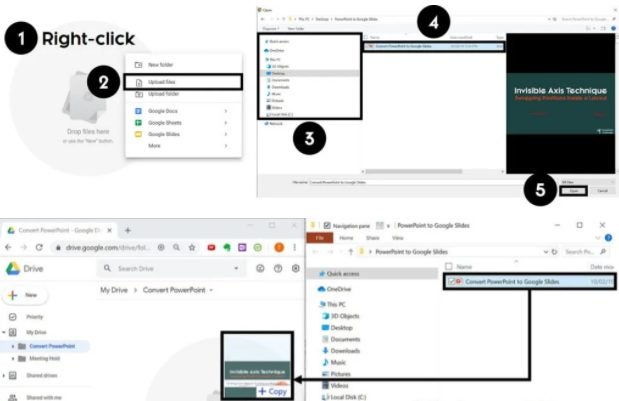
The first method is as straightforward as it can get. Follow the steps below to get the presentation running.
– Open Google Drive, find the relevant folder, and upload the original PowerPoint file
– Right-click it and navigate to Open with > Google Slides
– Go to File > Save as Google Slides
(Optional) Delete the initial upload to avoid confusion
From here, you can open the presentation, make adjustments, and have it on the cloud, accessible from everywhere.
Import slides
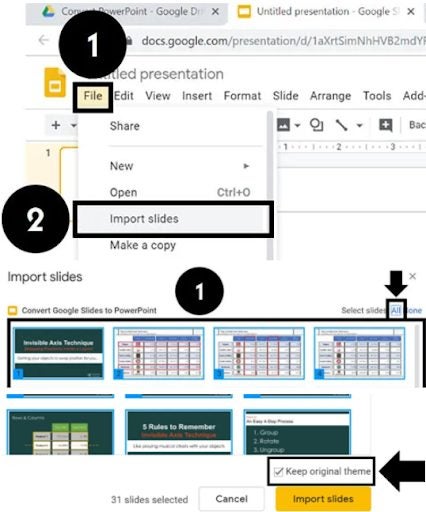
While the method above shows how to import and convert the whole document, the second one gives you more granular control of which pages to keep.
– Start an empty Google Slides file
– Go to File > Import slides
– Click Upload > Select a file from your device
– Browse presentation and click “Open”
– Select the individual pages
– Decide if you want to keep the original theme, and click “Import slides”
- Delete the blank slide and make adjustments if needed
An alternative way is to choose an uploaded .PPT file from the “Presentations” tab in the “Import slides” window instead of uploading it from your computer. Next, you just need to take the rest of the steps as described above.
Your presentation might look different
Although the two programs do the same thing, for the most part, Google Slides has fewer transitions, fonts, and templates. Thus, the presentation’s intricate details might be lost in the conversion process. Still, you can ensure that you keep the best parts of your slides.
As we’ve mentioned before, simplicity is key to a successful presentation. You might not need too many elements to tell a memorable story, and the conversion might be an opportunity to simplify.
Latest from Shaun M Jooste
You may also like
 News
NewsAgentic AI in Adobe Express: Will Conversational Editing Change 2026 Content Creation?
Read more
 News
NewsTikTok US Sale Is Confirmed: Here’s the How and the When
Read more
 News
NewsThe Monsterverse will have a spin-off prequel to the prequel of 'Godzilla'
Read more
 News
NewsWe know the first details about Fallout 5
Read more
 News
NewsBarack Obama has chosen his favorite movies of 2025, and they also include the ones you liked the most
Read more
 News
NewsThe game banned by Steam manages to sell 18,000 copies in other stores
Read more