
How To
How to Make Adobe Reader the Default PDF Program on Mac in 4 Easy Steps

- April 16, 2021
- Updated: July 2, 2025 at 4:09 AM
Why is it that both Microsoft and Apple refuse to acknowledge Adobe’s dominance in the PDF reader pool, whether on Windows PC, Android device, or iPhone? Both of these companies insist on installing their own PDF readers and making them the default program so that even after you’ve gone through the whole rigmarole of installing Adobe Reader, your PDFs still insist on opening with one of the other programs. Microsoft has made it relatively easy to change your default programs with pop-ups and simple settings, but many people find themselves confused with Apple.
How to Make Adobe Reader the Default PDF Program on Mac
You will need to have Adobe installed on your Mac before you begin this process. When that installation is complete, then please continue with the guide.
Step 1: Select a PDF file
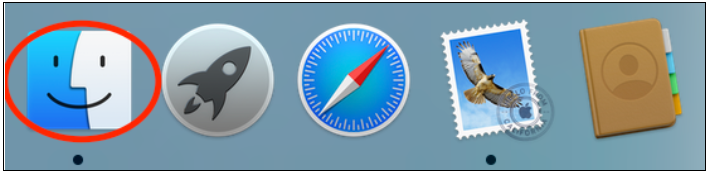
Startup your Finder and navigate to any PDF file.
Step 2: Click on ‘Get Info’
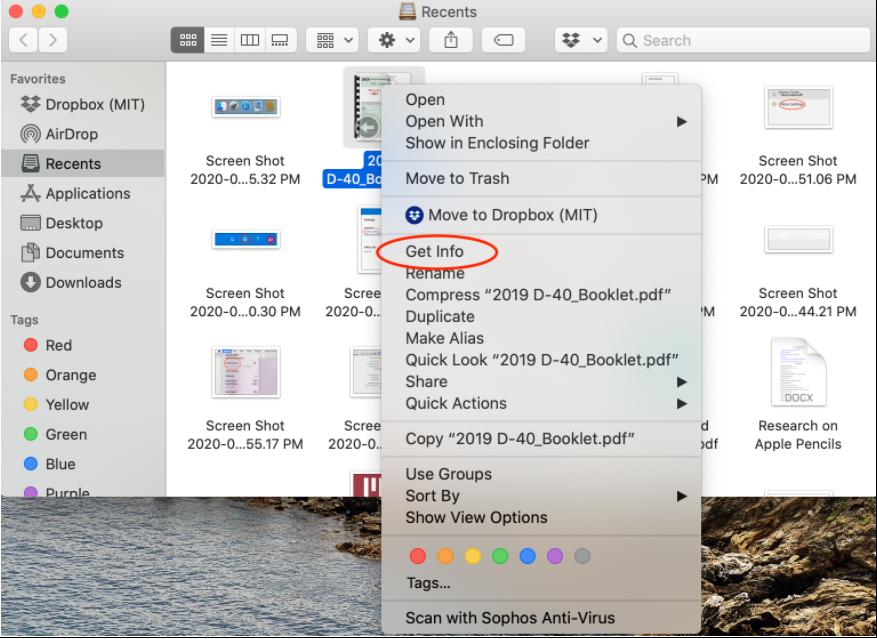
Ctrl+Click, or right-click if you’re using an external mouse, on the PDF and select Get Info from the menu.
Step 3: Open with Adobe Reader
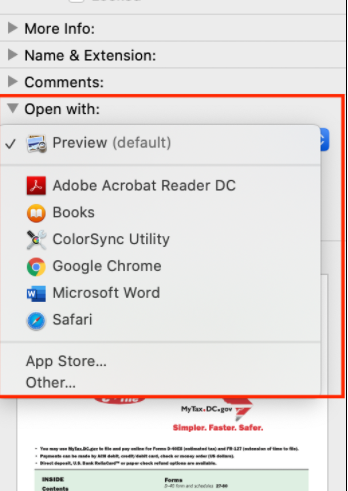
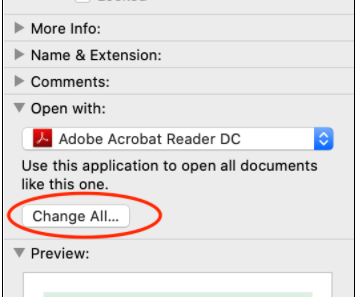
Click on the dropdown arrow in the Open With section of the menu that opens and select Adobe Reader from the list.
Step 4: Change the default PDF program
Finally, click on the Change All button just underneath the dropdown menu and select Continue from the box that pops up.
Making “Comfortable” Your Default Setting
Small things like this can be extremely frustrating; we all want our files to open in the correct programs automatically, and they often don’t. The beauty of this process is that it works for other programs as well; do you want to make sure that your videos open in VLC automatically or that your images open in Photoshop every time? Then this is the way you do that. Before you know it, you’ll have everything working with the correct programs, and you’ll be able to work comfortably and peacefully without manually opening everything in your preferred programs.
.jpg)
How to password protect a pdf in Adobe Reader
Read moreLatest from Shaun M Jooste
You may also like
 News
NewsA renowned Polish studio could be working on the expansion of The Witcher 3
Read more
 News
NewsSean Penn decided to act in one of the movies a year after reading the soaked and naked script
Read more
 News
NewsThe developers of Dead by Daylight acquire the studio of one of the most popular survival games currently
Read more
 News
NewsA 2019 film adaptation of Stephen King unexpectedly takes off on Netflix
Read more
 News
NewsThe author of Sword Art Online will release a new anime in 2026
Read more
 News
NewsIf you like John Wick, this Hong Kong movie set to premiere is receiving praise wherever it goes for its intense action
Read more