
How To
How to: Make animations on your iPhone or iPad

- October 24, 2011
- Updated: July 2, 2025 at 8:55 AM
Want to make your own cartoons on your iPhone or iPad? Install Dink on your iOS device and you’re just a few steps away from becoming the next Walt Disney or Tim Burton.
Dink, available for 99 cents in the App Store, is a surprisingly powerful animation app that allows you to make your own cartoons quickly and with little effort. Dink’s user interface is a bit confusing to start with though, so I’ve put together a quick guide to help you get started in this fun application.
Step One: Create a new animation
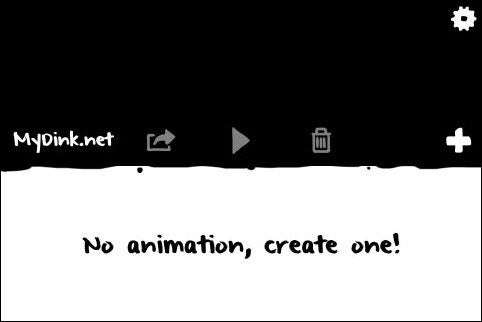
Dink’s front screen doesn’t make it completely clear where to start. What you actually need to do is to click the ‘+’ button to dive into a new animation.
Step Two: Open the project window
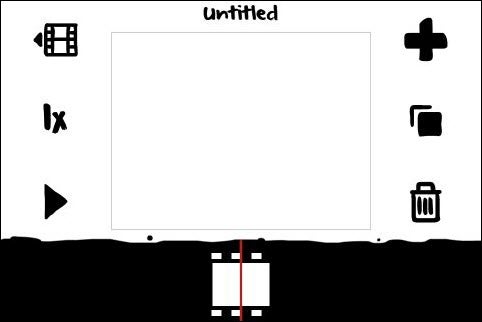
Click on the blank image at the bottom of the main page and you’ll open the project menu. Give your production a name by clicking on the text at the top of the screen. In order to start drawing and animating, you need to tap the middle of the square in the center of the screen.
Step Three: Draw your character
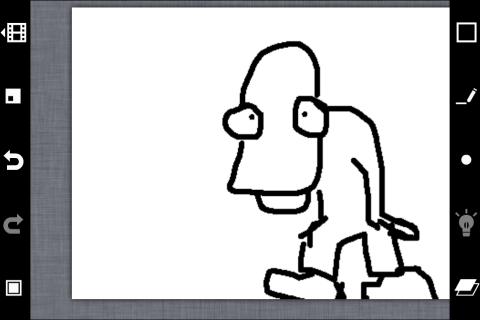
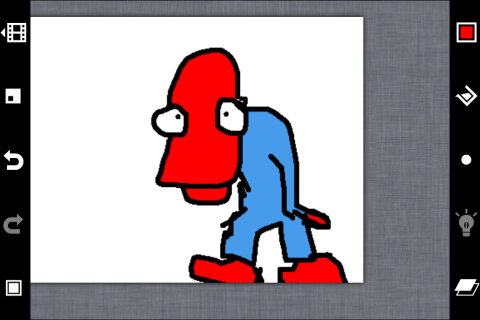
Begin by drawing your character on the screen. This is just a case of dragging your finger around the screen. You’ll find all of the drawing tools in the toolbar on the right. Aside from the brush tool, there’s Fill, Eraser, Selection tool and a Circle tool. Dink even supports layers, if you’re feeling really creative!
Step Four: Create a new frame by copying from the previous one
The simplest way to animate with Dink is to create a copy of the current frame and use it to make the next one. Just tap the copy frame icon from the pull-out on the left to create a new frame with your original drawing.
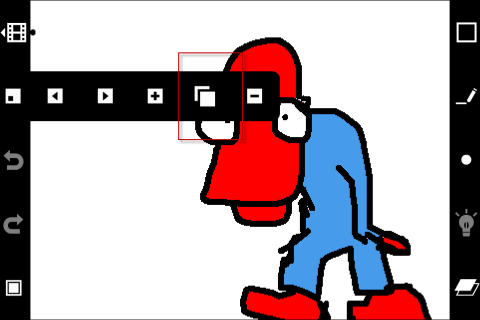
Step Five: Edit the next frame
Using a technique called ‘onion skinning’, you can now make changes to the character in the second frame to produce the first movement of the animation. Use the selection tool from the right-hand menu (the dotted line square) to draw around your image. Now slide it with your finger in the direction you want the motion to go. You can change various aspects of the image between frames. Notice that the previous frame is displayed in gray behind this one to help you reposition things successfully.
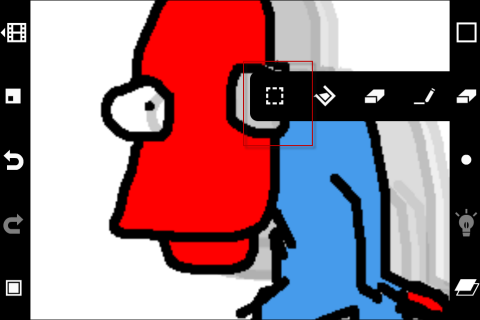
Step Six: Continue editing
Repeat this process of using the copy frame tool, selecting the image, then repositioning the next frame until you’ve reached the point where you want the animation to stop. Make good use of the pinch to zoom function for your creations, because it helps you be more precise.
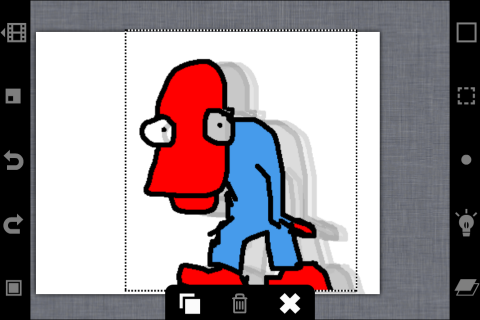
Step Seven: Preview your animation
Clicking the film strip in the top-left corner of the screen will take you back to the project screen, where you can preview your cartoon by clicking on the play button.
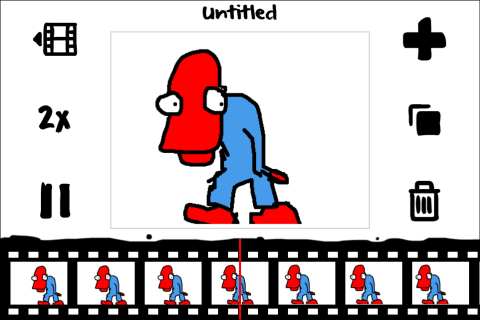
Step Eight: Share it with the world
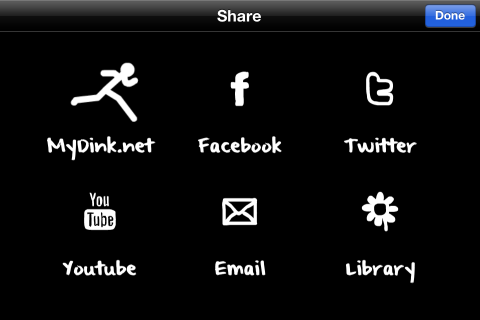
If you think your creation is good enough to share with the world, you’ll find a number of ways to publish it from Dink. Besides posting it to Facebook, Twitter or YouTube, you can export the finished cartoon to your device’s library, as a GIF animation or a movie file.
You may also like
 News
NewsThe Game Awards crowned the game of the year last night amid huge controversies
Read more
 News
NewsThe most shocking news from The Games Awards 2025
Read more
 News
NewsChatGPT achieves a 76% increase in its performance
Read more
 News
NewsThe series returns where you will see Idris Elba like you have never seen him before
Read more
 News
NewsLondon will be the chosen city for the next installment of the most romantic saga in cinema
Read more
 News
NewsMilly Alcock debuts as Supergirl in this trailer, and the role seems designed for her
Read more