
"Optimizing library": how to unstick the Photos app after updating to iOS 18
A process that may require some help

- November 7, 2024
- Updated: July 1, 2025 at 10:46 PM
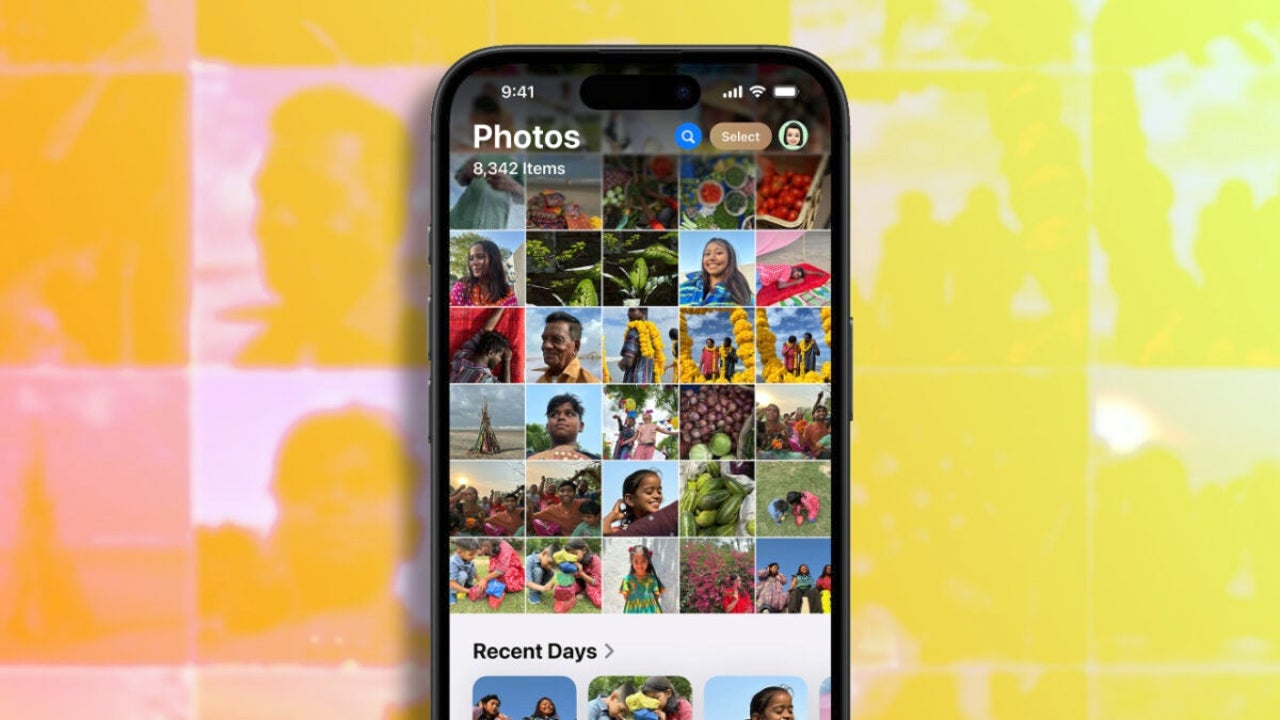
The update to iOS 18 brings a lot of new features to the Photos app. For this reason, after updating, the system needs to optimize the library and re-index the content. This is why, after updating, many of us have seen the message “To finish optimizing your library, connect the device to power overnight until it completes.” The message usually disappears after a few hours or the next day, but for some very specific libraries, it seems that the Photos app struggles to complete the optimization. The situation has an easy solution, however, so let’s see what we can do to complete the process and continue enjoying the Photos app.

Three resources to help the Photos app complete optimization
The first thing we need to take care of in this case is the charging. It is best to use an official cable and avoid wireless chargers for this process, as they can interrupt the charging if the device overheats. It is a good idea to charge the iPhone beforehand and have it at 100% before leaving it overnight. Let it charge until at least five in the morning the next day, as with less time the device cannot complete the optimization process.
Another fundamental aspect of the process is the Wi-Fi connection. Optimizing the library requires a stable connection to be completed, so we must ensure that our iPhone is connected to a reliable Wi-Fi network. To verify this, we just need to go to Settings > Wi-Fi and check that it is activated and connected to our home network, preferably to the 5GHz version if we have more than one option.
The Optimized Battery Charging function is a very useful option to take care of our battery, but in this case, it could interfere with the optimization of the library in the Photos app. To temporarily disable it, we can go to Settings > Battery and then enter Optimized Battery Charging. Once here, we select Turn Off Until Tomorrow or Turn Off if we prefer to keep it inactive for several days. After the optimization process, it is always advisable to reactivate it to maintain the long-term health of our battery.
From here, the best we can do is be patient and let the iPhone complete the process. In some cases, users have mentioned that, even though the optimization message persists and the percentage doesn’t seem to progress, the process completes overnight. Therefore, it’s best to leave the iPhone for several nights, up to a week, to complete the process.
It is easy to overlook the amount of operations and maintenance required to keep a photo library in the photos. While the optimization process after updating to iOS 18 should be simple and quick, in some specific libraries or with certain specific configurations, the process may require some help from us. Fortunately, with the steps we have mentioned, we should be able to fully enjoy our photo library in just a few days.
Architect | Founder of hanaringo.com | Apple Technologies Trainer | Writer at Softonic and iDoo_tech, formerly at Applesfera
Latest from David Bernal Raspall
- Ceerly: Explore life through spirituality and astrology powered by cutting-edge AI tech
- The Smart Creator’s Guide to Stock Video: Get Your First 4K Clip Free
- NordLayer is the smartest way to protect our company
- What’s Changed in AutoCAD 2026 Completely Transforms Project Auditing: how we can use Activity Insights efficiently
You may also like
 News
NewsSecure Your Sleigh: How to Dodge Online Scams This Holiday Season
Read more
 News
NewsGmail Help Me Write with Gemini: 7 Ready-to-Use Prompts for Complaints, Sales & Internal Memos
Read more
 News
NewsZootopia 2 is the highest-grossing movie of 2025
Read more
 News
NewsAvatar: Fire and Ash is so expensive that it could very well dominate the box office and be an absolute failure
Read more
 News
NewsEditing Offline: What Photoshop’s On-Device AI Can Do
Read more
 News
NewsThe creator of Tetris is a Russian who also worked on a Microsoft game that you might have played
Read more