
How To
Learn to fix the Microsoft Teams error code 500 on a Windows PC in 5 steps

- July 5, 2022
- Updated: July 2, 2025 at 3:36 AM
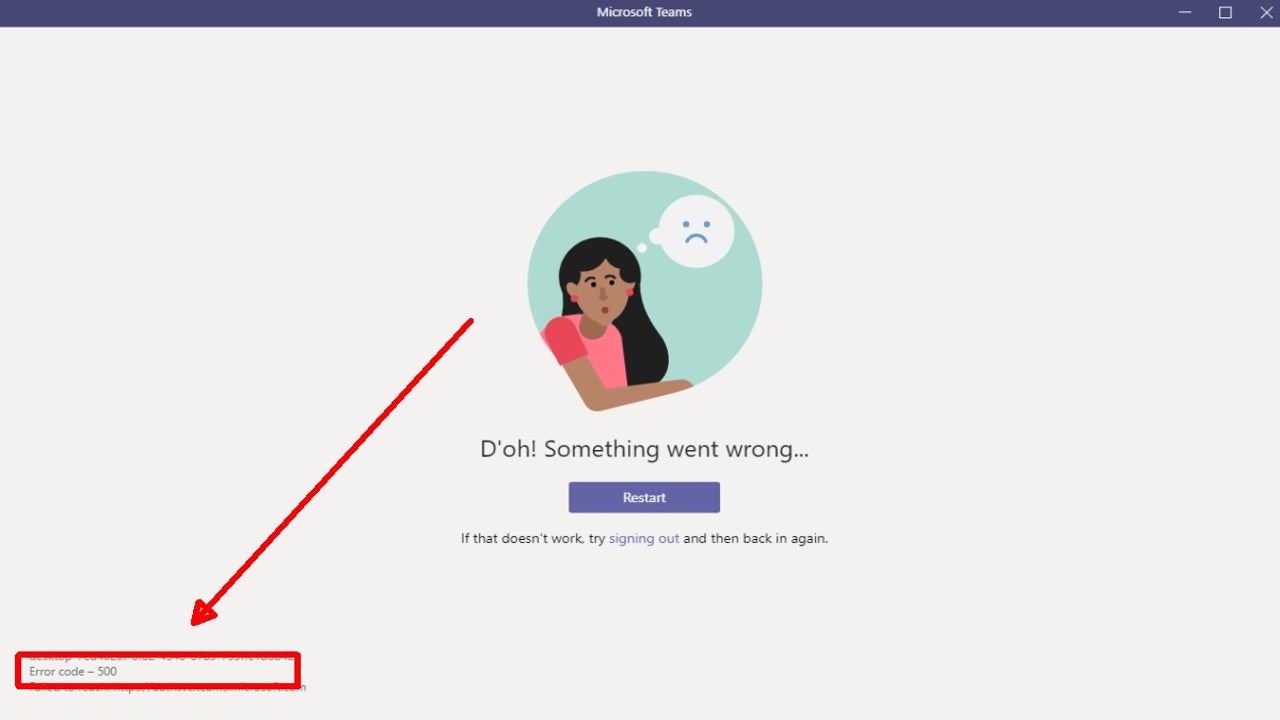
Despite its large user base, Microsoft Teams is not without its issues. The most recent problem facing users is the code 500 error that appears and prevents users from connecting to Microsoft Teams.

In this article, we’ll be taking a look at what causes this irritating error code and how to fix the Microsoft Teams error code 500 on a Windows PC.
What causes the Microsoft Teams error code 500?
Errors can vary from mild annoyances to significant frustrations, and a lot of this depends on how difficult the issue is to resolve. Some errors can be resolved by restarting the program or computer. Luckily for Microsoft Teams users, the error code 500 is a rather simple issue to resolve.
At its base, the error points to an issue with internet connectivity. However, it’s not just slow internet that causes this problem. Some of the other reasons why you might be experiencing this error include:
- In-app issues
- Running Microsoft Teams without administrator privileges
- Corrupt DNS cache
- Not removing previous files correctly
- Not installing Office correctly
- A firewall or antivirus blocking your Office installation
- Proxy settings blocking Office installation
- An older version of Office blocking your new installation
5 Steps to Fix the Microsoft Teams Error Code 500 on a Windows PC
Logging out of your Teams account and then logging back in is usually the easiest way to fix this error. However, if you’ve already tried that and you’re still faced with the error code 500, then the next solution should help you solve the issue.
Exit Teams on your PC

Log out of Teams and close the window on your computer. Also, make sure that you end all processes related to Teams in the Windows Task Manager.
Open the Credentials Manager and open
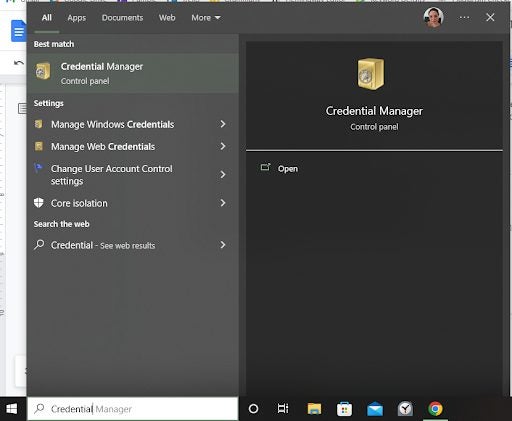
Next, type in ‘Credentials Manager’ in the search bar located in your Windows toolbar at the bottom of your screen. Open the ‘Credentials Manager’ by clicking on it. In the window that opens, click on ‘Windows Credentials’ to manage all the accounts related to programs.
Find MSTeams
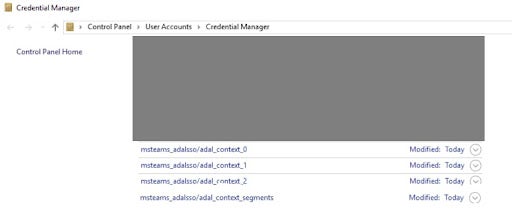
In the list of programs, look for MSTeams (there may be a few), and click on the down arrow next to it to expand the entry.
Remove credentials

Once the entry has been expanded, click on ‘Remove.’ Make sure to repeat the process for all other instances of MSTeams in the list.
Restart PC and log in to Teams
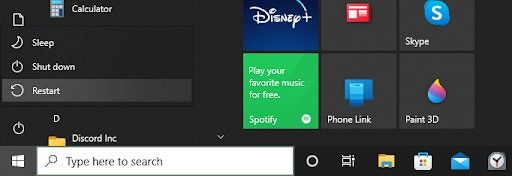
Once you’ve removed the credentials for all instances of MSTeams, restart your Windows computer. Once it’s been restarted, open Teams and log in.
Other solutions to try
While re-logging into Teams or removing the credentials and starting fresh should resolve the error code 500, some users have reported that it didn’t solve their problem. If you’re one of these, then here are a few more solutions to help you fix the error code 500.
Check your internet connection
Check the internet connection on your Windows PC, and use a speed checker to ensure you have a stable connection. If needed, forget your connection and restart it. If you notice the internet connection is still weak, try restarting your router or contact your service provider.
Clear Teams cache
You may also be able to resolve the error code 500 in Teams by clearing your Teams cache. You can find the cache under your ‘Users’ folder, or alternatively, press the ‘Windows+R’ keys on your keyboard to open the Run terminal. Next, copy and paste ‘C:\Users\%username%\AppData\Roaming\Microsoft\Teams’ and then double click on ‘Cache.’ Select and delete all the files within the folder but keep the original ‘Cache’ folder.
Fix Microsoft Teams application
You could also be getting the error due to a corrupt file. Open your Control Panel and find Microsoft Teams. Then click on the ‘Change’ button and then ‘Fix.’
Reinstall Microsoft Teams
If nothing else works, you’ll have to uninstall Microsoft Teams. Once it has been uninstalled, reboot your PC, and reinstall Microsoft Teams. Once you log into your account, you should no longer have an error code 500 and can start using Teams like normal.
Latest from Leri Koen
You may also like
 News
NewsGoogle Search Console rolls out platform properties: social profile traffic reports
Read more
 News
NewsSteam Machine Red Line of Death: Valve now offers an official fix
Read more
 News
NewsDeepSeek is now reportedly designing its own chip: a bid to cut Nvidia reliance
Read more
 News
NewsWhere to watch Argentina vs Egypt for free today? TV, legal streaming, and kickoff time
Read more
 News
NewsMicrosoft reportedly sells Undead Labs: State of Decay 3 on Game Pass now in doubt
Read more
 News
NewsEscape the Backrooms is out now on Nintendo Switch 2: full cross-play from day one
Read more