

The perfect solution in Adobe Acrobat to extract data from a large PDF, thanks to AI
AI Assistant helps us retrieve information from our PDFs in an easy and straightforward way

- August 29, 2024
- Updated: July 1, 2025 at 11:01 PM
Artificial intelligence has completely conquered the digital world. The potential that this technology holds has led numerous companies to incorporate it into their products, to a greater or lesser extent. However, few have been able to take advantage of it as much as Adobe.
This is something we can see first-hand in their applications, such as Adobe Acrobat. Considered one of the best PDF managers in the world, it now incorporates very interesting AI features. One of them allows us to ask Adobe Acrobat questions related to the open PDF. If you want to know how it works, keep reading below.

Adobe Acrobat will be able to answer your questions thanks to AI
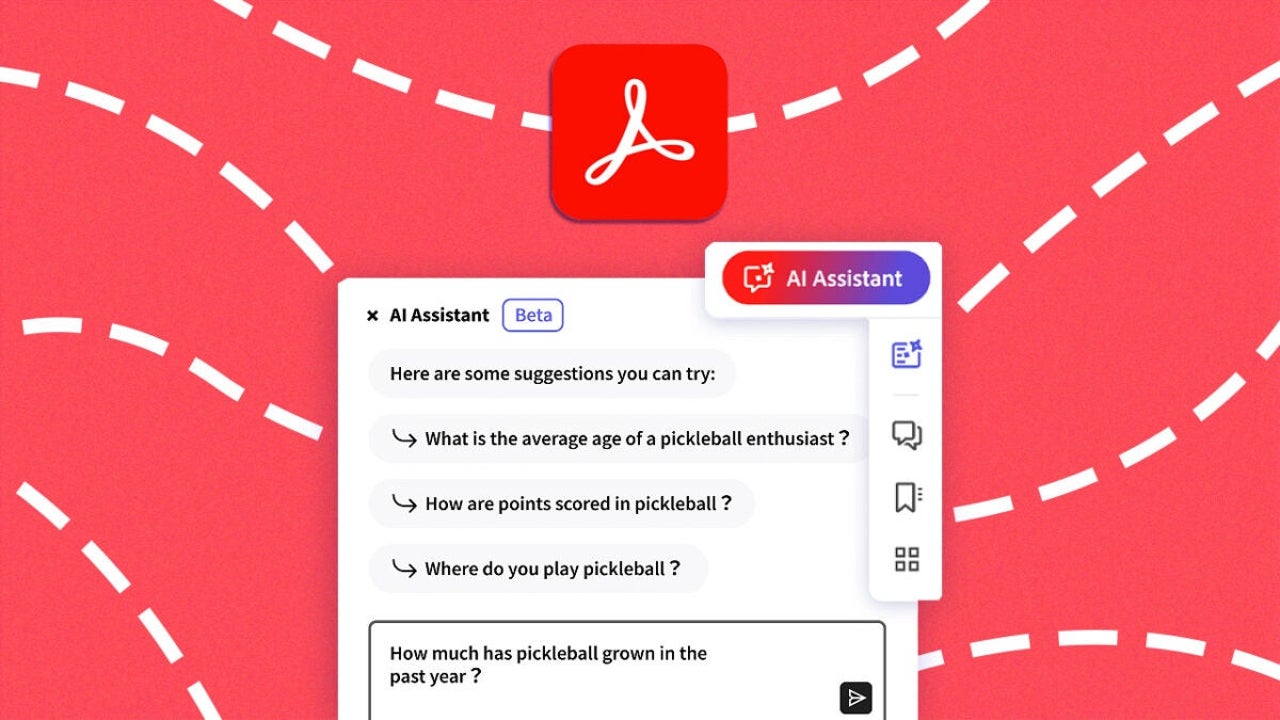
The AI Assistant feature included in Adobe Acrobat is capable of answering our questions based on the PDF files we have open. What’s more, it also highlights where it has obtained its answer from within the file itself. This way, you can firsthand check if it has correctly resolved your doubt or not.
To use it, you just have to follow the following steps:
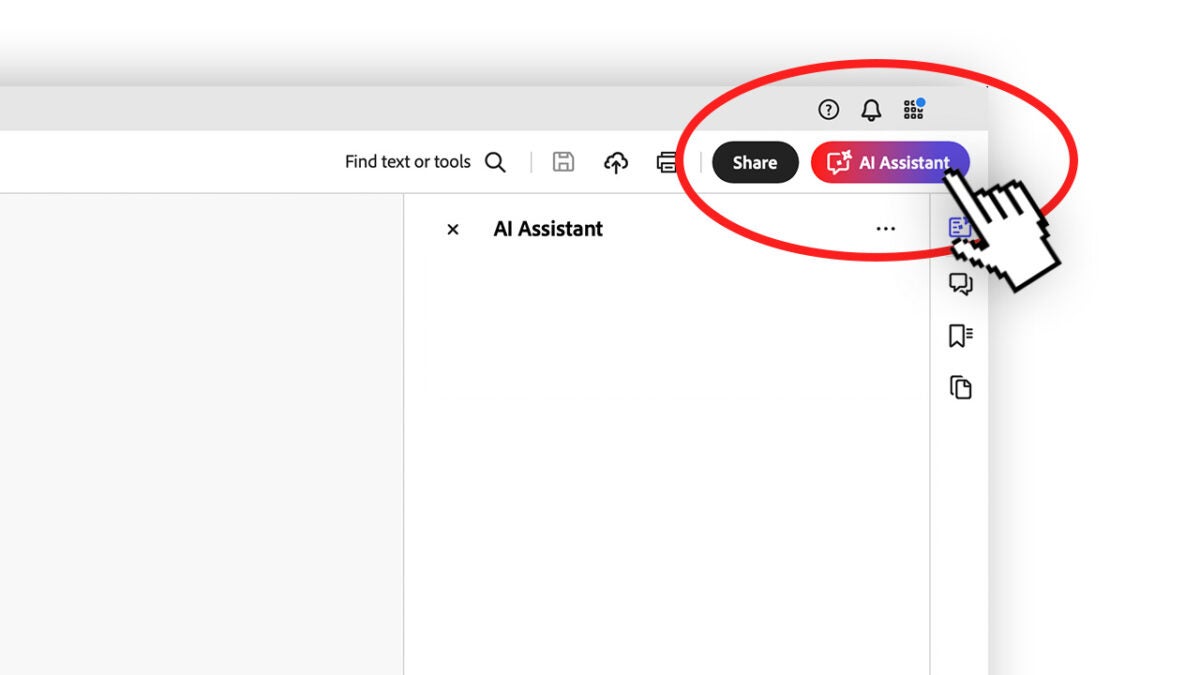
- Open a PDF and click on the AI Assistant icon. You will see it on the left side, above the All tools panel. It is also located on the top right bar.
- Then, a new panel will appear, also on the right side. At the bottom, you will have a text box. Write your questions related to the open document there.
- The answers will come with their corresponding sources marked with numbers. Select a number to go directly to the source.
- If you want to copy an answer, click on the Copy symbol. You can also copy the entire chat if you wish. If you want to stop generating your answers, just click on Stop.
Responses are not limited to a single document: you can select multiple ones. To add more, click on the Add files button. If you want to remove files, click on View and manage files in chat. Finally, click on Remove file from chat.
As an added feature, Adobe Acrobat saves your question and answer history. In this case, it doesn’t matter if you close the program, Acrobat will continue to keep it. You can review your interactions simply by selecting Recent.
You will also be able to make summaries
If you were surprised to see how Acrobat was able to answer your questions accurately, you may love this other feature. Generative summaries is another tool that artificial intelligence provides us with.
Thanks to this tool, we will be able to open any document in Adobe Acrobat and generate a summary in a matter of minutes. We just have to “ask” Acrobat to explain what the file is about. This is a particularly useful feature for students and businessmen, for example. Dealing with long and unintelligible documents will be much easier for us. It is quite easy to use, as you will see below:
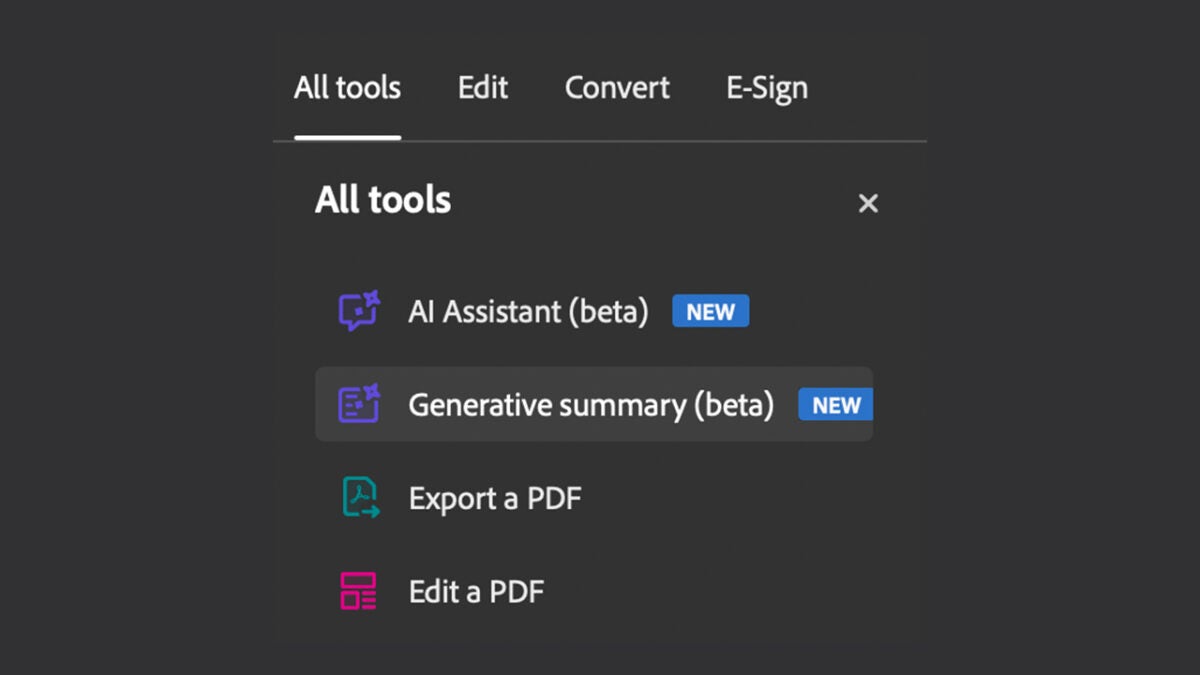
- Open your PDF document with Adobe Acrobat. Then, click on All tools and then, click on the Generative summary option.
- When you do this, you will see that a summary of your document will be generated, divided into parts. By selecting each of these parts, you will be able to see more information about your document. It includes different links for you to check where the information within the document comes from.
- If you like the generated summary, you can copy it using the Copy or Copy full summary buttons.
How can I access the AI features of Adobe Acrobat?
Thanks to generative artificial intelligence, Adobe Acrobat has become more useful and intelligent than ever. However, it still has certain limitations that we hope will be overcome in the near future. Some of the limitations you should be aware of are:
- PDF files must be in English.
- Documents must have less than 120 pages and cannot exceed 25 MB in size.
- The questions you ask cannot exceed 500 characters.
In addition, to use these functions you will also have to pay a subscription to Adobe, either monthly or annually. If you use Adobe Acrobat for free, you will receive a limited number of uses of AI Assistant.
On the other hand, those subscribed to the AI Assistant plan within Adobe Acrobat will have 1,000 monthly requests per user. Full access is reserved for organizations. You can also get more requests if you are willing to provide feedback to Adobe.

Artist by vocation and technology lover. I have liked to tinker with all kinds of gadgets for as long as I can remember.
Latest from María López
- How to use the Photoshop Timeline to create animated GIFs and cinemagraphs
- "Slip" and "Slide" editing: the hidden timeline tools to adjust timing without moving the clip
- Adobe adds external AI to Creative Cloud: benefits, changes, and what to expect next
- Acrobat Forms: Complete guide to designing smart PDF forms with calculation functions
You may also like
 News
NewsChatGPT achieves a 76% increase in its performance
Read more
 News
News'Clair Obscur: Expedition 33' cost a complete fortune, but it's wildly successful
Read more
 News
NewsHelldivers 2 is getting ready to receive its biggest update to date
Read more
 News
NewsThe Game Awards crowned the game of the year last night amid huge controversies
Read more
 News
NewsThe most shocking news from The Games Awards 2025
Read more
 News
NewsThe series returns where you will see Idris Elba like you have never seen him before
Read more