
News
Netflix puts an end to multi-accounts: here’s how to cancel your account
How can you cancel your Netflix account from any device?

- February 11, 2023
- Updated: July 2, 2025 at 3:01 AM
Netflix is the platform par excellence for streaming online series and movies. However, since it implemented its new feature that seeks to put an end to multiple accounts, many people are deciding to unsubscribe from the service and even advocate for others such as Disney+, HBO Max or Amazon Prime Video.

Added to this is the decline in quality of many of its productions and the cancellation of some of its most successful series. All these reasons make more and more people want to leave the platform. But how can you unsubscribe from Netflix?
Whether you want to cancel your Netflix subscription because your 30-day trial has run out or you want to save a little money each month, you will have to follow these exact same steps.
How to unsubscribe from Netflix from its website
The easiest and fastest option to unsubscribe from Netflix is from your PC or Mac browser.
Step 1: Access the Netflix website
Click here. Once on the Netflix website, access your account if it does not open automatically from your browser. To do so, click on Sign In at the top right corner of the screen.

Step 2: Enter your email
Next, enter the email address you used to create your account or the phone number it is associated with and also your password. Once you have done this, log in.
Step 3: Find your avatar
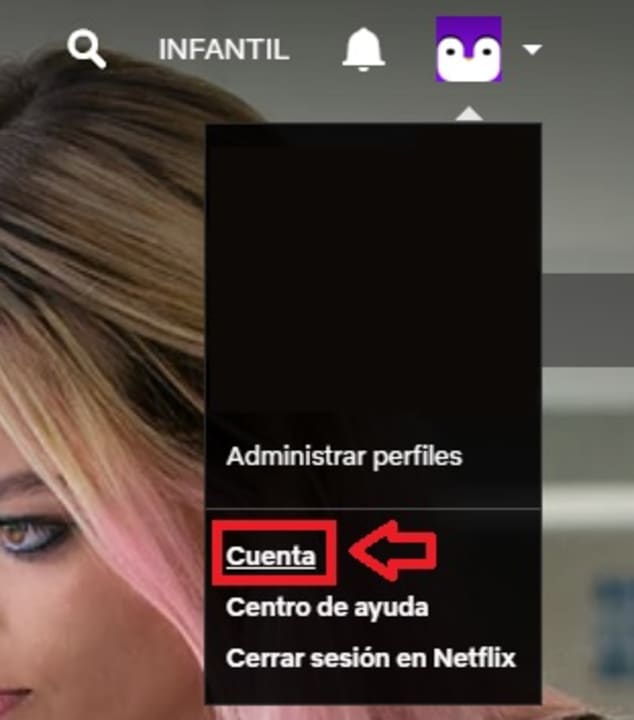
Once inside Netflix, move your mouse over your account avatar. This is located in the upper right corner of the screen. This will open a drop-down menu where you will have to click on Account.
Step 4: Cancel your subscription
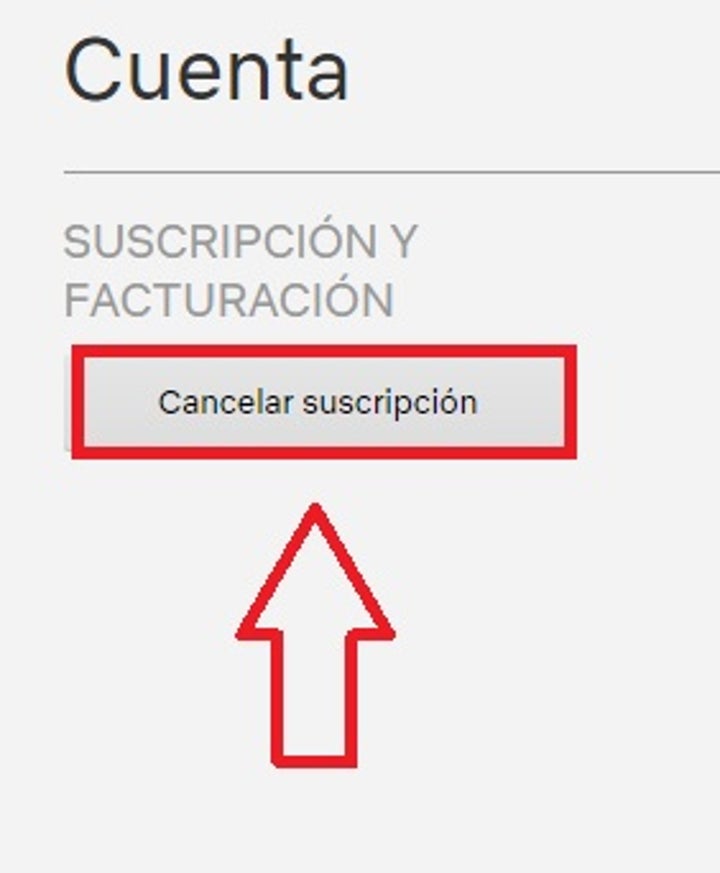
Within your account settings menu you will be able to see all the details of the plan you are subscribed to. To begin the process of canceling your account, click on Cancel Subscription, just below Subscription and Billing.
On the next screen, Netflix will give you the option to think twice and not cancel your service and will offer you a different plan depending on the one you have contracted at the moment. If you are sure you want to unsubscribe from this service, click on Complete cancellation.
If you regret and want to recover your account, Netflix will keep all your data for the next 10 months after your cancellation.
Congratulations! You have now unsubscribed from Netflix.
How to unsubscribe from Netflix from your app
If you are one of those who have been using Netflix during your bus or subway rides, or you have simply used this service during one of your trips and now want to cancel it, you can also unsubscribe from the app.
Step 1: Access the Netflix app
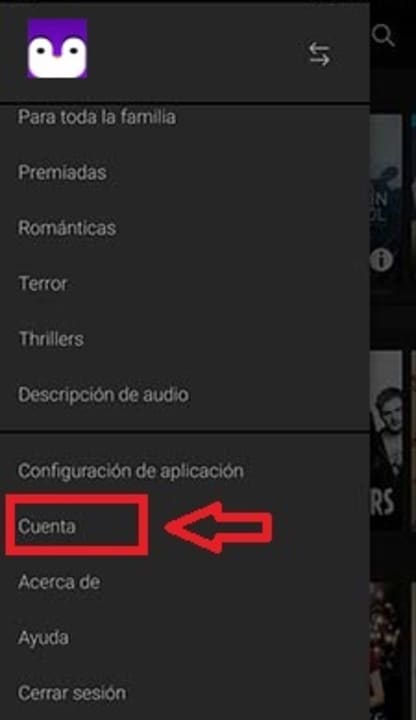
First of all, open the Netflix app and click on the options icon (the three lines in the upper left corner of the screen). You will see how a side menu will appear where you have to click on Account.
Step 2: Cancel the subscription
Then click on Cancel subscription and when Netflix asks you to confirm your decision, click on Complete cancellation. It’s that simple!
We hope this guide has helped you to cancel your subscription and unsubscribe from Netflix.
Mireia Fernández is passionate about the world of video games and new technologies, a hobby that dates back to her childhood with the MSX HB 501p. Born and residing in Barcelona, Mireia has been working as an editor for over 10 years and specializes in writing reviews, tutorials, and software guides, as well as doing everything possible to publish news before anyone else. Her hobbies include spending hours playing on her console, walking her golden retriever, and keeping up with the latest SEO developments.
Latest from Mireia Fernández
- From Idea to Deck in Minutes: How Adobe Generate Presentation Simplifies Business Slides
- A Greener Web and Cleaner Oceans: Why So Many Are Switching to Wave Browser
- Fuel Your Instagram Feed: How Adobe Stock’s Infinite Library Powers Your Creativity
- Agentic AI in Adobe Express: Will Conversational Editing Change 2026 Content Creation?
You may also like
 News
NewsWuthering Heights is getting criticism from all sides, but it is being a box office success
Read more
 News
NewsDaniel Radcliffe asks for respect for the new protagonists of the Harry Potter series
Read more
 News
NewsNetflix takes legal action against the owner of TikTok for the use of AI
Read more
 News
NewsA24 bets on nostalgia with the announcement of a science fiction and horror movie about the last party before the end of the world… in 1999
Read more
 News
NewsResident Evil Requiem won't be released for another ten days, but there are already spoilers circulating on the Internet
Read more
 News
NewsFifty-five years ago, Robert Duvall was the star of one of the most important science fiction movies in history
Read more