
Article
What to Do When Windows Asks for a Password to Install Programs


- January 19, 2023
- Updated: July 2, 2025 at 3:09 AM
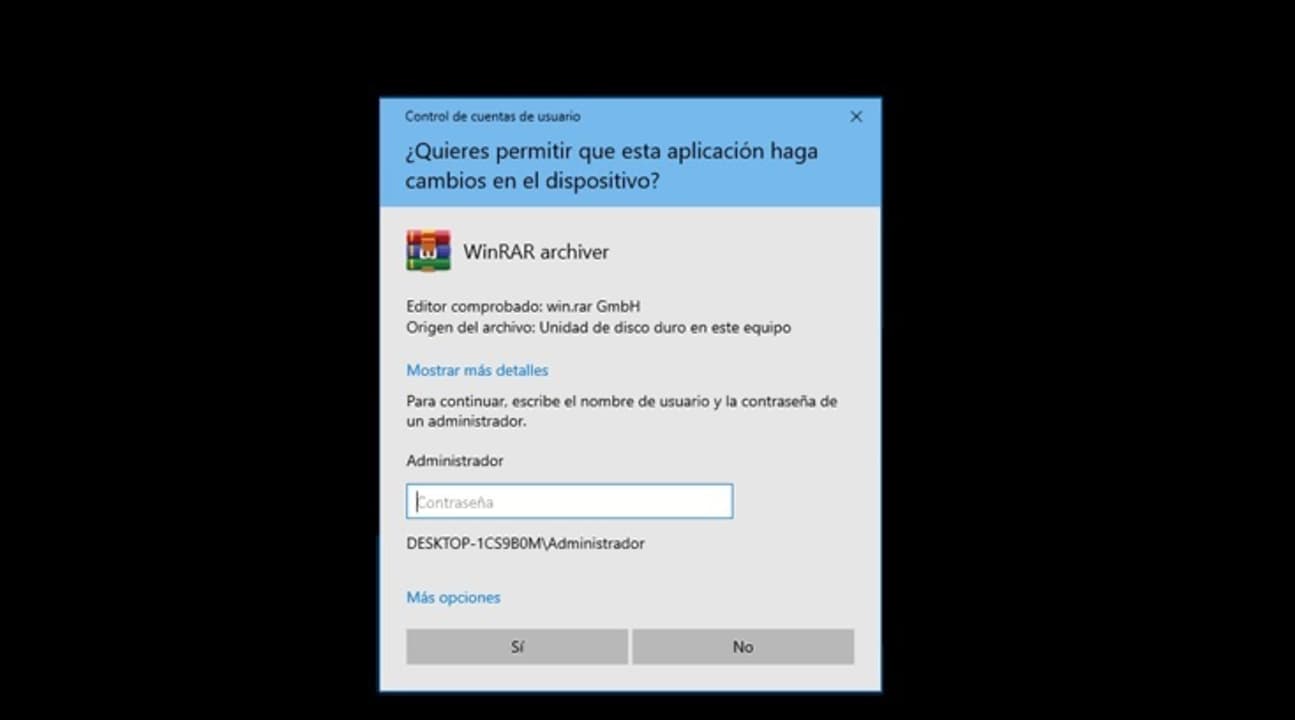
A common problem that a Windows user faces is that when trying to install a program, the operating system asks for a password that it does not know. With this, Windows seeks to prevent any user without permissions from making changes to the computer without the administrator’s consent. While this is an excellent security measure, it can also be a real nuisance. Is there a way to prevent Windows from asking you for the password?
If you feel identified with this problem, you’ve come to the right place. In today’s article we are going to offer you a solution if Windows asks you for a password to install programs and you don’t know it. We hope it helps you!

Why does Windows ask for a password to install programs?
The answer is simple: For security. Installing any program makes changes to your computer and, as such, may or may not affect its operation. Imagine for a moment that someone with a user account installs malware on your PC. It will reproduce uncontrollably and probably steal data and files without your knowledge. For this reason, before installing any program, Windows will analyze what type of user makes said request. These might be:
- Users with administrator permissions– Since the user has administrator permissions, the user can install and make changes to Windows settings. You only have to confirm that you want to start the installation.
- Users without administrator permissions– The user does not have sufficient permissions to make changes to the system and for that reason installations are prohibited. For that reason, to start the installation you will need to enter the password of the administrator account.
Solution 1: Give your account administrator permissions
As we have already explained, to be able to install programs in Windows without the need for a password, you will need to use an account with administrator permissions. The easiest solution to this problem is for the owner of the computer to grant user permissions to your account. To do this you simply have to follow these steps:
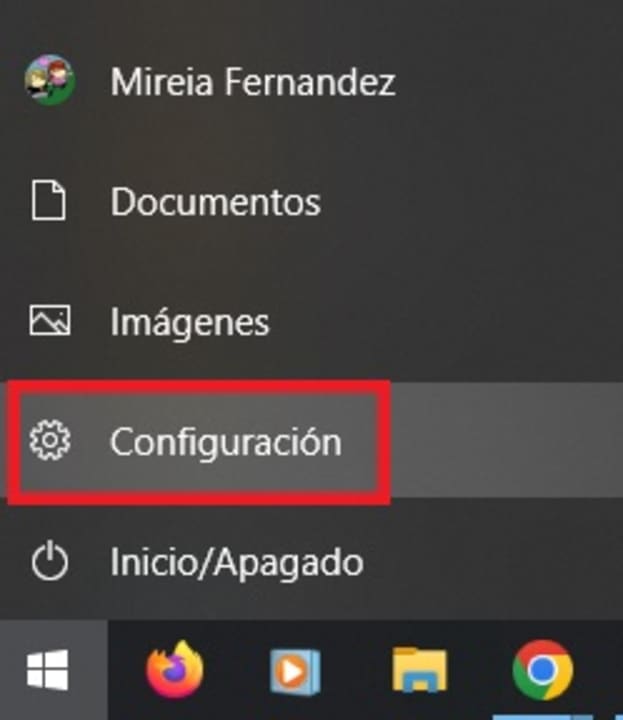
Step 1. Go into Windows settings
First, access the Windows settings by clicking on “Start” followed by “Settings” (it is the cogwheel icon). Alternatively you can also press the Windows key + I.
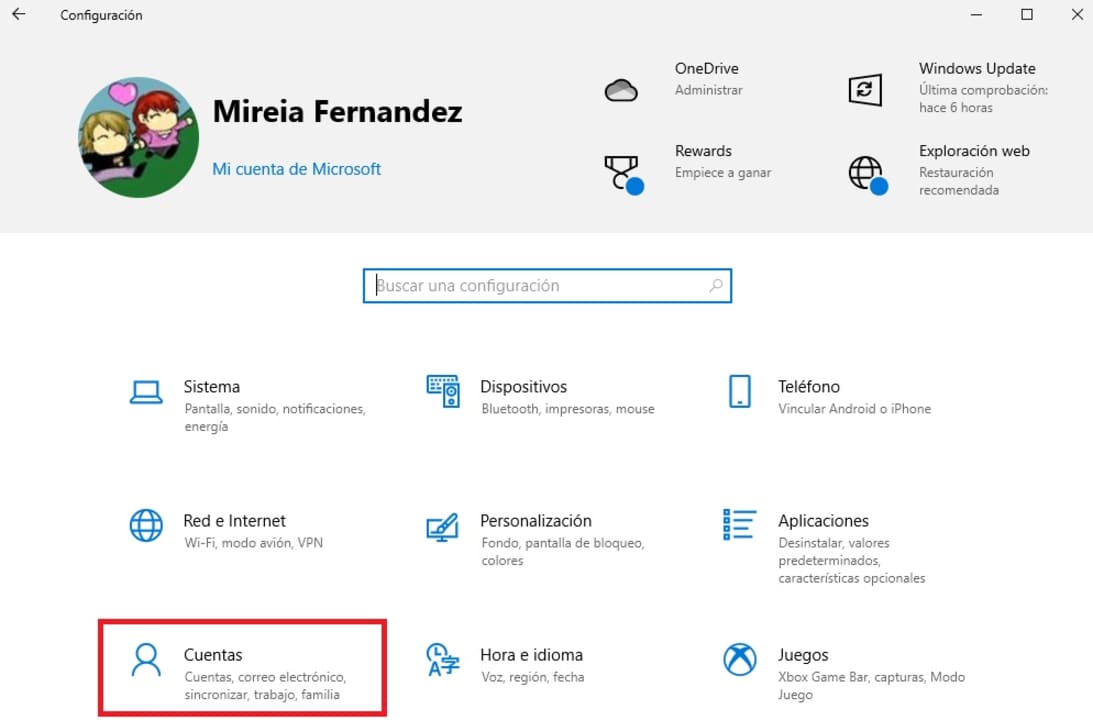
Step 2. Access the Accounts menu
Once in the Windows settings window, click on the option “accounts”.
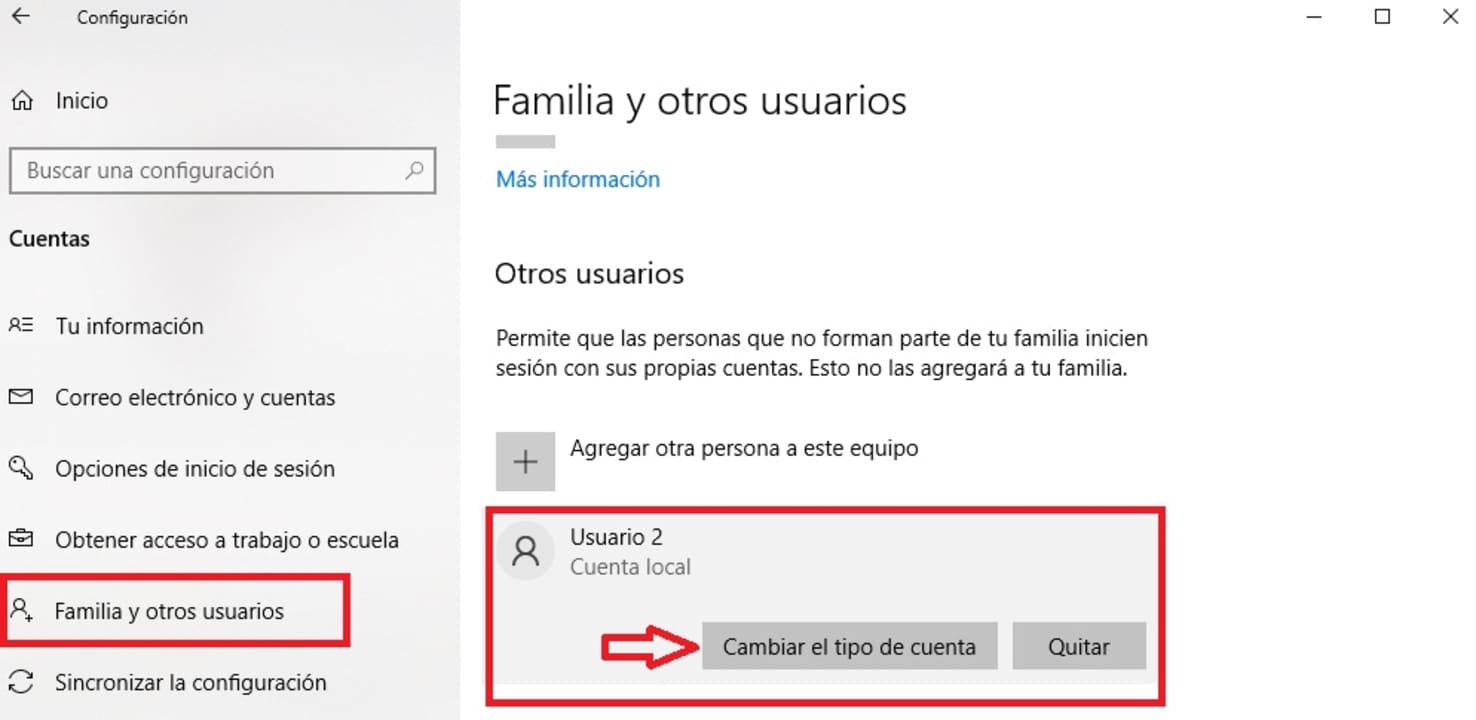
Step 3. Change the type of user account
Already in the accounts menu, select “Family and other users” in the left side menu of the screen and click on your username. Then press the option “Change account type”.
Step 4. Grant administrator permissions
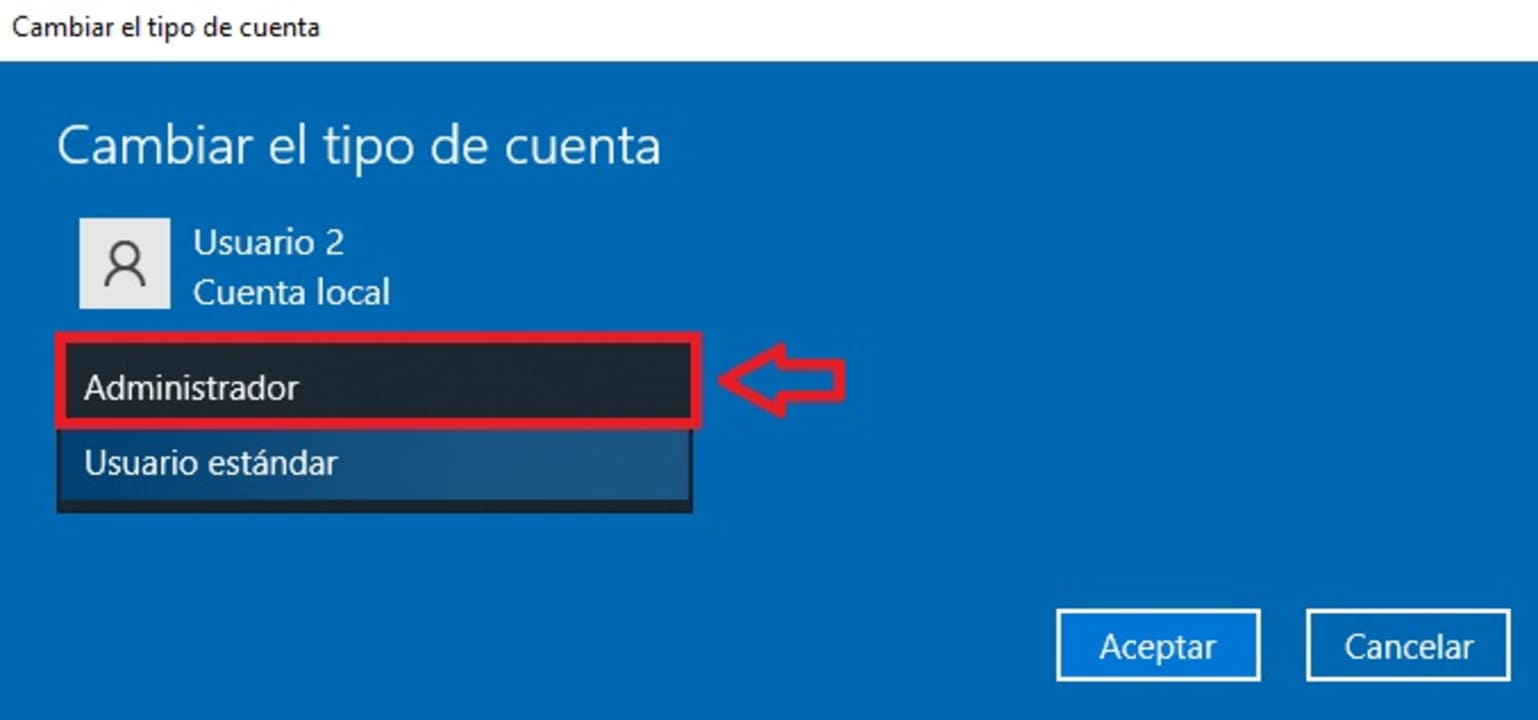
To finish, click on the dropdown menu “Account type” and select the option “Administrator”. After accepting, your user account will have administrator permissions and you will not need a password to install programs in Windows.
Solution 2: Ask the administrator for the password
This is perhaps the fastest and most obvious solution to this problem. If you are using a computer at home or at work, ask the owner of the computer or the department responsible for the computer you are using for the administrator password. Once you have the password, you will only have to enter it each time you want to install a program.

Solution 3: Reinstall Windows
If none of the previous solutions have worked or if you simply forgot your administrator password, you will need to reinstall Windows. We know it’s a pretty radical solution, but after that you’ll be able to define a new admin account to which you have access. To reinstall Windows follow these steps:
Step 1. Enter the Update and Security menu
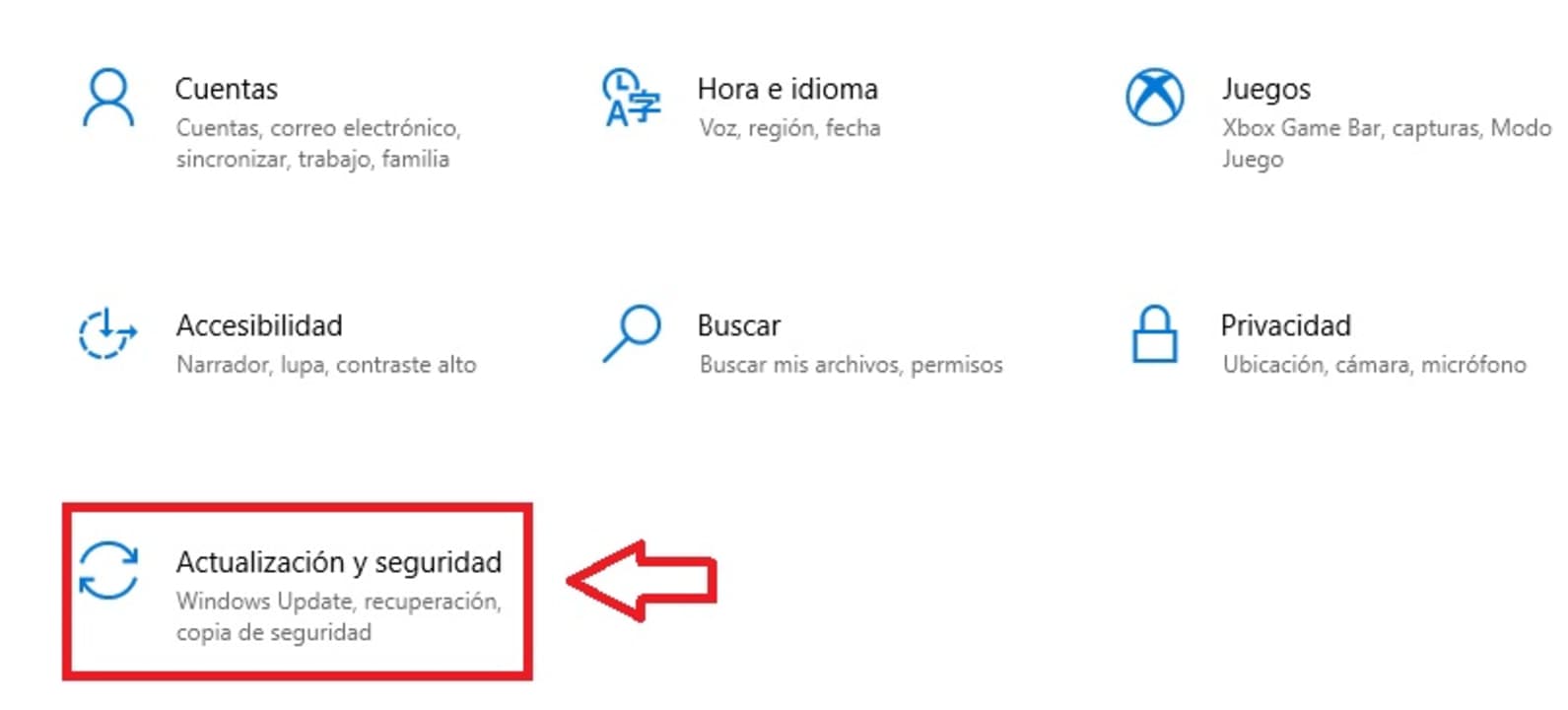
First of all, access the Windows configuration menu (see solution 1 for this) and, once in the window, select the option “Update and security”.
Step 2. Reset your PC
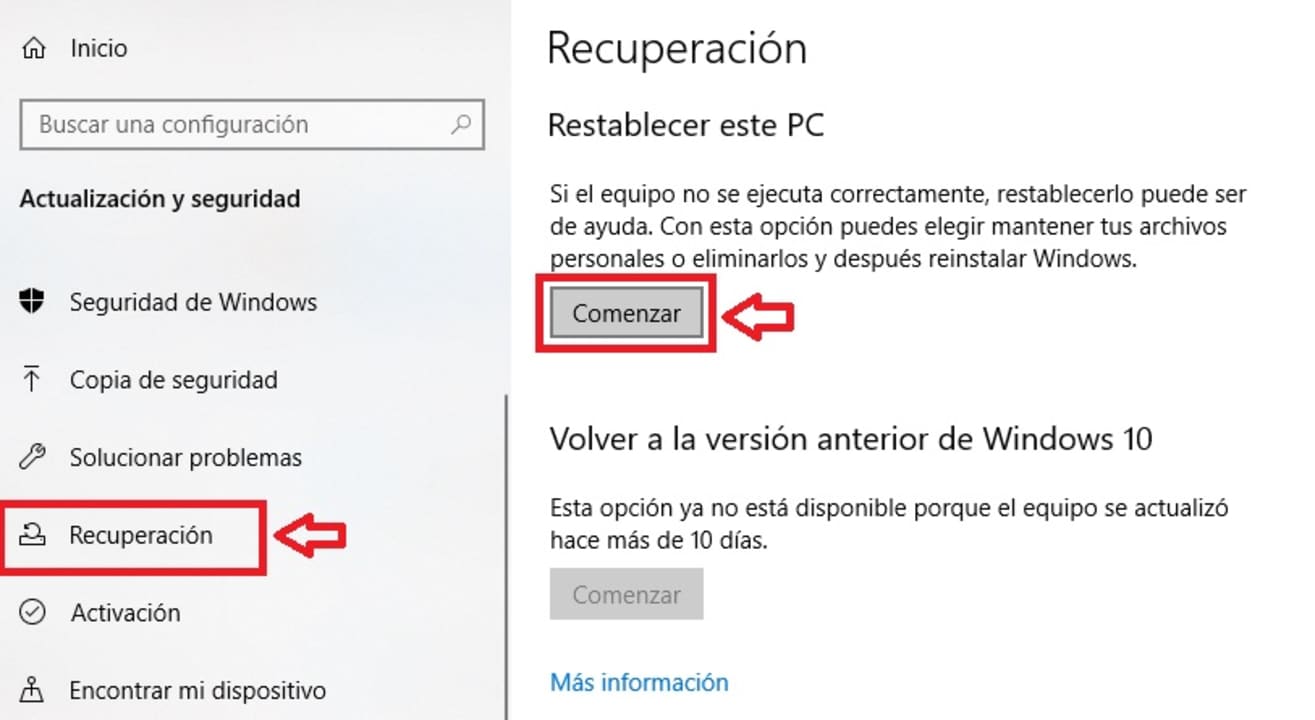
Then select the option “Recovery” from the left side menu of the screen and, within the section “reset this pc”, press the option “To start”.
Step 3. Do a clean install of Windows
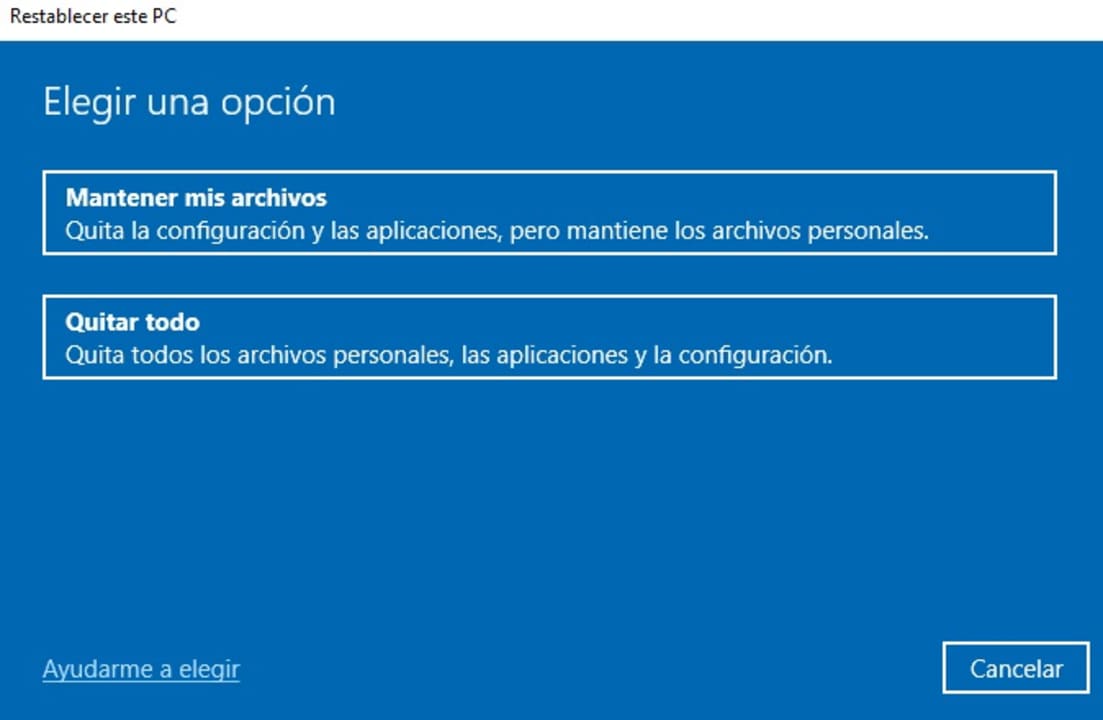
To finish, select “Remove all” to reinstall Windows from scratch. Please note that all your personal files, applications and settings will be completely removed. In this way, once the operating system is reinstalled, you can create a new user account with administrator permissions.
Mireia Fernández is passionate about the world of video games and new technologies, a hobby that dates back to her childhood with the MSX HB 501p. Born and residing in Barcelona, Mireia has been working as an editor for over 10 years and specializes in writing reviews, tutorials, and software guides, as well as doing everything possible to publish news before anyone else. Her hobbies include spending hours playing on her console, walking her golden retriever, and keeping up with the latest SEO developments.
Latest from Mireia Fernández
You may also like
 News
NewsDo you remember the noise the internet used to make?
Read more
 News
NewsZack Snyder explains why there is no Batman better than Ben Affleck
Read more
 News
NewsThe original directors of Scream 7 could have made a very different movie than the one we have had
Read more
 News
NewsAt Blizzard, they are happy not to use AI for any of their games
Read more
 News
NewsWe know the first details of Matrix 5
Read more
 News
NewsThe most popular mods for GTA 5? Those from all open-world games: those inspired by Squid Game
Read more