Editor's choice

4.2
13 reviews
Medal is a free social and video-sharing app designed for capturing and sharing gaming clips. You can instantly record your best gameplay moments, from…
Update: Sep 7, 2026 · 40 apps reviewed
Free video capture tools for Windows are built for recording exactly what happens on your screen, from software demos and tutorial walkthroughs to gameplay clips and webcam presentations. The best options balance smooth frame rates, flexible audio capture, and simple export settings without burying you in setup steps. Some tools focus on lightweight screen recording, while others add webcam overlays, hotkeys, annotation, or hardware acceleration for cleaner results. When choosing one, look for reliable performance on your version of Windows, clear output quality, and the recording controls you actually need. Explore top picks for Windows.
13 reviews
Medal is a free social and video-sharing app designed for capturing and sharing gaming clips. You can instantly record your best gameplay moments, from…
Choose Softonic on Google and you'll see more of our articles in Top Stories, AI Overviews and AI Mode.
Elgato 4K Capture Utility is a free utility software for Elgato's 4K-capable game capture cards. It offers a straightforward interface designed to record high-fidelity…
381 reviews
Open Broadcaster Software (OBS) is a free, open-source utility designed for screen recording, video capture, and live streaming. It is widely used by gamers,…
2403 reviews
Recording Capabilities
Performance Impact
Annotation & Editing
Debut Video Capture stands out for its broad source support, from screen and webcam to device and network inputs, plus the ability to record a custom region. The trade-off is a crowded interface with too many controls at once, and it does not offer direct live streaming to platforms.
4 reviews
Free2X Webcam Recorder is a free, lightweight software designed to record webcam and digital camera feeds efficiently. It enables users to capture both video…
1090 reviews
Performance Impact
Recording Capabilities
Annotation & Editing
ShowMore keeps screen recording focused on speed, with one-click capture, audio input options, and automatic upload paths that suit simple publishing workflows. I’d use it for occasional screen grabs and stream saves, but the limited editing tools and lack of extra plug-ins keep it below more advanced recorders.
95 reviews
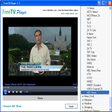
FreeTV Player is a good, free Windows program, being part of the category Video software with subcategory TV Tuners & Video Capture.
46 reviews
Virtual VCR is a great, free (gpl) program only available for Windows, belonging to the category Video software with subcategory TV Tuners & Video…